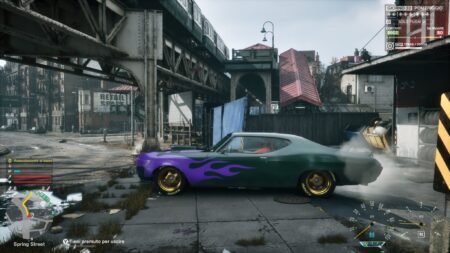


Struggling to get smooth gameplay in Samson? If you’re running the game on a lower-end PC with a Core i3 processor, 8GB of RAM and a GTX 1660 Ti graphics card, the right settings can help you get a more responsive gaming experience.
Table of Contents
Samson can be demanding on your system, especially when your processor and RAM are under pressure. That’s why we’ve put together a custom low settings file designed to prioritise performance over visual quality.
Samson Custom Low Settings
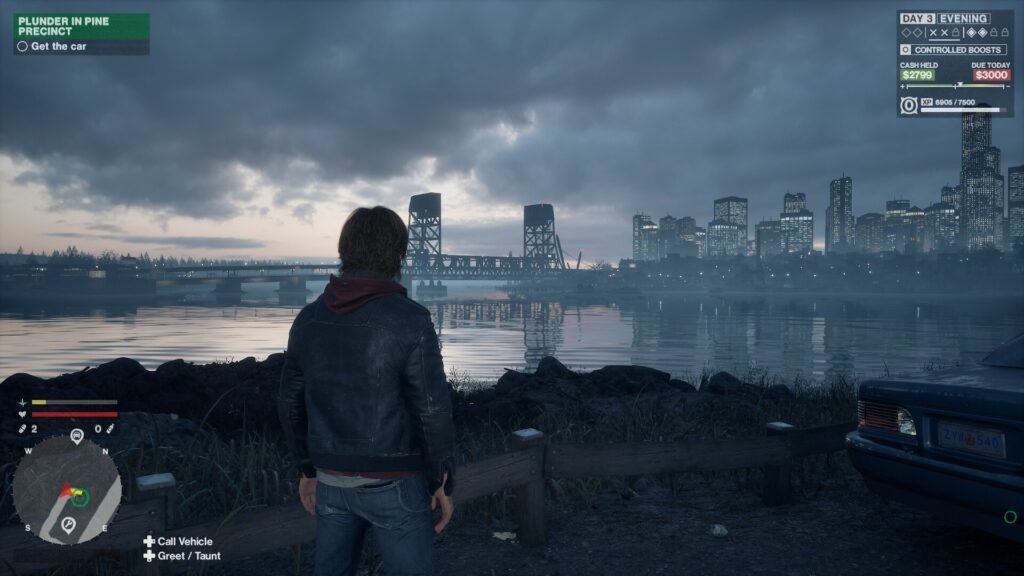
This custom configuration is designed for players who want to reduce the graphics workload and aim for more consistent performance without spending ages tweaking every setting manually.
The file is configured for 1920 × 1080 output, FSR Performance upscaling, low graphics settings and a 45 FPS cap. It also disables cloth and hair simulation and keeps frame generation switched off to prioritise input responsiveness.
Keep in mind that actual results will depend on your processor generation, storage drive, background applications and in-game workload.
You may like: Close Conflicting Background Softwares
Recommended Settings for Low-End PCs
Here are the main settings included in the custom configuration.
| Setting | Recommended value |
|---|---|
| Display resolution | 1920 × 1080 |
| FSR upscaling | Performance |
| Rendering scale | 50% |
| View distance | Low |
| Shadows | Low |
| Global illumination | Low |
| Reflections | Low |
| Effects and foliage | Low |
| Texture quality | Low |
| Animation quality | Low |
| Frame generation | Off |
| NVIDIA Reflex | On |
| FPS limit | 45 FPS |
These settings are aimed at reducing rendering demands and keeping the game manageable on a modest gaming PC. The 50% rendering scale can make the image noticeably softer, so you may prefer to increase it if performance allows.
You may like: List of Keyboard Virtual-Key Codes
How to Install the Samson Low Settings File
Installing the custom configuration is straightforward.
- Download the file: Click the download link from the download section to save
GameUserSettings_optimized.inito your PC. - Find the original configuration: Locate Samson’s existing
GameUserSettings.inifile in the game’s user settings folder as shown in video tutorial. - Create a backup: Copy your original file somewhere safe in case you need to restore your previous settings.
- Replace the configuration: Put the downloaded file in the same folder as the original and rename it to
GameUserSettings.iniif required. - Launch Samson: Start the game and test the settings during normal gameplay.
If the game resets your settings or ignores the file, check the file location and name. Some games also overwrite configuration values when launched or when graphics settings are changed in the menu.
You may like: All DirectX 12.2 Graphics Cards
Tips for Better Performance in Samson
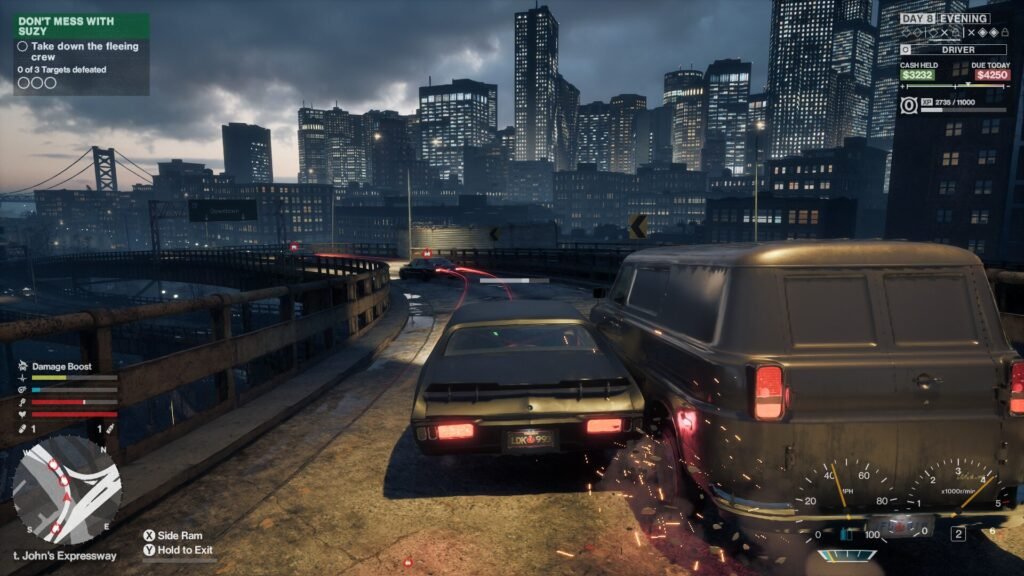
Changing the graphics settings is a useful starting point, but there are a few other things worth trying.
1. Close Unnecessary Background Apps
With 8GB of RAM, Windows and the game can compete for limited memory. Close browsers, launchers you aren’t using and other unnecessary applications before starting Samson.
2. Install the Game on an SSD
An SSD can help reduce loading delays and some storage-related stutters compared with a slower hard drive. It won’t solve every performance issue, particularly when the CPU or available RAM is the limiting factor.
3. Keep Your Graphics Drivers Updated
Use the official NVIDIA app or NVIDIA’s website to check for a suitable driver for your GTX 1660 Ti. A driver update may help with compatibility, although it won’t guarantee a higher frame rate.
4. Choose a Realistic FPS Cap
A 45 FPS cap is a starting point for this configuration, not a guaranteed performance target. If your PC can maintain 60 FPS consistently, try a 60 FPS cap instead. If the frame rate frequently drops below 45, you may need to reduce the resolution or rendering scale further.
You may like: Disable Third-Party Overlays on Windows PC
Will These Settings Remove Stuttering?
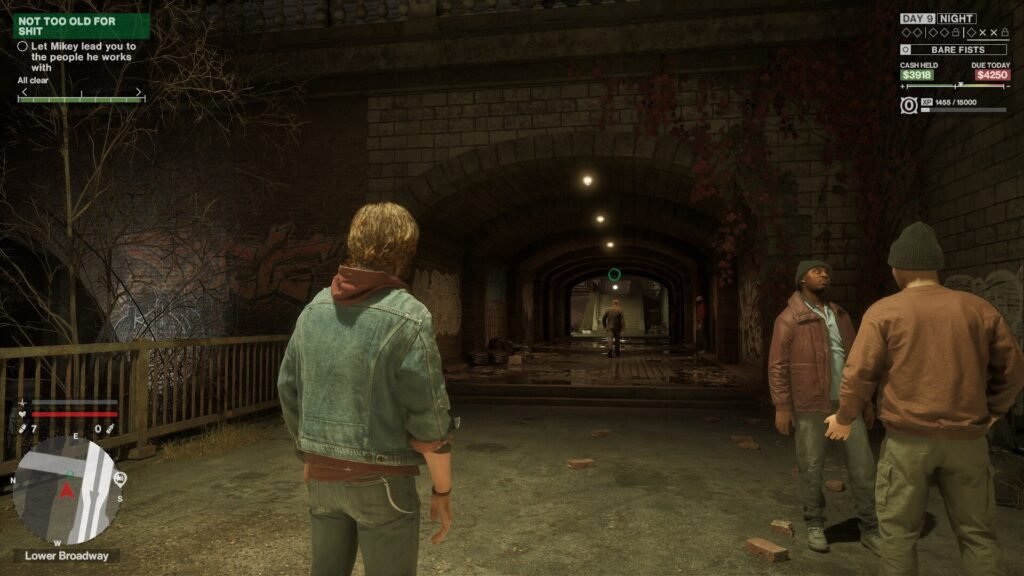
They may help, but they cannot guarantee completely stutter-free gameplay.
Your GTX 1660 Ti can still be useful for 1080p gaming, but the exact Core i3 model and the system’s memory capacity can make a big difference. Samson’s demanding scenes may remain choppy if the processor is struggling or Windows runs short of available memory.
Moving from 8GB to 16GB of RAM is worth considering, provided your motherboard and system support it. Before upgrading, check your memory usage while playing to see whether RAM pressure is contributing to the problem.
You may like: Monitor In-Game FPS using MSI Afterburner
Final Thoughts
If you’re looking for a quick way to try lower graphics settings in Samson, this custom INI file is a convenient starting point. It prioritises a lighter rendering load and responsive controls, with a 45 FPS limit to help keep performance in check.
Download the Samson custom low settings file, install it using the steps above and test the game on your own PC. Adjust the rendering scale and FPS cap to suit your hardware, as the best settings will vary from one system to another.
You may like: Samson All Missions Completed SaveGames
Download Section
These settings include files for both AMD and NVIDIA, so you can download your preferred settings here:
| Settings | Files |
|---|---|
| Medium – RTX 2060 or relevent | Download |
| Low – GTX 1660/RX 6500 XT or better | Download |
| Lowest – RX 590 or equivalent | Download |
For older NVIDIA graphics cards, you may need to enable and configure NVIDIA Image Scaling (NIS) in the NVIDIA Control Panel, then update the settings file with: UpsamplingMethod=NIS.
Settings Installation Video