


Close Menu
  • Home
  • News
  • Mods
  • Guides
  • Tech
What's New?
GTA 6 Preorder Prices Revealed (Standard & Ultimate) GTA VI Pricing for PS5/Xbox

GTA 6 Pre-Order Prices Revealed (USA) Playstation & Xbox

June 24, 2026
GTA 6 Preorder Prices Revealed (Standard & Ultimate) GTA VI Pricing for PS5/Xbox

GTA 6 Preorder Prices Revealed (Standard & Ultimate) 💸

June 24, 2026
Facebook X (Twitter) Instagram YouTube
Sunday, July 5
Game Decide
Facebook X (Twitter) Instagram YouTube
  • Home
  • News
  • Mods
  • Guides
  • Tech
  • Gaming
  • Computer
  • Software Guides
  • Graphic Tutorials
  • GTA V
  • GTA IV
  • Minecraft
  • Red Dead Redemption 1/2
Game Decide
Home»Tech Tutorials»Computer Guides»How to Close Conflicting Background Softwares

How to Close Conflicting Background Softwares

2 Mins Read
Share Facebook Twitter Pinterest LinkedIn Tumblr Email Copy Link
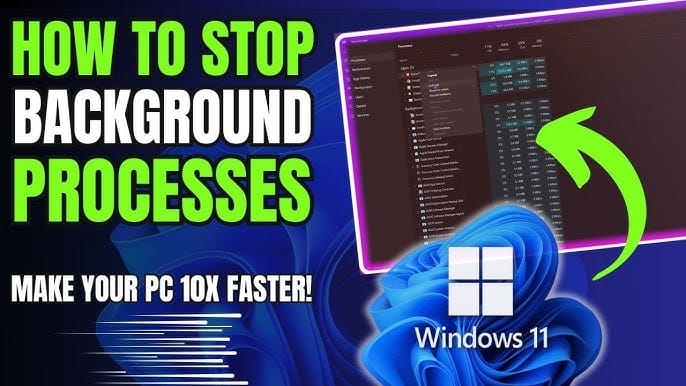
​Manage conflicting background software on Windows 11 by identifying, disabling, and troubleshooting apps to enhance system performance and resolve conflicts.​
Image by Drew Tutorial
Share
Reddit Telegram WhatsApp Email Copy Link

Disabling or closing conflicting background software on Windows 11/10 can help improve system performance, resolve software conflicts, or troubleshoot issues. let’s learn how to stop conflicting background apps to improve system performance and troubleshoot issues.

Discover how to use Task Manager, System Configuration, and Safe Mode to resolve conflicts. Additionally, learn how to uninstall problematic software and use third-party tools like CCleaner and Process Explorer. Ensure your system runs smoothly with these essential tips!
gta v Disable Conflicting Background Software
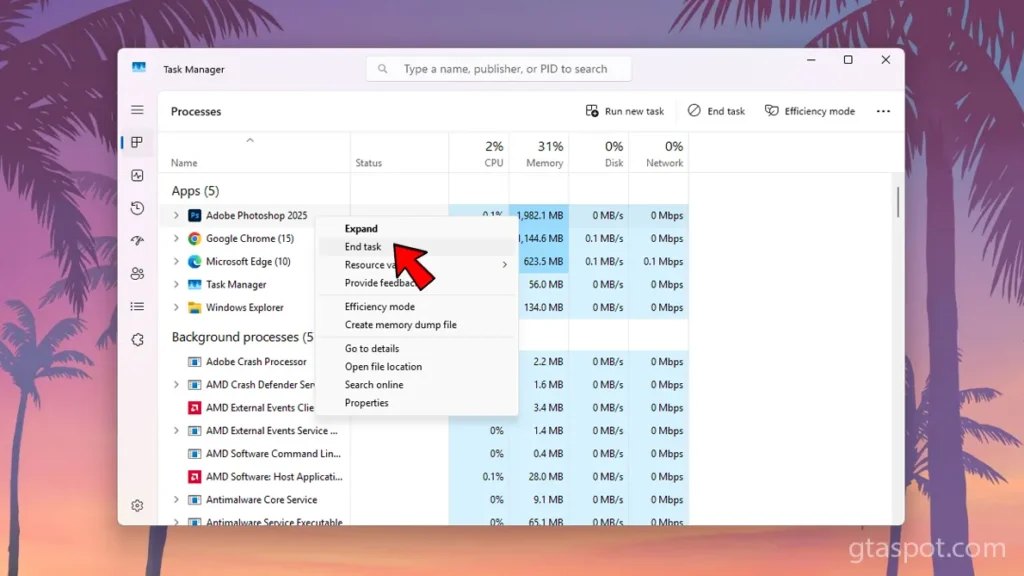
Image by GTASpot

How to Close Background Conflicting Apps on Windows

Follow step-by-step instructions to identify, disable, or remove unnecessary startup programs, background processes, and services on Windows PC:

  1. Open Task Manager:
    • Press Ctrl + Shift + Esc on your keyboard to open Task Manager. Alternatively, you can right-click on the Start menu (or press Windows + X) and select Task Manager from the list.
  2. Navigate to the Processes Tab:
    • In the Task Manager window, you’ll see several tabs at the top. Make sure you’re on the Processes tab, where you’ll find a list of running applications and background processes.
  3. Find the App to Close:
    • Scroll through the list of active processes to find the app you want to exit. The Apps section lists the foreground applications, while the Background Processes section shows apps running in the background.
  4. End the Task:
    • Once you’ve located the app in the list, right-click on it and select End task from the context menu. This will force the app to close completely.
  5. Close Background Apps via System Tray (Optional):
    • If the app is running in the background but still has an icon in the System Tray (the area near the clock), you can try right-clicking on the app’s icon and selecting Close or Exit to quit the app.
  6. Force Close if Needed:
    • If the app refuses to close or becomes unresponsive, repeat step 4 or use the End Task option for any related background processes in Task Manager. Be aware that this may result in unsaved data being lost in the app.

By following these steps, you should be able to disable or close conflicting software and improve the performance and stability of your Windows 11/10 system.

You may like: How to Update Computer’s Motherboard Drivers
Share. Twitter VKontakte Reddit Telegram WhatsApp Email Copy Link
Previous ArticleScuba Job – GTA 5 Mods
Next Article .txt to .ini Converter

Related Posts

How to Extract Compressed Files in Parts
March 29, 2026

How to Extract Compressed Files in Parts (Complete Guide)

How to Set Default Input Locales for Windows Language Packs
March 24, 2026

How to Set Default Input Locales for Windows Language Packs

Disable Battleye in Rockstar Games Launcher: BattleEye
March 8, 2026

Disable Battleye in Rockstar Games Launcher: BattleEye

Add A Comment
Leave A Reply Cancel Reply

Suggested Posts
A Guide on how to Check System Requirements with Full detailed Guide!

How to Check System Requirements – Full Guide!

April 4, 2023
GameDecide.com offers package of all mission files for Grand Theft Auto IV, List of GTA 4 missions from main storyline 88 missions, endings completed 100%.

Download All GTA 4 Missions Complete Files (Every Mission)

March 17, 2024
Learn how to change the default F8 key for opening Menyoo in GTA 5 to modify the MenyooConfig.xml file and set a custom key for laptop and small keyboard users.

How to Change GTA 5 Menyoo Default F8 Key Button

March 29, 2025
X (Twitter) Instagram Facebook YouTube

Topics

  • Game Mods
  • Gaming Guides
  • Tech Tutorials
  • PC Apps

Company

  • About Us
  • Disclaimer
  • Mods Policy
  • Contact Info

Services

  • Creators
  • Game Support
  • Newsletters
  • FAQ's

Subscribe to Updates

Get the best weekly posts straight to your inbox!

© 2026 Game Decide
  • Privacy Policy
  • Terms
  • DMCA
  • Accessibility

Type above and press Enter to search. Press Esc to cancel.