

Ever wondered what every button on your keyboard is called or what key name you need to use in a game configuration file? You’re in the right place!
Table of Contents
Whether you’re setting up gaming controls, editing an INI file, configuring keyboard shortcuts, or simply learning about your PC keyboard, knowing the correct keyboard key names and codes can save you a lot of time.
What Is Keyboard Key Mapping?
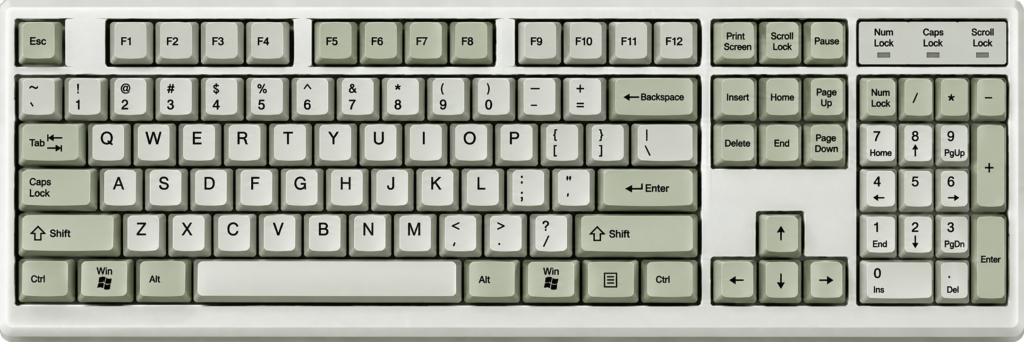
Keyboard key mapping is the process of assigning a specific function or command to a keyboard button. For example, you might want to use the Left Shift key to activate a custom mod feature in a game. You can change the key mapping in a supported configuration file.
Example:
[Keyboard]
Key=LSHIFT
In this example, LSHIFT represents the Left Shift key.
Important: Key names and codes can vary depending on the game, application, mod, or keyboard-input system. The names in the tables below are common examples, not universal codes.
Complete Keyboard Key Mapping Table
A standard full-size PC keyboard generally has 104 or 105 keys, depending on its layout. Some models include extra buttons and can have around 108 keys or more.
Below is a handy reference table for common keyboard keys and their possible configuration names.
1. Alphabet Keys (A–Z)
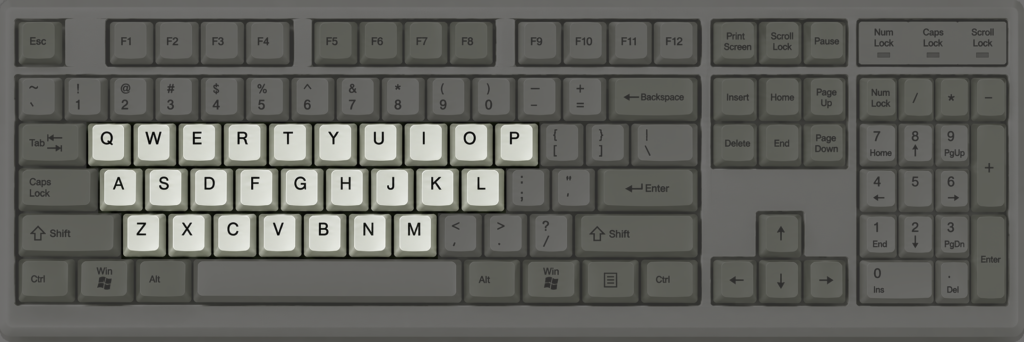
These are the main letter keys you’ll find on almost every standard keyboard.
| Keyboard Button | Key Name | Function |
|---|---|---|
| A | A | Types A |
| B | B | Types B |
| C | C | Types C |
| D | D | Types D |
| E | E | Types E |
| F | F | Types F |
| G | G | Types G |
| H | H | Types H |
| I | I | Types I |
| J | J | Types J |
| K | K | Types K |
| L | L | Types L |
| M | M | Types M |
| N | N | Types N |
| O | O | Types O |
| P | P | Types P |
| Q | Q | Types Q |
| R | R | Types R |
| S | S | Types S |
| T | T | Types T |
| U | U | Types U |
| V | V | Types V |
| W | W | Types W |
| X | X | Types X |
| Y | Y | Types Y |
| Z | Z | Types Z |
2. Number Row and Symbol Keys
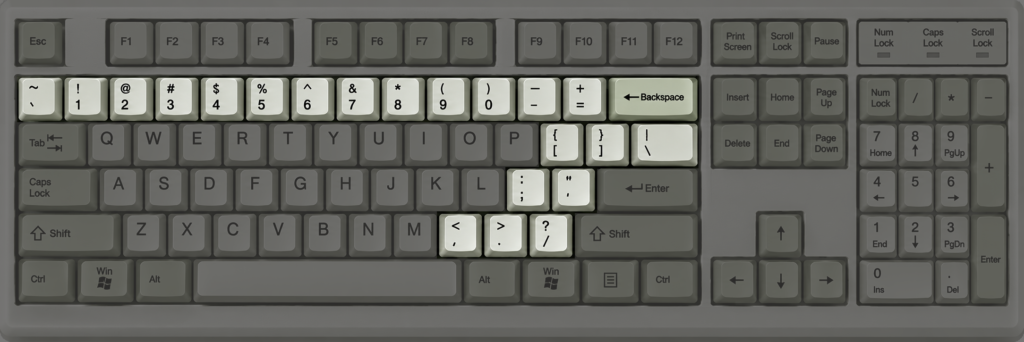
These keys are located above the letter keys. Depending on whether you hold Shift, some of them can type different symbols.
| Keyboard Button | Key Name | Function |
|---|---|---|
| 0 | 0 | Types number 0 |
| 1 | 1 | Types number 1 |
| 2 | 2 | Types number 2 |
| 3 | 3 | Types number 3 |
| 4 | 4 | Types number 4 |
| 5 | 5 | Types number 5 |
| 6 | 6 | Types number 6 |
| 7 | 7 | Types number 7 |
| 8 | 8 | Types number 8 |
| 9 | 9 | Types number 9 |
| – | MINUS | Hyphen or underscore |
| = | EQUALS | Equals or plus |
| [ | LBRACKET | Opening square bracket |
| ] | RBRACKET | Closing square bracket |
| ← | BACKSLASH | Backslash or pipe |
| ; | SEMICOLON | Semicolon or colon |
| ‘ | APOSTROPHE | Apostrophe or quotation mark |
| , | COMMA | Comma or less-than symbol |
| . | PERIOD | Period or greater-than symbol |
| / | SLASH | Slash or question mark |
| \ | BACKSLASH | Backslash or (vertical bar / pipe) |
| ` | GRAVE | Backtick or tilde |
3. Function Keys (F1–F12)
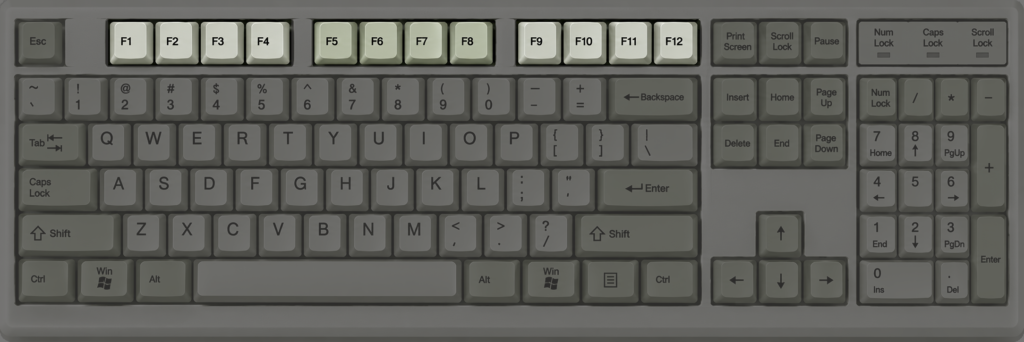
Function keys are located at the top of your keyboard. They’re commonly used for shortcuts, system commands, gaming controls, and application features.
| Keyboard Button | Key Name | Common Function |
|---|---|---|
| F1 | F1 | Help |
| F2 | F2 | Rename selected item |
| F3 | F3 | Search |
| F4 | F4 | Often used with Alt to close a window |
| F5 | F5 | Refresh |
| F6 | F6 | Move between interface areas |
| F7 | F7 | Application-specific shortcut |
| F8 | F8 | Application or startup shortcut |
| F9 | F9 | Application-specific shortcut |
| F10 | F10 | Activate menu bar |
| F11 | F11 | Full-screen mode in many browsers |
| F12 | F12 | Developer tools or Save As, depending on application |
4. Modifier and Control Keys
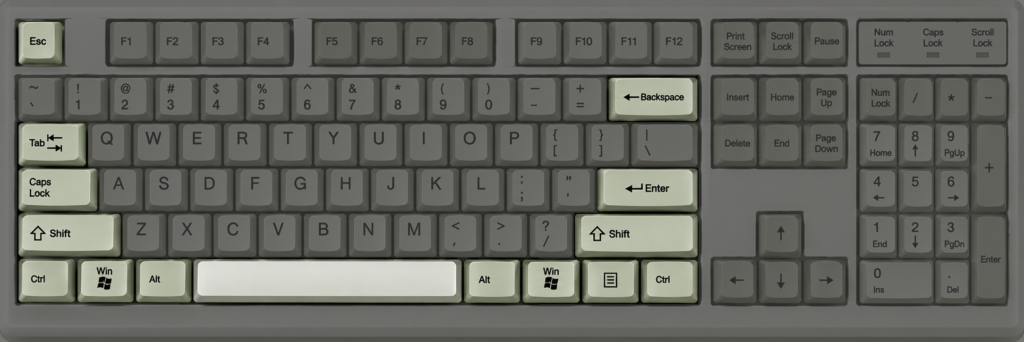
Modifier keys work alongside other buttons to perform shortcuts and special commands. They’re especially useful for gaming key mapping.
| Keyboard Button | Key Name | Common Function |
|---|---|---|
| Esc | ESC | Cancel or exit |
| Tab | TAB | Switch fields or insert indentation |
| Caps Lock | CAPSLOCK | Toggle uppercase typing |
| Left Shift | LSHIFT | Modify the left-side Shift key |
| Right Shift | RSHIFT | Modify the right-side Shift key |
| Left Ctrl | LCTRL | Control shortcuts |
| Right Ctrl | RCTRL | Control shortcuts |
| Left Alt | LALT | Alternative shortcuts |
| Right Alt | RALT | Alternative or language input |
| Space | SPACE | Insert a space |
| Enter | ENTER | Confirm or create a new line |
| Backspace | BACKSPACE | Delete the previous character |
| Left Windows | LWIN | Open Windows shortcuts and Start |
| Right Windows | RWIN | Windows shortcuts |
| Menu | APPS | Open the context menu |
5. Navigation and Special Keys
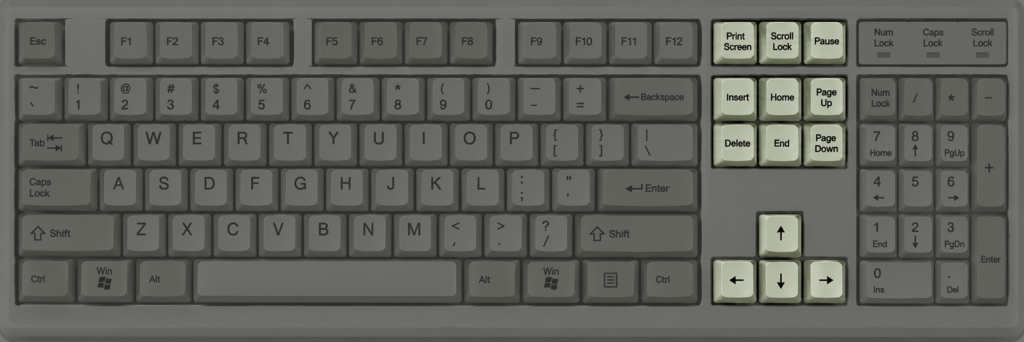
Navigation keys help you move around documents, websites, menus, and other applications.
| Keyboard Button | Possible Key Name | Common Function |
|---|---|---|
| Insert | INSERT | Toggle insert/overwrite mode in supported apps |
| Delete | DELETE | Delete selected content |
| Home | HOME | Move to the beginning of a line |
| End | END | Move to the end of a line |
| Page Up | PAGEUP | Move up one page |
| Page Down | PAGEDOWN | Move down one page |
| Up Arrow | UP | Move up |
| Down Arrow | DOWN | Move down |
| Left Arrow | LEFT | Move left |
| Right Arrow | RIGHT | Move right |
| Print Screen | PRINTSCREEN | Capture the screen |
| Scroll Lock | SCROLLLOCK | Toggle Scroll Lock |
| Pause/Break | PAUSE | Pause or interrupt supported operations |
6. Numeric Keypad (Numpad)
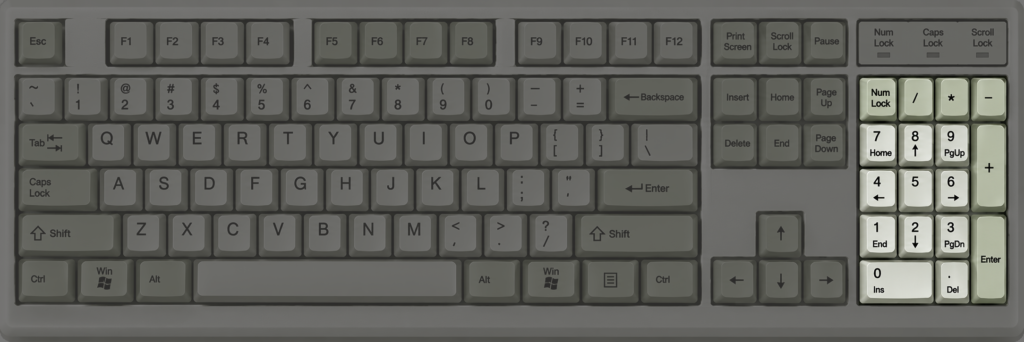
The numeric keypad is located on the right side of most full-size keyboards. It’s useful for entering numbers and performing calculations.
| Keyboard Button | Key Name | Common Function |
|---|---|---|
| Num Lock | NUMLOCK | Toggle numeric keypad mode |
| Numpad 0 | NUMPAD0 | Number 0 |
| Numpad 1 | NUMPAD1 | Number 1 |
| Numpad 2 | NUMPAD2 | Number 2 |
| Numpad 3 | NUMPAD3 | Number 3 |
| Numpad 4 | NUMPAD4 | Number 4 |
| Numpad 5 | NUMPAD5 | Number 5 |
| Numpad 6 | NUMPAD6 | Number 6 |
| Numpad 7 | NUMPAD7 | Number 7 |
| Numpad 8 | NUMPAD8 | Number 8 |
| Numpad 9 | NUMPAD9 | Number 9 |
| Numpad + | NUMPADPLUS | Addition |
| Numpad – | NUMPADMINUS | Subtraction |
| Numpad * | NUMPADMULTIPLY | Multiplication |
| Numpad / | NUMPADDIVIDE | Division |
| Numpad . | NUMPADDECIMAL | Decimal point |
| Numpad Enter | NUMPADENTER | Confirm or enter |
How to Change Your Keyboard Key Mapping in an INI File
Now that you know the common keyboard key names, let’s look at how to use them in a configuration file.
Imagine you’re playing a racing game with a boost feature, and the default boost button is X. You want to change it to Left Shift.
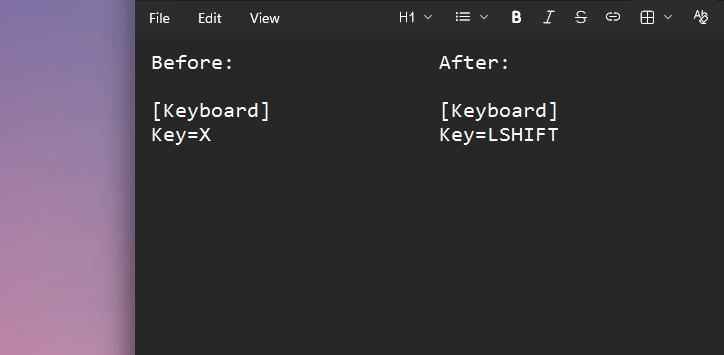
Your original configuration might look like this:
[Keyboard]
Key=X
To change boost to Left Shift, edit the first line:
[Keyboard]
Key=LSHIFT
Save the INI file and restart or reload the configuration if the mod requires it. You can also change boost button to other keys, depending on what your game or mod supports.
A few examples:
| Preferred Button | Example INI Setting |
|---|---|
| F | Key=F |
| Space | Key=SPACE |
| Left Shift | Key=LSHIFT |
| Right Shift | Key=RSHIFT |
| Left Ctrl | Key=LCTRL |
| Left Alt | Key=LALT |
| Numpad 5 | Key=NUMPAD5 |
| F12 | Key=F12 |
Keep in mind that these are example names. Always check your mod’s documentation or existing configuration to confirm the correct spelling.
Important Things to Know About Keyboard Key Codes
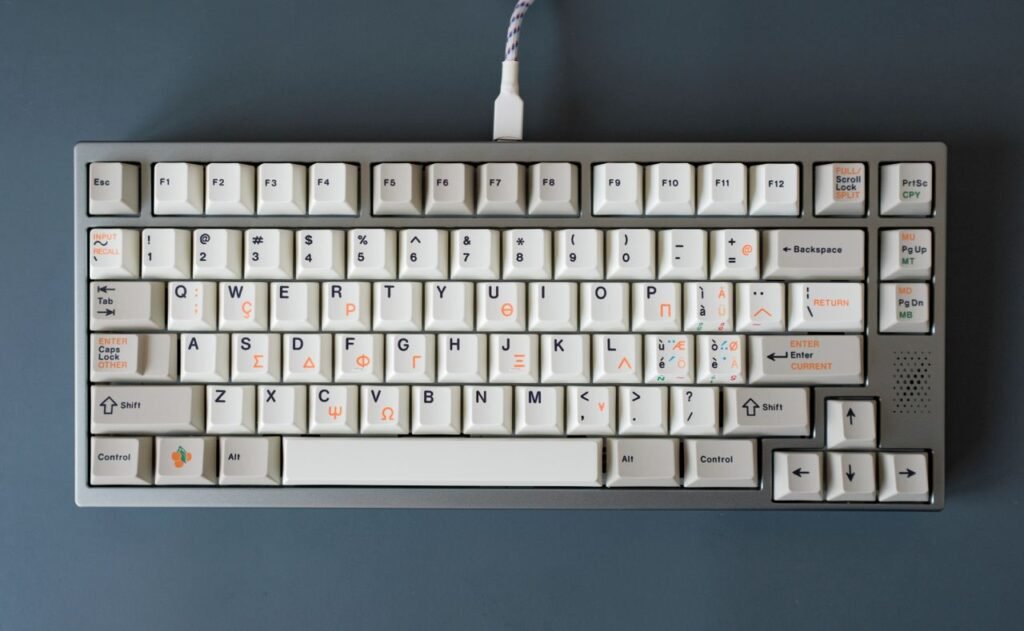
Before changing your keyboard mapping, keep these points in mind:
- Key names aren’t universal: Different games and programs may use different names for the same physical keyboard button.
- Left and right modifiers are different: LSHIFT and RSHIFT may be treated as separate keys.
- Numpad keys are separate: Numpad 5 and the number 5 above the letters may have different key codes.
- Keyboard layouts matter: US, UK, and other layouts can assign different symbols to the same physical key.
- Save a backup: Make a copy of your original INI file before editing it.
- Test your changes: If a key doesn’t work, check the supported key names for your particular application or mod.
Final Thoughts
Knowing your keyboard key names, codes, and functions makes customizing your PC a whole lot easier. Whether you’re changing gaming controls, editing INI configuration files, setting up shortcuts, or learning keyboard mapping, this reference table gives you a useful starting point.
📑 Bookmark this keyboard key mapping guide so you can quickly find the right key name whenever you need it!