

Close Menu
  • Home
  • News
  • Mods
  • Guides
  • Tech
What's New?
GTA 5 Mod Loader (OpenRPF.asi, OpenIV.asi) Enhanced/Legacy

GTA 5 Mod Loader (OpenRPF.asi, OpenIV.asi) Enhanced/Legacy

January 23, 2026
Download OpenIV.asi for GTA 5 Legacy: RPF Mods Archives Loader

OpenIV.asi for GTA 5 Legacy: RPF Mods Archives Loader

January 23, 2026
Facebook X (Twitter) Instagram YouTube
Saturday, January 24
Game Decide
Facebook X (Twitter) Instagram YouTube
  • Home
  • News
  • Mods
  • Guides
  • Tech
  • Gaming
  • Computer
  • Software Guides
  • Graphic Tutorials
  • GTA V
  • GTA IV
  • Minecraft
  • Red Dead Redemption
Game Decide
Home»Tech Tutorials»Software Guides»How to Verify the Integrity of Game Files on Steam

How to Verify the Integrity of Game Files on Steam

Updated:September 19, 20242 Mins Read
Share Facebook Twitter Pinterest LinkedIn Tumblr Email Copy Link
Download, install Steam Powered offline Installer Latest Application Version software program on Windows PC, macOS with client Installation.
Steam Powered
Share
Reddit Telegram WhatsApp Email Copy Link

Verifying the integrity of game files on Steam is a handy feature that ensures all your game files are properly installed and not corrupted.

Table of Contents

  • Why Verify Game Files?
  • How to Verify the Integrity of Games on Steam

If you’re encountering crashes, bugs, or strange behavior in your games, this simple process can often fix the issue without needing a full reinstallation.

Why Verify Game Files?

  • Fix Game Crashes: Sometimes a missing or corrupted file can cause a game to crash unexpectedly.
  • Improve Performance: Verifying files can restore corrupted assets that may cause performance issues.
  • Avoid Full Reinstallation: Instead of reinstalling an entire game, verifying files lets Steam replace only the problematic ones.
Steam: Verify Integrity of Game

How to Verify the Integrity of Games on Steam

Here’s a quick guide on how to do it:

  1. Open Steam: Launch the Steam client and go to your Library where all your installed games are listed.
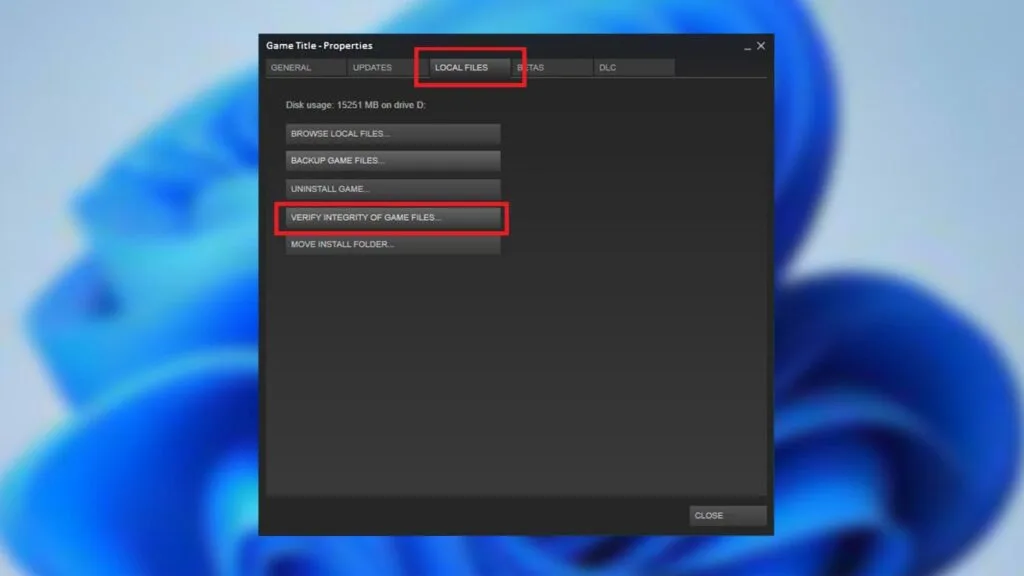
  2. Right-click on the Game: Find the game you want to verify, right-click its title, and select Properties from the drop-down menu.
  3. Go to Local Files: In the Properties window, click the Local Files tab on the left-hand side.
  4. Verify Integrity of Game Files: Click the button labeled Verify Integrity of Game Files. Steam will begin checking the game’s files to see if anything is missing or corrupted.
  5. Wait for the Process to Complete: The verification may take several minutes, depending on the size of the game. If any files are missing or corrupted, Steam will automatically re-download them.

This process is a quick, effective way to troubleshoot problems in your Steam games, keeping them running smoothly.
Share. Twitter VKontakte Reddit Telegram WhatsApp Email Copy Link
Previous ArticleTop 5 Free VPNs for Fast Online Games Connectivity
Next Article How to Disable Antivirus or Add an Exception

Related Posts

Monitor in-game FPS using MSI Afterburner with RivaTuner to enable FPS counter
December 13, 2025

How to Monitor In-Game FPS using MSI Afterburner

How to Disable Third-Party Overlays on Windows PC
October 9, 2025

How to Disable Third-Party Overlays on Windows PC

Complete DirectX 12.2 (DX12 Ultimate) graphics cards of budget, mid-range, and high-end GPUs from NVIDIA RTX series, AMD RX and Intel Arc with ray tracing.
April 27, 2025

List of All DirectX 12.2 Graphics Cards: DX Ultimate GPUs

Add A Comment
Leave A Reply Cancel Reply

Suggested Posts
A guide on computer and laptops specs.

How to Protect Your Devices from Malware?

April 18, 2023
Convert TXT to INI files online with .txt to .ini converter. No downloads required to change TXT to CFG, BAT, REG, CMD, INP, and more on Windows and all devices.

.txt to .ini Converter

March 10, 2025
Cyberpunk 2077: Phantom Liberty - Release date, gameplay trailer, new changes, DLC updates, system requirements, and everything we know. | GameDecide News

Cyberpunk 2077: Phantom Liberty Release Date & Updates Info

September 9, 2023
X (Twitter) Instagram Facebook YouTube

Topics

  • Game Mods
  • Gaming Guides
  • Tech Tutorials
  • PC Apps

Company

  • About Us
  • Disclaimer
  • Mods Policy
  • Contact Info

Services

  • Creators
  • Game Support
  • Newsletters
  • FAQ's

Subscribe to Updates

Get the best weekly posts straight to your inbox!

© 2026 Game Decide
  • Privacy Policy
  • Terms
  • DMCA
  • Accessibility

Type above and press Enter to search. Press Esc to cancel.