


Close Menu
  • Home
  • News
  • Mods
  • Guides
  • Tech
What's New?
How to Fix err_str_missing corrupt game data error in Grand Theft Auto V Enhanced on PC, and learn missing or corrupted files with simple steps.

Fix GTA 5 Enhanced err_str_missing Corrupt Game Data Error

February 1, 2026
Minecraft Best OptiFine settings for low-end PCs to boost FPS

Minecraft OptiFine HD Custom Settings (Low & High)

February 3, 2026
Facebook X (Twitter) Instagram YouTube
Saturday, February 7
Game Decide
Facebook X (Twitter) Instagram YouTube
  • Home
  • News
  • Mods
  • Guides
  • Tech
  • Gaming
  • Computer
  • Software Guides
  • Graphic Tutorials
  • GTA V
  • GTA IV
  • Minecraft
  • Red Dead Redemption
Game Decide
Home»News»How to Disable Antivirus or Add an Exception

How to Disable Antivirus or Add an Exception

2 Mins Read
Share Facebook Twitter Pinterest LinkedIn Tumblr Email Copy Link
Learn how to disable your antivirus or add exceptions to avoid false positives and interruptions with easy steps to maintain your computer’s security.
Share
Reddit Telegram WhatsApp Email Copy Link

Antivirus software is essential for protecting your computer from threats, but sometimes it can interfere with legitimate programs like games, software installations, or file downloads.

Table of Contents

  • How to Disable Antivirus
  • How to Add an Exception in Defenders
  • Why Add an Exception?

In such cases, you can either temporarily disable your antivirus or add an exception for trusted programs so, here’s a quick guide on how to do both.

Learn how to disable your antivirus or add exceptions to avoid false positives and interruptions with easy steps to maintain your computer’s security.

How to Disable Antivirus

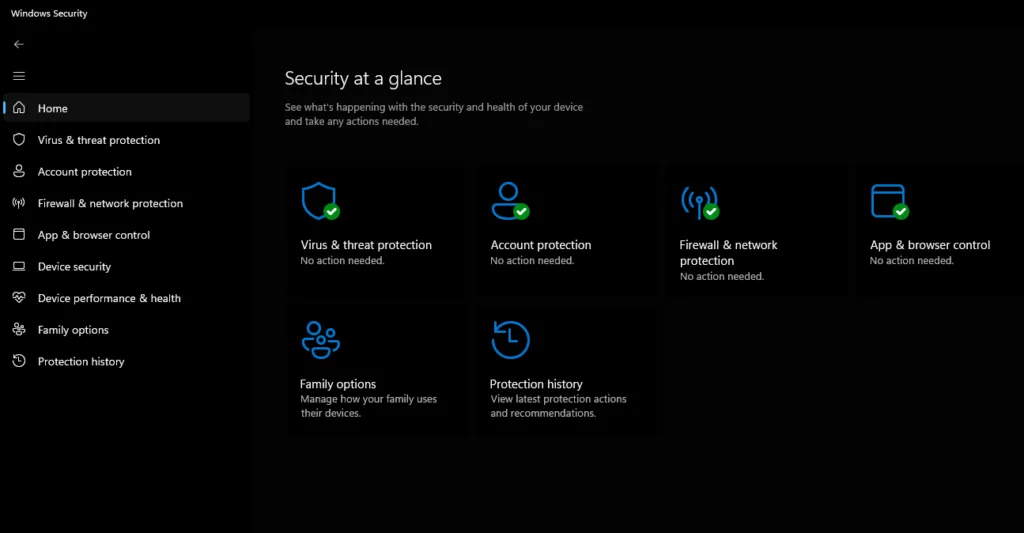
Though the exact steps depend on the antivirus software you’re using, the process is generally similar across most programs. Here’s how to disable it:

  1. Open Your Antivirus Program: Access the software by clicking its icon in the system tray (bottom-right corner of the screen) or searching for it in the Start menu.
  2. Find the Disable Option: Look for a “Disable” or “Turn Off” option in the main dashboard or settings menu. Some programs allow you to turn it off for a set period (e.g., 10 minutes, 1 hour, until restart, etc.).
  3. Confirm the Action: After choosing the desired time period, confirm that you want to disable the antivirus. It should now be inactive for the specified time.
  4. Re-enable When Done: After you’ve completed your task, re-enable the antivirus to ensure your computer stays protected.
Learn how to disable your antivirus or add exceptions to avoid false positives and interruptions with easy steps to maintain your computer’s security.

How to Add an Exception in Defenders

To avoid disabling your antivirus entirely, you can add an exception for specific programs or files that you know are safe. Here’s how to do it:

  1. Open Your Antivirus Program: Go to the antivirus software as described above.
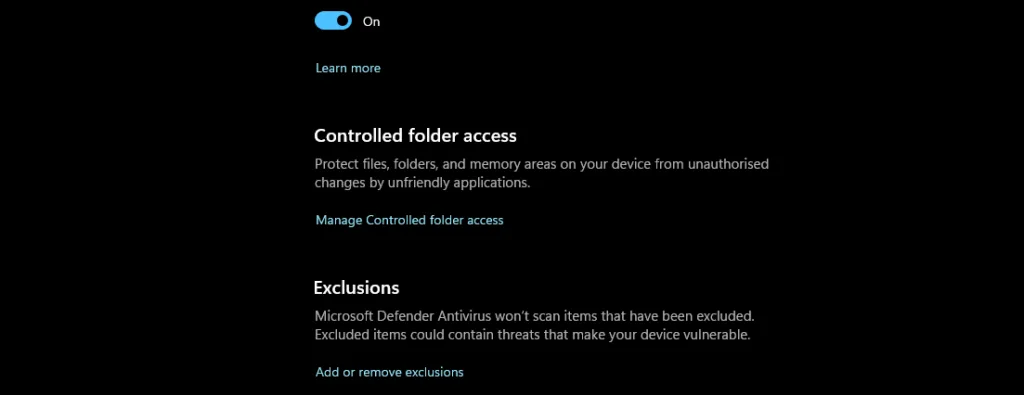
  2. Navigate to Exceptions or Exclusions: Find the section labeled “Exclusions” or “Exceptions” in the settings menu.
  3. Add the Program or File: Browse your computer to find the file, folder, or program you want to exclude from scans. Select it, and it will be added to the list of trusted items.
  4. Save Your Changes: Confirm and save the new exception. The antivirus will now ignore this item during future scans.

Why Add an Exception?

  • Prevent False Positives: Sometimes antivirus software flags legitimate programs as threats, known as false positives. Adding an exception prevents unnecessary disruptions.
  • Improve Performance: Constant scanning of specific files can slow down your system. Excluding trusted files can improve performance.

By following these steps, you can balance security and functionality, ensuring your antivirus doesn’t block legitimate programs or files.


Share. Twitter VKontakte Reddit Telegram WhatsApp Email Copy Link
Previous ArticleHow to Verify the Integrity of Game Files on Steam
Next Article How to Reinstall GTA 5 on PC, Xbox, and PlayStation

Related Posts

3 New Odd Jobs (Make an Honest Living) GTA Online Update
February 2, 2026

3 New Odd Jobs (Make an Honest Living) GTA Online Update

Script Hook V New Update: What’s New for GTA 5 February 2026
January 29, 2026

Script Hook V New Update: What’s New for GTA 5 February 2026

GTA 5 Update: Everything So Far (January 2026)
January 18, 2026

GTA 5 Update: Everything So Far (January 2026)

Add A Comment
Leave A Reply Cancel Reply

Suggested Posts
What is the best Y-Level For Netherite In Minecraft (2023) and how to netherite armor in java edition and bedrock edition.

Best Y-Level For Netherite In Minecraft

April 9, 2023
Beyond Belief Shaders Latest for Minecraft Java Edition

Beyond Belief Shaders – Minecraft Java Mods

July 23, 2022
GameDecide: GTA 6 News

New Features for GTA 6 Compared to GTA 5 – Predictions on Potential

April 17, 2023
X (Twitter) Instagram Facebook YouTube

Topics

  • Game Mods
  • Gaming Guides
  • Tech Tutorials
  • PC Apps

Company

  • About Us
  • Disclaimer
  • Mods Policy
  • Contact Info

Services

  • Creators
  • Game Support
  • Newsletters
  • FAQ's

Subscribe to Updates

Get the best weekly posts straight to your inbox!

© 2026 Game Decide
  • Privacy Policy
  • Terms
  • DMCA
  • Accessibility

Type above and press Enter to search. Press Esc to cancel.