
Close Menu
  • Home
  • News
  • Mods
  • Guides
  • Tech
What's New?
Download GTA: Carcer City - GTA San Andreas Mods

Download GTA: Carcer City – GTA San Andreas Mods

April 19, 2026
Script Hook V .NET Enhanced for GTA 5 Enhanced Edition

Script Hook V .NET Enhanced for GTA 5 Enhanced Edition

September 30, 2025
Facebook X (Twitter) Instagram YouTube
Wednesday, April 22
Game Decide
Facebook X (Twitter) Instagram YouTube
  • Home
  • News
  • Mods
  • Guides
  • Tech
  • Gaming
  • Computer
  • Software Guides
  • Graphic Tutorials
  • GTA V
  • GTA IV
  • Minecraft
  • Red Dead Redemption 1/2
Game Decide
Home»Guides»GTA 5 Tutorials»How to Change GTA 5 Menyoo Default F8 Key Button

How to Change GTA 5 Menyoo Default F8 Key Button

Updated:March 23, 20262 Mins Read
Share Facebook Twitter Pinterest LinkedIn Tumblr Email Copy Link
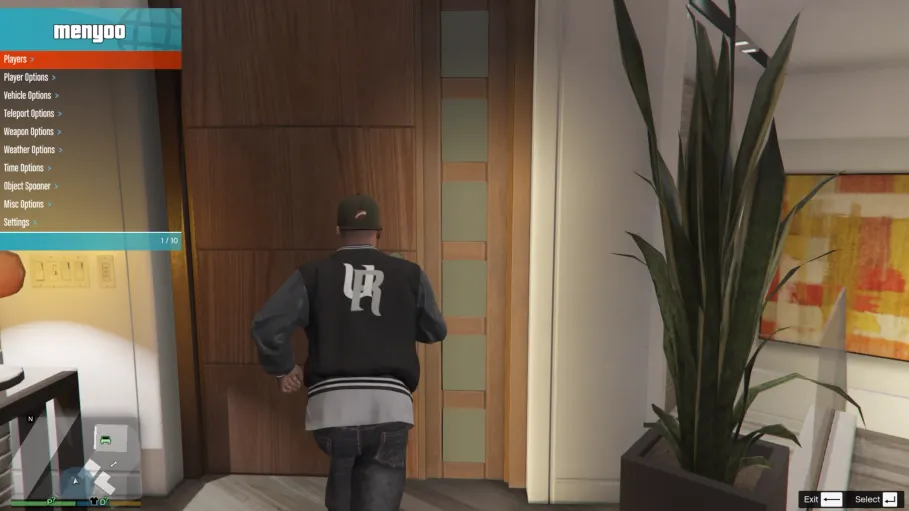
Learn how to change the default F8 key for opening Menyoo in GTA 5 to modify the MenyooConfig.xml file and set a custom key for laptop and small keyboard users.
Image by GTA Wood
Share
Reddit Telegram WhatsApp Email Copy Link

For laptop users and those with compact keyboards, accessing Menyoo in GTA 5 can be inconvenient due to the default F8 keybinding. This guide provides a customised MenyooConfig.xml file that remaps the Menyoo activation key to a more accessible option.

Table of Contents

  • Key Features
  • How to Change GTA V Menyoo F8 Button
  • Conclusion

Key Features

  • Custom Menyoo keybinding for improved accessibility
  • Designed for laptop and small keyboard users
  • Simple installation with no additional mods required
  • Fully compatible with GTA 5 (Legacy & Enhanced Edition)

You may like: Scuba Job – GTA 5 Mods


Learn how to change the default F8 key for opening Menyoo in GTA 5 to modify the MenyooConfig.xml file and set a custom key for laptop and small keyboard users.
Image by GTA Wood

How to Change GTA V Menyoo F8 Button

Here are steps to seamlessly modify your Menyoo keybind or open button on keyboard without additional software or modifications for laptop and small keyboard users:

  1. Download the custom MenyooConfig.xml file
    • Obtain the modified configuration file from download section.
  2. Locate your GTA 5 installation folder
    • Open File Explorer and navigate to your GTA 5 directory.
    • The default path is: Grand Theft Auto V > menyooStuff
  3. Backup your existing configuration file (optional)
    • Locate MenyooConfig.xml within the menyooStuff folder.
    • Copy and save it in a separate location in case you wish to restore it later.
  4. Replace the file
    • Move the downloaded MenyooConfig.xml into the menyooStuff folder.
    • When prompted, select Replace the file in the destination.
  5. Launch GTA 5 and test the new keybinding
    • Start the game and press the newly assigned u key to open Menyoo.
    • If the key does not work, ensure the file has been correctly placed and that no other conflicting settings are active.

By following the straightforward installation steps above, you can replace the default F8 key with a more convenient alternative.

For a visual guide, consider watching the following tutorial:​

How to Open GTA 5 with Menyoo on Laptop and Small Keyboard

You may like: How to Add New Driver Missions in GTA 5


Conclusion

This custom Menyoo configuration makes it easier for laptop users and those with compact keyboards to access the menu in Grand Theft Auto V Legacy and GTA V Enhanced edition.


Download Custom File – Latest
Menyoo

If the above button is not working, download v2.1.3 here.
Share. Twitter VKontakte Reddit Telegram WhatsApp Email Copy Link
Previous ArticleHow to locate GTA 5 Enhanced Directory Folder
Next Article GTA V Simple Trainer Custom Buttons: Laptop & Small Keyboard

Related Posts

Download GTA: Carcer City - GTA San Andreas Mods
April 19, 2026

Download GTA: Carcer City – GTA San Andreas Mods

Red Dead Redemption II (RDR 2) System Requirements
March 24, 2026

Red Dead Redemption II (RDR 2) System Requirements

Red Dead Redemption (RDR 1) System Requirements for PC
March 24, 2026

Red Dead Redemption (RDR 1) System Requirements for PC

Add A Comment
Leave A Reply Cancel Reply

Suggested Posts
More GTA V XML settings to ignore minimum GPU requirements, disable unwanted effects, optimize performance, and learn how to add custom tags settings.xml on PC.

Custom Graphics Tag Settings in GTA V | Advanced XML Tweaks

April 9, 2025
How to calibrate monitor display to adjust settings of color, brightness, contrast, image, and video quality for best graphics in Windows 7/8.10/11.

How to Calibrate Monitor Display on Windows – The Basics

January 8, 2024
How to Solve Minecraft Crashes on Launch?

How to Solve Minecraft Crashes on Launch?

April 3, 2023
X (Twitter) Instagram Facebook YouTube

Topics

  • Game Mods
  • Gaming Guides
  • Tech Tutorials
  • PC Apps

Company

  • About Us
  • Disclaimer
  • Mods Policy
  • Contact Info

Services

  • Creators
  • Game Support
  • Newsletters
  • FAQ's

Subscribe to Updates

Get the best weekly posts straight to your inbox!

© 2026 Game Decide
  • Privacy Policy
  • Terms
  • DMCA
  • Accessibility

Type above and press Enter to search. Press Esc to cancel.