
Released in 2004 by Rockstar Games, Grand Theft Auto: San Andreas remains one of the most iconic open-world games ever made. However, running the original version of GTA SA on modern computers and laptops can be frustrating due to compatibility issues, outdated settings, and various bugs.
Table of Contents
Fortunately, with the right fixes, you can enjoy GTA San Andreas with smooth and stable experience even on today’s hardware with Windows 11/10. You can also check out GTA 3 Widescreen error for modern PC’s.
How to Fix GTA SA Original All Issues
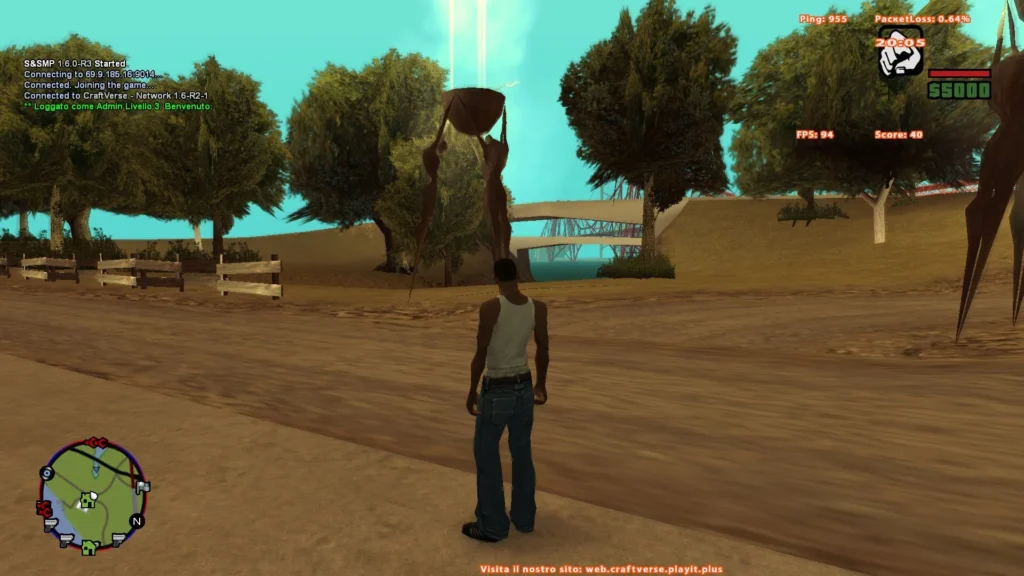
This guide explains how to resolve the most common Grand Theft Auto SanAndreas problems, including screen resolution issues, stretched radar, mouse glitches, keyboard bugs, and other technical limitations.
Here are some major and easy-to-follow steps on how to solve all Grand Theft Auto: San Andreas errors and bugs when playing the game on modern computers and laptops running Windows 11/10, with easy solutions:
1. Fixing Screen Resolution and Widescreen Issues
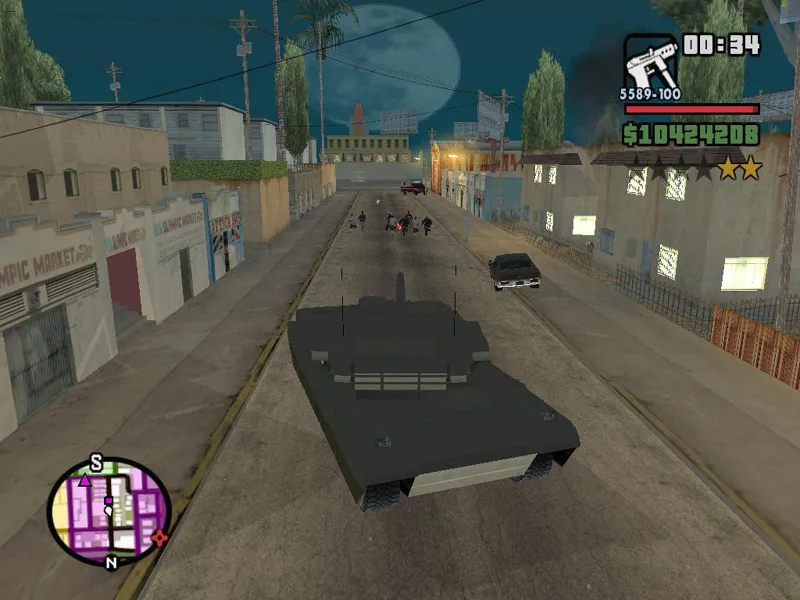
One of the most noticeable problems is the lack of proper widescreen support. The game was designed for older displays, so it often runs in low resolution or appears stretched on modern monitors.
To fix this:
- Install fix mod designed for the game.
- This enables modern resolutions such as 1920×1080 or higher.
- It also corrects the aspect ratio, preventing distortion.
As a result, the game will look sharper and more natural on contemporary screens.
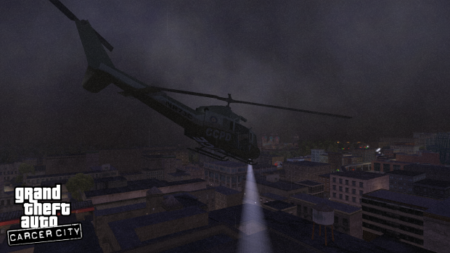
You may like: GTA: Carcer City Map for San Andreas
2. Correcting the Stretched Map Radar
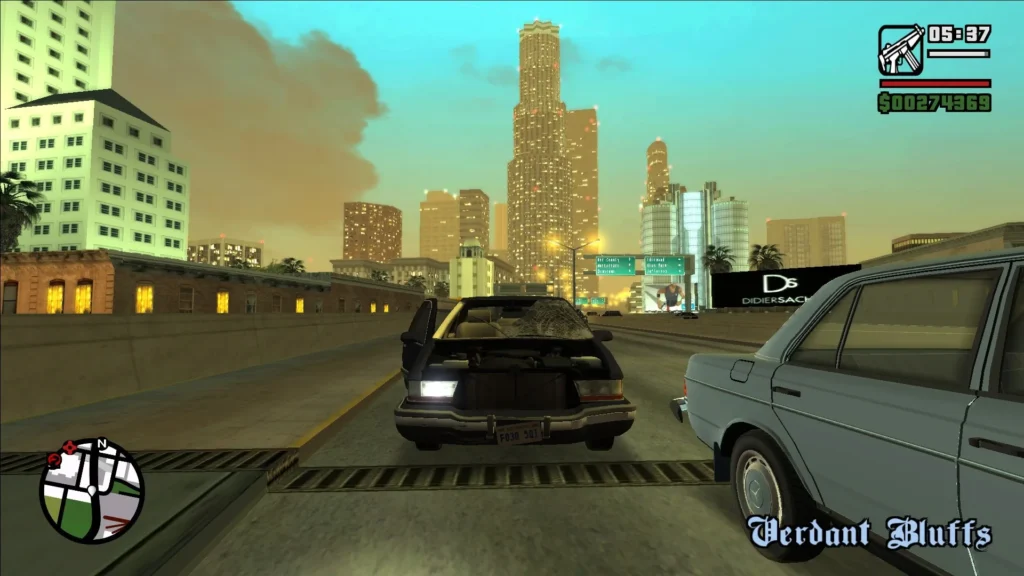
Another common issue is the stretched or misaligned radar on the HUD. This happens because the interface was not built for widescreen formats.
The mod we shared will fix proper widescreen or HUD issues:
- Restore the radar’s circular shape
- Align it correctly with the screen edges
- Improve overall UI scaling
This makes navigation much clearer and visually consistent.
You may like: Grand Theft Auto: San Andreas Cheats
3. Fixing the Mouse Not Working Bug
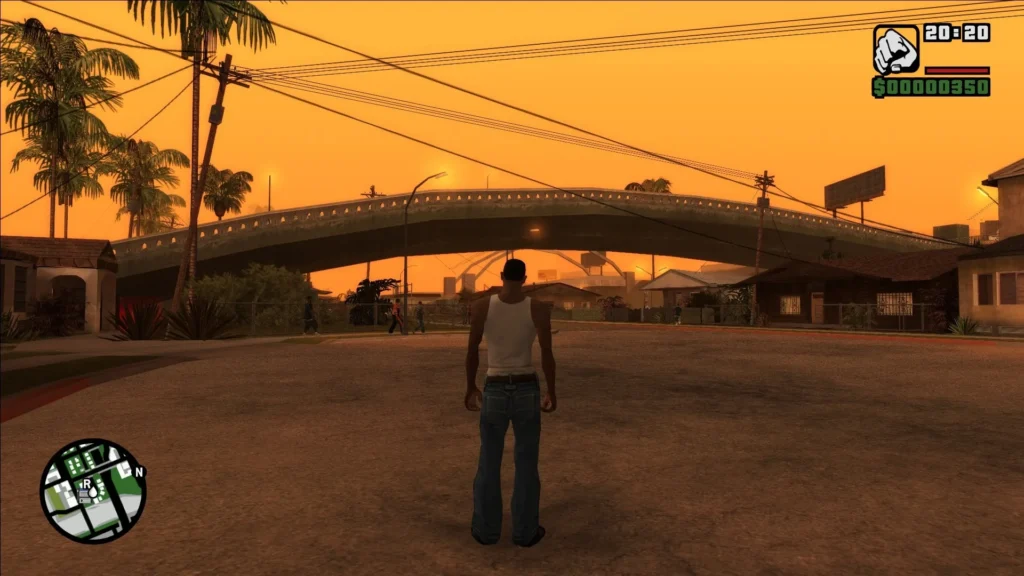
Many players encounter a frustrating bug where the mouse either doesn’t respond or behaves unpredictably, especially in menus or when aiming.
To resolve this:
- Use the mod, it will make compatible with modern systems
- Run the game in compatibility mode (e.g. Windows XP or Windows 7)
- Disable certain overlays or background applications that may interfere
Once fixed, camera movement and aiming will feel smooth and responsive.
You may like: GTA San Andreas – Top 10 Quotes
4. Resolving Keyboard Problems
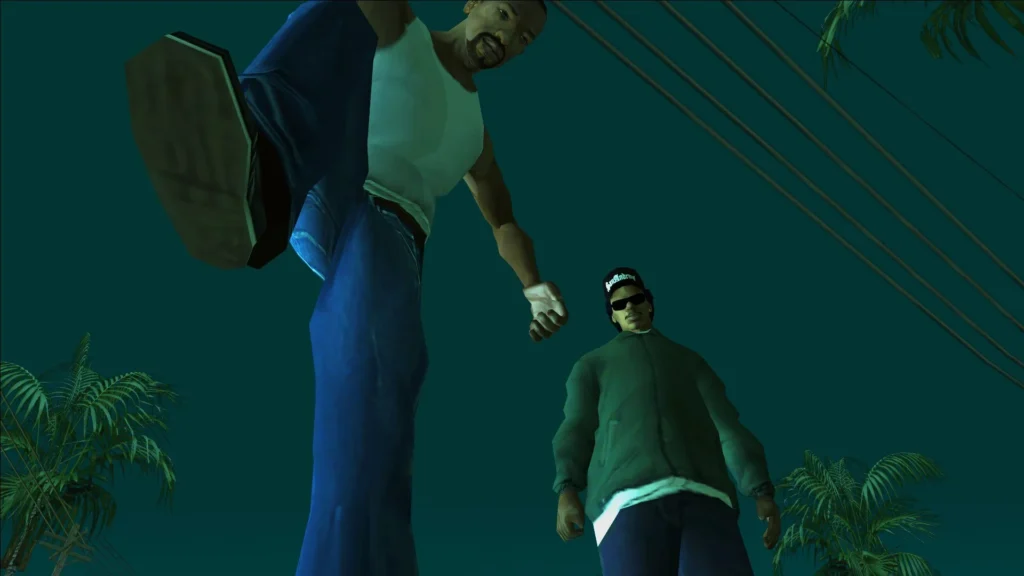
Keyboard input issues can include delayed responses, stuck keys, or controls not registering properly.
You can fix this by:
- Applying fix mod to resolve this issue
- Ensuring the game is not limited by outdated frame timing
- Running the game as an administrator
These steps help restore proper control responsiveness.
You may like: How to Monitor In-Game FPS
5. Eliminating Other Common Bugs
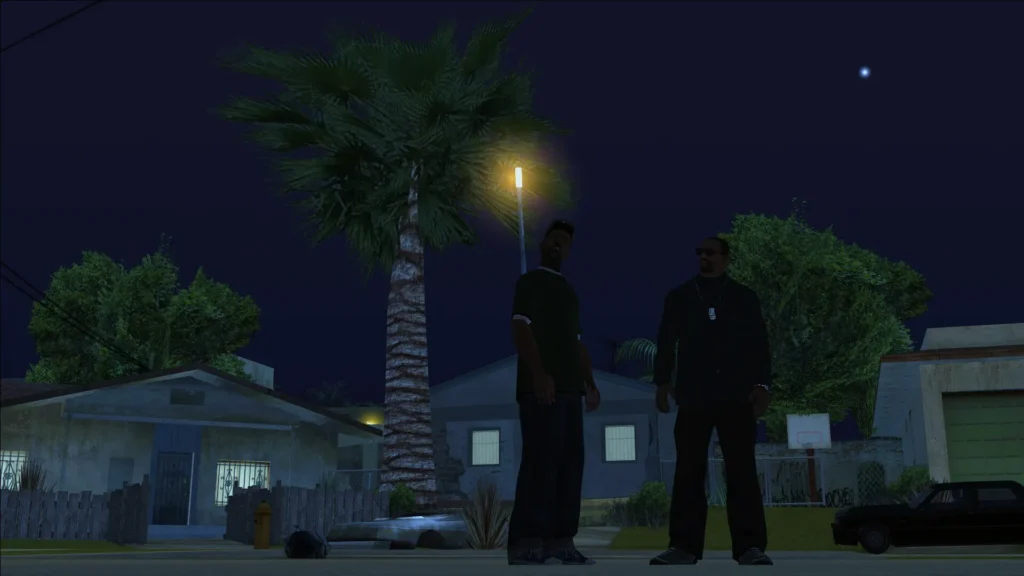
The original version of the game contains several additional bugs that become more noticeable on modern hardware, such as:
- Random crashes
- Frame rate instability
- Broken physics at high FPS
- Audio glitches
Installing the mod we shared should fix:
- Fix dozens of known bugs
- Stabilise performance
- Improve compatibility with newer operating systems
You may like: Update PC’s Motherboard Drivers (Intel/AMD)
6. Improving Overall Performance
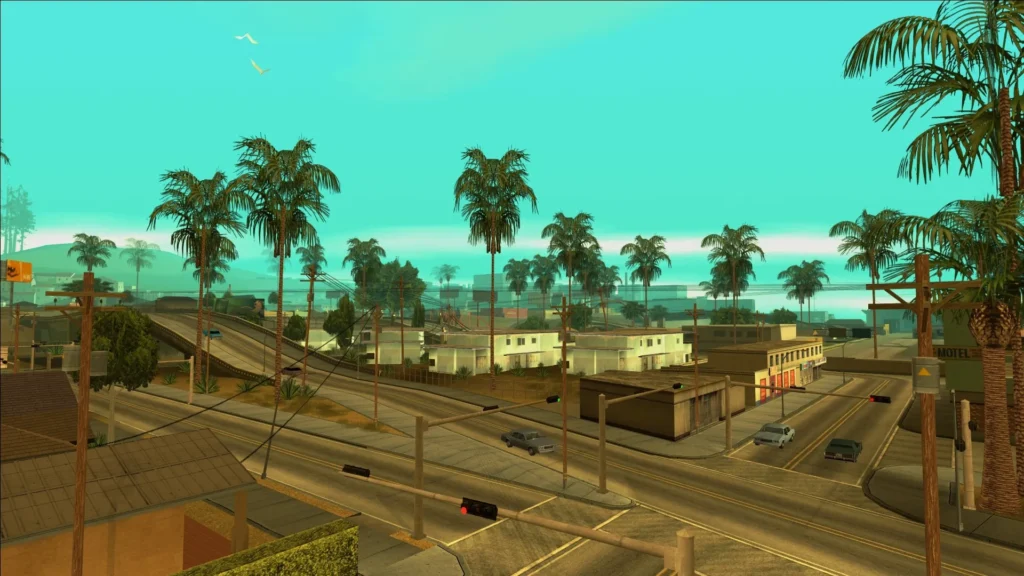
Modern systems are far more powerful than what the game was designed for, which can sometimes cause instability rather than improvement.
To optimise performance:
- Limit the frame rate to around 30 FPS for stability
- Disable unnecessary background applications
- Use compatibility settings if needed
This ensures smoother gameplay without physics or timing issues.
You may like: Play GTA 5 Without Graphic Card
7. Apply Fix Mod to Solve Issues
There are thousands of mods used to fix older games, including Grand Theft Auto: San Andreas. Today, we are sharing an all-in-one mod pack that should take care of all your issues in a short time.
We have attached an installation video for the mod pack, and the mod can be downloaded from the resources section of this page.
Here is the complete installation video:
Conclusion
Although the original Grand Theft Auto: San Andreas was not built for today’s computers, it can still run flawlessly with a few essential fixes. By addressing resolution problems, fixing input bugs, and applying compatibility patches, you can transform the experience into something that feels modern and polished.
With these improvements in place, you can enjoy the game just as it was meant to be played—only now, smoother, sharper, and far more stable on modern PCs and laptops.
Resources Section
Sources: CITRU5, thirteenag, cookieplmonster, Igor Bogdanoff,