
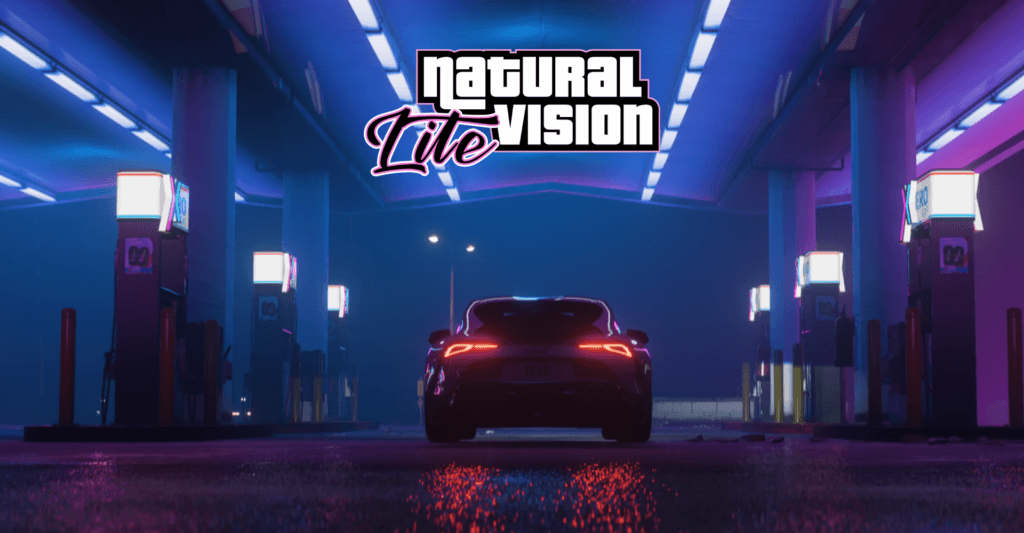
NaturalVision Evolved Lite (NVE Lite) is one of the most visually impressive graphics mods for GTA V, but it can be demanding on lower-end PCs. With the right custom settings, however, it is possible to enjoy enhanced visuals while maintaining smooth performance.
Table of Contents
This guide focuses on balancing realism, stability, and frame rate for players using budget or older systems. Since you are on Low End PC, we will still assume you have at least 1GB of VRAM, we must be brutally efficient to make room for NaturalVision Lite.
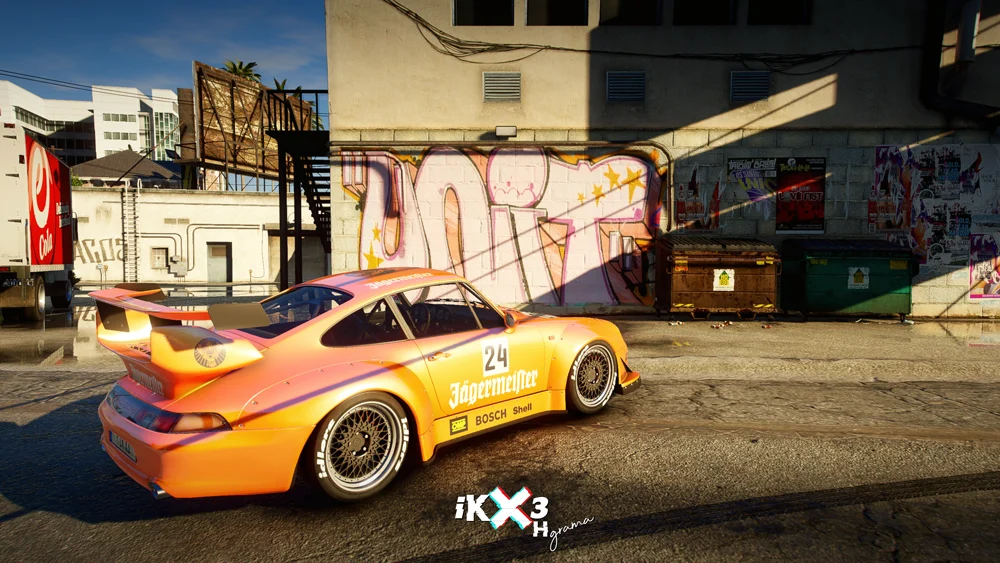
NVE Lite eats up VRAM, so the base game settings need to be at absolute minimums to prevent crashes.
Recommended System Preparation
Before adjusting in-game settings, ensure GTA V is running in DirectX 11 or DirectX 10.1, background applications are closed, and your graphics drivers are up to date. You should also install or reinstall DirectX, Visual C++ and GTA 5 Gameconfig.
Installing NVE in its “Low” or “Performance” preset is strongly recommended for weaker hardware. Set Screen Type to Fullscreen and match the resolution to your monitor’s native size, but consider lowering it slightly for a significant FPS boost.
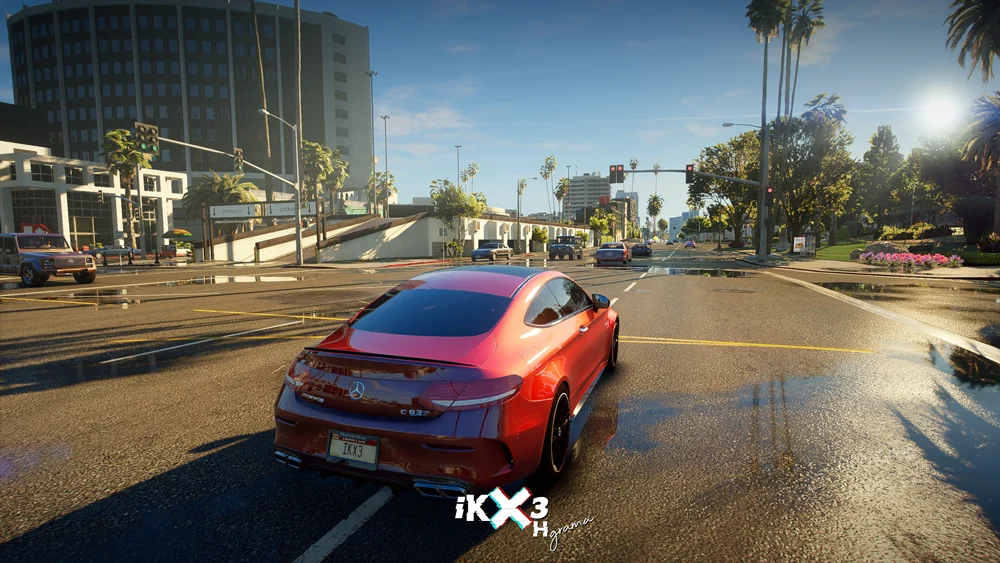
GTA 5 NVE Lite In-Game Graphics Settings
Here are the best settings to balance the NVE visuals with your hardware limitations:
Graphics Settings
- Screen Type: Full Screen (Exclusive) – This allocates more resources to the game.
- Resolution: 1280×720 (or 1366×768) – 1080p is likely not possible with NVE on 1GB VRAM.
- FXAA: On – This is a cheap way to smooth edges.
- MSAA: Off – Too demanding.
- VSync: Off – Unless you experience severe screen tearing.
- Pause Game On Focus Loss: Off
- Population Density: 0% (Lowest bar)
- Population Variety: 0% (Lowest bar) – Crucial for saving VRAM.
- Distance Scaling: 0% (Lowest bar)
- Texture Quality: Normal
- Shader Quality: Normal
- Shadow Quality: Normal
- Reflection Quality: Normal
- Reflection MSAA: Off
- Water Quality: Normal
- Particles Quality: Normal
- Grass Quality: Normal
- Soft Shadows: Sharp
- Post FX: Normal
- Motion Blur Strength: 0% (Off)
- In-Game Depth of Field Effects: Off
- Anisotropic Filtering: Off (or x2 if you have headroom)
- Ambient Occlusion: Off
- Tessellation: Off
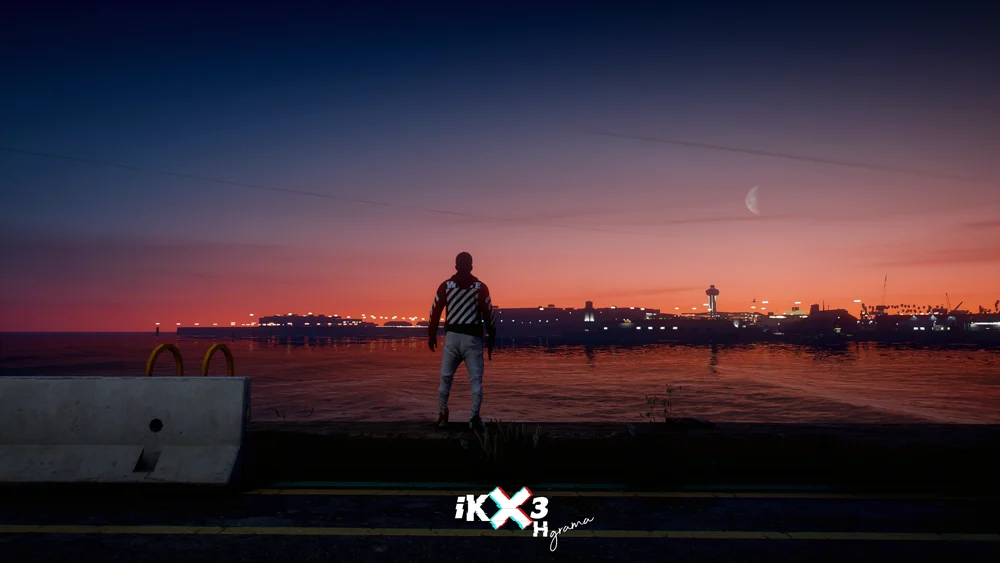
Advanced Graphics
- Long Shadows: Off
- High Resolution Shadows: Off
- High Detail Streaming While Flying: Off
- Frame Scaling Mode: Off (or 0.750x if you still have lag)
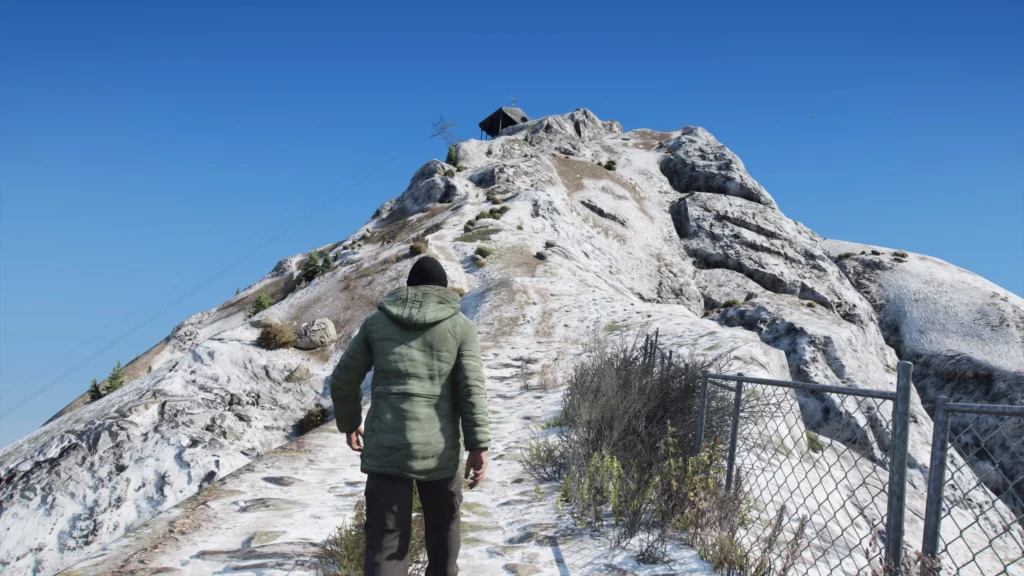
Crucial NVE Tips for LOW VRAM
- Do Not Install NVE Classic: We do not reccomend to install NaturalVision Evolved Classic on low-end PCs. You must remove or uninstall the NVE Classic files.
- Parallax Roads: If you installed the “Parallax Roads” add-on, remove it. It consumes massive amounts of video memory.
- Vegetation Overhaul: Ensure the “High Quality Vegetation” add-on is disabled.
These settings strip the base game back as far as possible to let the NVE lighting and colour corrections work without overloading your card.
Resources
FAQ’s
Frequetly Asked Questions:
Can NaturalVision Evolved Lite run on a low-end PC?
Yes, NaturalVision Evolved Lite can run on a low-end PC if performance-focused settings are used. Installing the low or performance preset and disabling demanding visual effects such as advanced shadows, ambient occlusion, and heavy post-processing allows the mod to run more smoothly on weaker hardware.
What is the best resolution for low-end PCs using GTA 5 NVE Lite?
For low-end PCs, a resolution of 1280×720 or 1600×900 is recommended. Lowering the resolution significantly improves frame rate while still maintaining acceptable image clarity when combined with NaturalVision Evolved’s enhanced lighting and colour grading.
Which GTA 5 NVE Lite effects should be disabled for better FPS?
Effects such as depth of field, motion blur, film grain, chromatic aberration, and high-intensity bloom should be disabled. These features add visual flair but consume a large amount of GPU resources, making them unsuitable for low-end systems.
Is GTA 5 ENB required to use NaturalVision Evolved?
No, ENB is not strictly required to use NaturalVision Evolved. Running NVE without ENB provides better performance and is recommended for low-end PCs, as ENB can cause significant FPS drops even on mid-range systems.
Does NaturalVision Evolved Lite affect game stability?
NaturalVision Evolved Lite itself is stable when installed correctly, but incorrect settings or combining it with heavy mods can cause crashes or stuttering. Using optimised graphics settings and avoiding unnecessary add-ons helps maintain stability on low-end PCs.
Should advanced graphics settings be enabled with GTA 5 NVE Lite?
Advanced graphics settings should generally be disabled on low-end PCs. Options such as extended distance scaling, long shadows, and high-resolution shadows greatly impact performance and provide minimal visual benefit on weaker hardware.
Can I use GTA 5 NVE Lite with integrated graphics?
NaturalVision Evolved Lite can run on integrated graphics only with heavy compromises. All advanced effects must be disabled, textures should be set to normal or low, and resolution should be reduced to achieve playable frame rates.
What FPS can I expect on a low-end PC in GTA 5 with NVE Lite?
On a low-end PC, you can typically expect between 30 and 45 FPS with optimised settings. Capping the frame rate can help maintain consistency and reduce stuttering during gameplay.
Will lowering grass quality improve performance?
Yes, lowering grass quality provides one of the biggest performance improvements in GTA V NVE Lite. Setting grass quality to low significantly reduces CPU and GPU load, especially in rural and open-world areas.
Are population settings important for performance in GTA V?
Yes, population density and variety have a noticeable impact on performance. Lowering these settings reduces CPU usage and helps maintain smoother gameplay on older or weaker processors.