


Today we will guide you on how to download GeForce Experience offline installer for Windows 7, 8, 10, and 11, here’s a step-by-step guide to ensure you have the latest drivers and access to the NVIDIA Control Panel just like AMD Software: Adrenalin.
Table of Contents
GeForce Experience, coupled with the NVIDIA Control Panel, is an essential software package for NVIDIA GPU users. These tools not only provide the latest graphics drivers for your PC but also offer features to optimize game settings, capture and share gameplay, and fine-tune graphical preferences through the NVIDIA Control Panel. This page will guide you through downloading GeForce Experience, updating your GPU drivers, and accessing the NVIDIA Control Panel.
How to Update GPU Drivers
Here are steps on updating your NVIDIA graphics card drivers:
- Open GeForce Experience: Launch GeForce Experience from your desktop or Start menu.
- Navigate to the Drivers Section: In the GeForce Experience interface, go to the “Drivers” tab.
- Check for Updates: Click on the “Check for Updates” button. GeForce Experience will scan for the latest GPU drivers.
- Download and Install Updates: If updates are available, click on the “Download” button, and then follow the prompts to install the latest GPU drivers.
- Opt for Express Installation: During the installation, choose the “Express Installation” option for a quick and straightforward driver update.
- Reboot Your System: After the installation is complete, restart your computer to apply the changes.
You may like: 5 Ways to Fix Nvidia Control Panel Not Opening Issue
How to Access the NVIDIA Control Panel
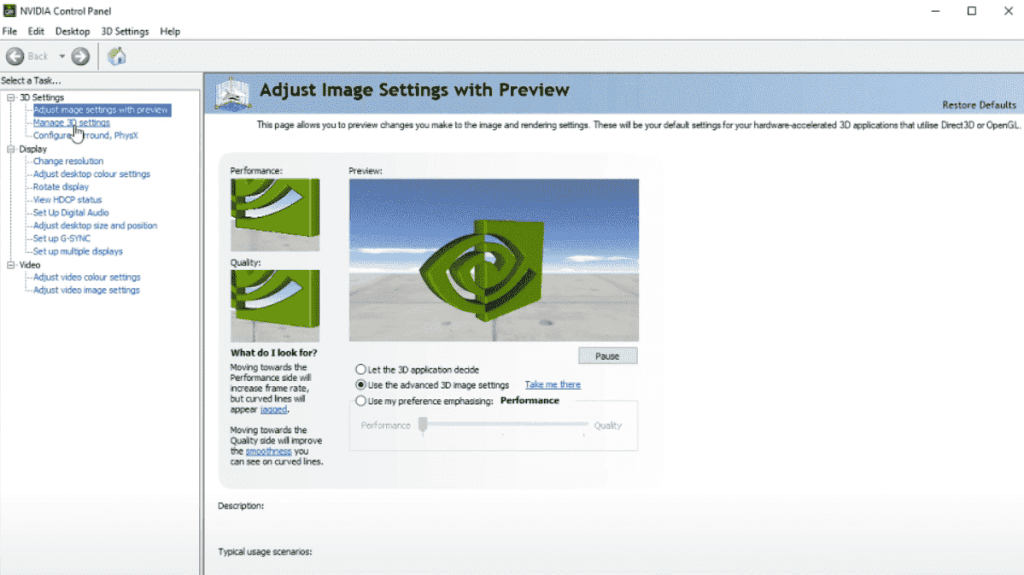
Here are steps on how to open and use NVIDIA Control Panel after installing GeForce Experience:
- Right-Click on Desktop: After updating your GPU drivers, right-click on your desktop to open the context menu.
- Select “NVIDIA Control Panel”: From the menu, select “NVIDIA Control Panel” to access the control panel interface.
- Explore Graphics Settings: Use the NVIDIA Control Panel to adjust various graphics settings such as 3D settings, display resolution, and color management.
- Optimize Game Settings: Navigate to the “Manage 3D Settings” section to optimize graphics settings for specific games based on your preferences.
- Adjust Display Configuration: Fine-tune display settings, including multiple monitor configurations, resolution, and refresh rate.
- Access Advanced Features: Explore advanced features within the NVIDIA Control Panel to customize your graphics experience further.
Congratulations! You’ve successfully downloaded GeForce Experience, updated your GPU drivers, and accessed the NVIDIA Control Panel.
Conclusion:
Keeping your GPU drivers up-to-date ensures optimal performance and compatibility, while the control panel allows you to tailor your graphics settings to suit your preferences.
Download Section
Regularly check for driver updates and explore the features offered by GeForce Experience and the NVIDIA Control Panel for an enhanced PC gaming and multimedia experience.
You may like: AMD Software: Adrenalin Drivers
FAQ’s
Here are frequently asked questions:
Why would I want to download the GeForce Experience offline installer?
The offline installer is useful for users who want to install or update GeForce Experience without an active internet connection, ensuring a seamless installation process. Note: to update graphics card driver, you might still need to log in.
Can I use the offline installer for Windows 7, 8, 10, and 11?
Yes, the GeForce Experience offline installer is compatible with Windows 7, 8, 10, and 11. Ensure you download the version that corresponds to your operating system.
Is it necessary to have a NVIDIA account to use GeForce Experience and the Control Panel?
Yes! An NVIDIA account is mandatory, having one allows you to access additional features and functionalities within GeForce Experience.
How often should I check for updates and install the latest graphic drivers?
It’s recommended to regularly check for updates using GeForce Experience, as new drivers can provide performance improvements, bug fixes, and compatibility updates.
What should I do if my GPU drivers are outdated?
Launch GeForce Experience, go to the “Drivers” tab, and click on “Check for Updates.” Download and install the available updates. Reboot your system afterward to apply the changes.
Can I choose specific components to install during the GeForce Experience installation?
Yes, during the installation process, you can choose which components to install. Typically, an “Express Installation” option is available for a standard installation.
How do I access the NVIDIA Control Panel after installing GeForce Experience?
Right-click on your desktop to open the context menu and select “NVIDIA Control Panel” to access the comprehensive control panel interface.