

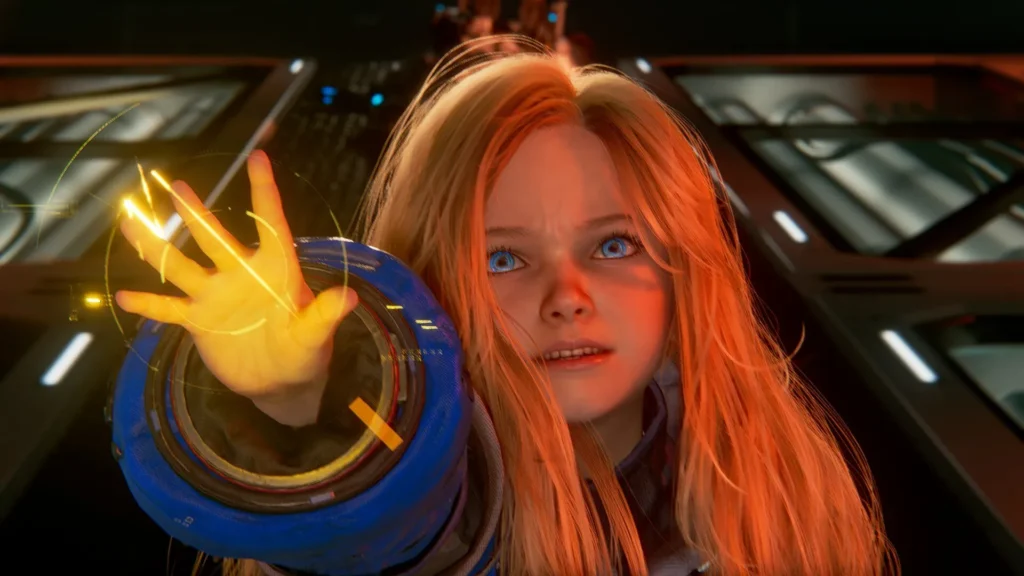
Are you experiencing the PRAGMATA game not saving progress on your PC? Many players have reported issues where the game fails to create save files, progress disappears after restarting, or manual saves simply do not work.
Table of Contents
Fortunately, this problem is usually caused by Windows permissions, antivirus restrictions, or corrupted save data. In this guide, we’ll show you how to fix the PRAGMATA not saving error on PC using a simple solution file and a few troubleshooting steps.
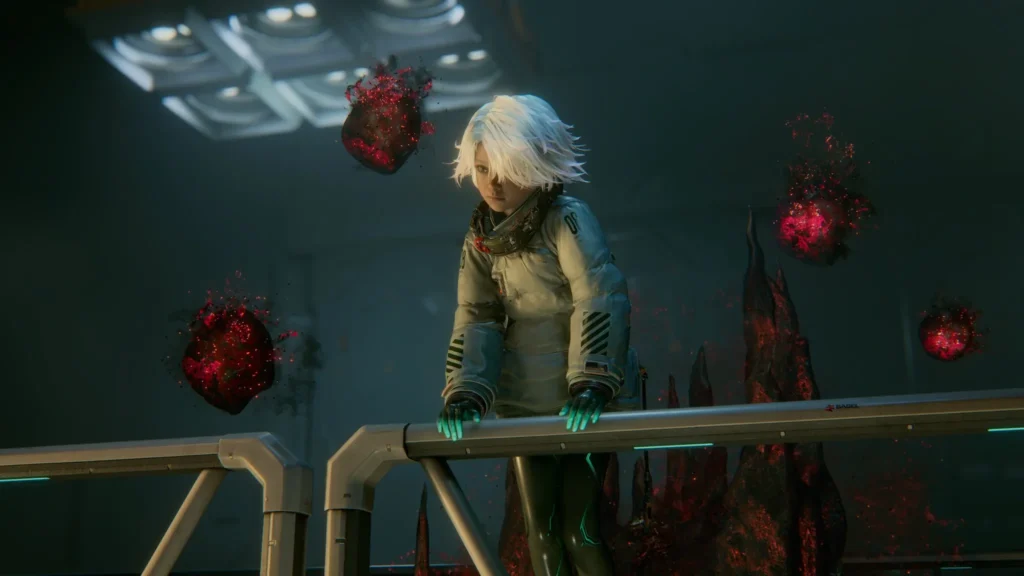
Why Is PRAGMATA Not Saving?
The game may fail to save progress due to one of the following reasons:
- Insufficient folder permissions
- Windows Defender blocking save file creation
- Corrupted save data
- Controlled Folder Access restrictions
- Cloud save synchronisation conflicts
- Missing or damaged game files
You may like: How to Monitor In-Game FPS using MSI Afterburner
Solution: Use the Save Fix File
The quickest way to resolve the issue is by using a save fix file that restores the required save folder structure and permissions.
Installation Steps
- Close PRAGMATA completely.
- Download the save fix file.
- Extract the archive using WinRAR or 7-Zip.
- Copy the extracted files to the game’s save directory.
- Replace any existing files if prompted.
- Launch the game and create a new save.
After applying the fix, the game should be able to save progress normally.
You may like: How to Update Drivers on Windows
Run the Game as Administrator
Windows may prevent the game from writing save files to protected folders.
- Right-click the PRAGMATA executable file.
- Select Properties.
- Open the Compatibility tab.
- Enable Run this program as an administrator.
- Click Apply and then OK.
Launch the game again and check whether the saving issue has been resolved.
You may like: How to Check Graphic Card Specs
Allow the Game Through Windows Security
Windows Security can sometimes block games from creating save files.
- Open Windows Security.
- Go to Virus & Threat Protection.
- Select Manage Ransomware Protection.
- Click Allow an app through Controlled Folder Access.
- Add the PRAGMATA executable file.
Restart the game and test the save function.
You may like: List of All DirectX 12.2 Graphics Cards
Verify Game Files
Corrupted or missing files can also cause save-related issues.
Steam
- Open Steam.
- Go to your Library.
- Right-click PRAGMATA.
- Select Properties.
- Open Installed Files.
- Click Verify integrity of game files.
Wait for the verification process to complete before launching the game again.
You may like: How to Verify Integrity of Game Files
Disable Cloud Save Temporarily
If cloud synchronisation is conflicting with local save data, try disabling it temporarily.
- Open your game launcher.
- Navigate to the game’s settings.
- Disable cloud save synchronisation.
- Launch the game and create a new save.
If the game saves correctly, re-enable cloud saves later.
Conclusion
The PRAGMATA not saving error on PC is usually caused by permission issues, security software restrictions, or damaged save files. Applying the save fix file, running the game as an administrator, and allowing it through Windows Security should resolve the problem for most players.
Download Section
If the above button is not working, download here.