


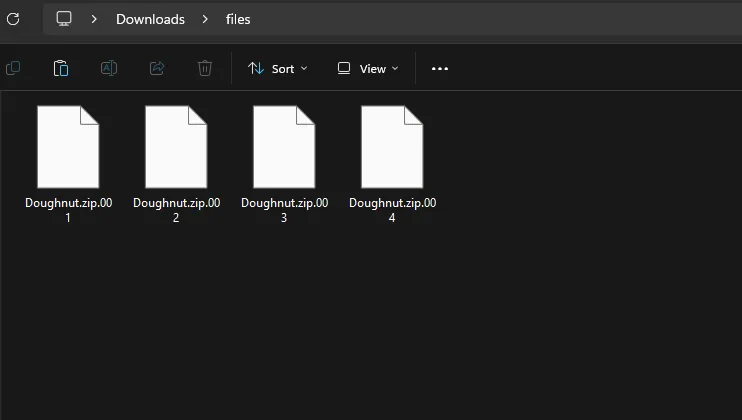
Downloading large files from the internet often means dealing with multi-part compressed archives (e.g. .zip.001, .rar.part1, etc.). These split files make downloading more reliable, especially with unstable connections, but they can be confusing if you’re unfamiliar with how to combine and extract them.
Table of Contents
This guide will share complete guide on how to extract compressed files in parts with simple steps to combine multi-part downloads and get the full file easily.
What Are Multi-Part Compressed Files?
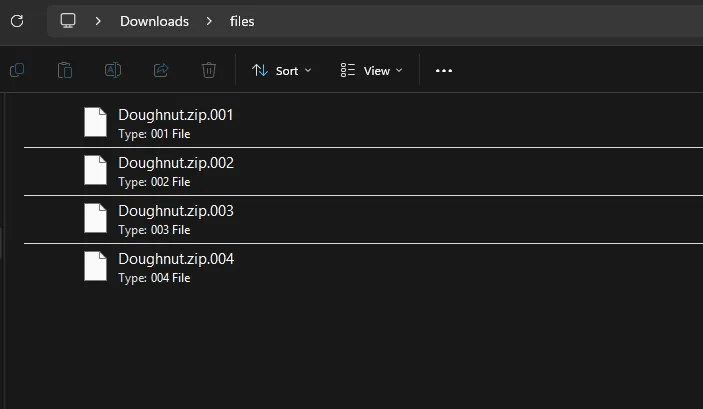
Multi-part archives are large files split into smaller chunks. Instead of downloading one huge file, you download several smaller parts. Once all parts are downloaded, they must be combined and extracted to access the contents.
Common formats include:
.zip.001,.zip.002, etc..rar,.r00,.r01, etc..part1.rar,.part2.rar, etc.
You may like: Notepad++
Before You Start
Make sure you:
- Download all parts of the archive
- Keep them in the same folder
- Do not rename any files unless necessary
Missing even one part will prevent successful extraction.
How to Extract Multi-Part Files
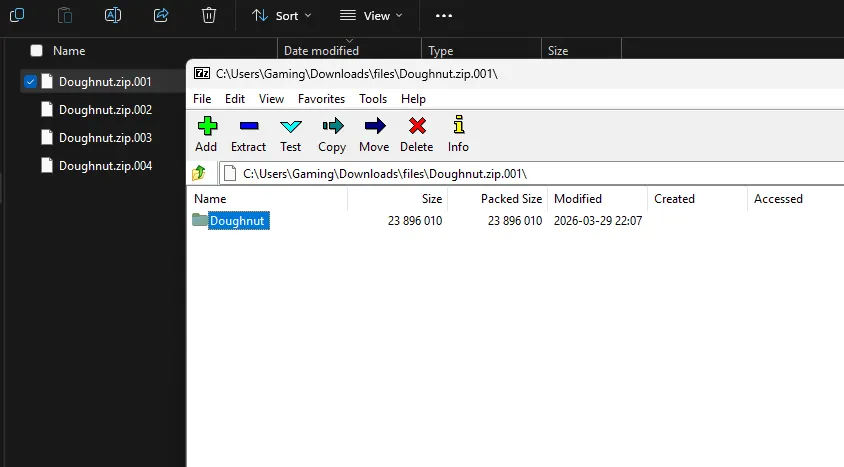
Here are steps on how to extract files in parts with simple steps:
Step 1: Install Extraction Software
You’ll need a file extraction tool. Popular options include:
- WinRAR (Windows)
- 7-Zip (Windows)
- The Unarchiver (macOS)
Install your preferred tool before proceeding.
Step 2: Locate All File Parts
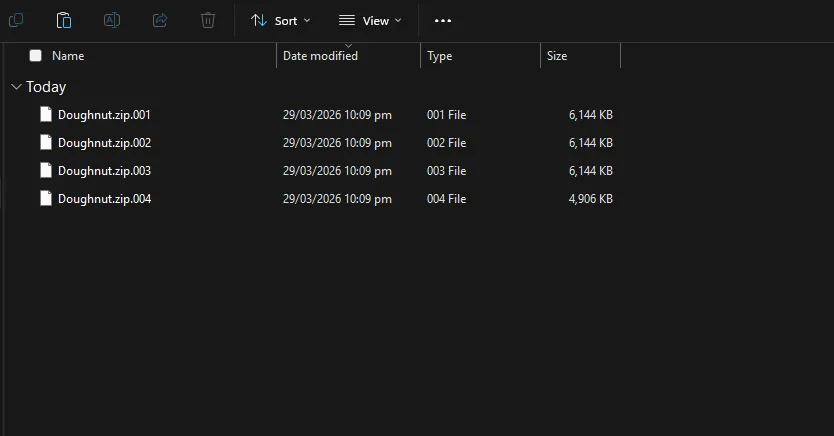
Navigate to the folder where your downloaded parts are stored.
Ensure:
- All parts are present
- File names follow the correct sequence (e.g.
.part1,.part2, etc.)
Step 3: Start Extraction from the First File
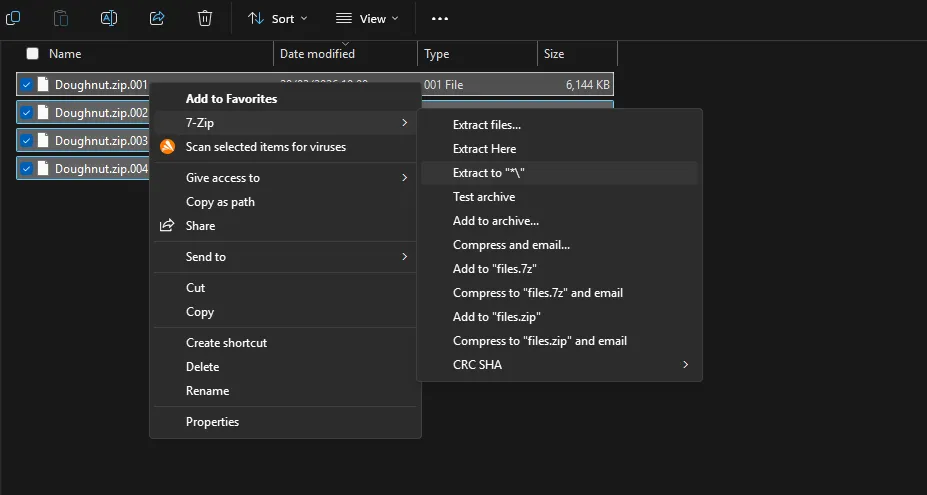
This is crucial.
- Select all the parts togather
- Right-click the first part (e.g.
.part1.raror.zip.001) - Select:
- “Extract Here” or
- “Extract to [folder name]”
The software will automatically detect and combine the remaining parts.
Step 4: Wait for the Process to Complete
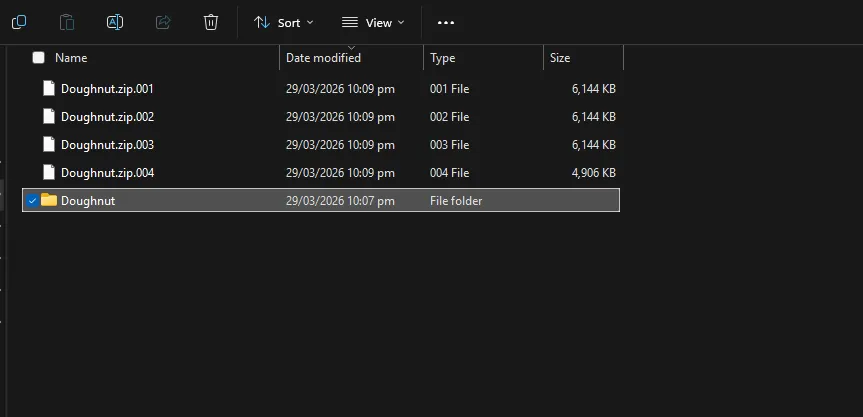
The tool will:
- Combine all parts
- Extract the complete archive
This may take a few minutes depending on file size.
Step 5: Access Your Files
Once complete, you’ll see the extracted folder or files in the same directory. You can now open and use them as normal.
You may like: MSI Afterburner – Optimize & Overclock PC
Troubleshooting Common Issues
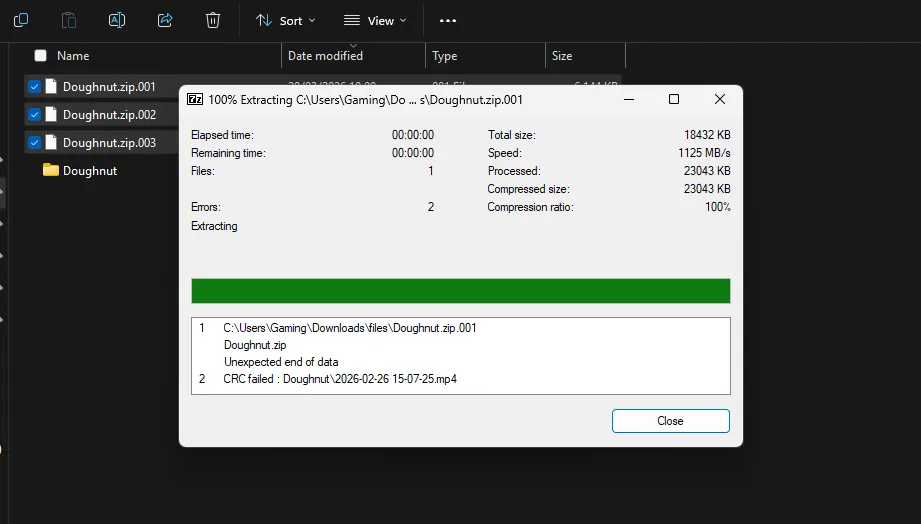
The above image shows that one of the parts is missing, which is why there is an error. So, make sure to download all the parts when trying to obtain something that comes in multiple parts. Here are things you need to keep in mind:
❌ Missing File Error
If you see errors like “Next volume is required”:
- One or more parts are missing
- Re-download the missing file(s)
❌ Corrupted Archive
If extraction fails:
- The download may be incomplete
- Try downloading the affected part again
❌ Wrong File Order
Ensure files are named correctly:
.part1,.part2,.part3, etc.- Renaming incorrectly can break extraction
You can also use WinRAR Program for Windows for more advance extracting experince.
Tips for Smooth Extraction
- Always download from reliable sources
- Use a stable internet connection
- Avoid interrupting downloads
- Keep file names unchanged
Final Thoughts
Extracting multi-part compressed files might seem tricky at first, but once you understand the process, it’s straightforward. The key is to ensure all parts are present and to begin extraction from the first file.
With the right tools and these simple steps, you’ll be able to combine and access large files quickly and efficiently.