
Close Menu
  • Home
  • News
  • Mods
  • Guides
  • Tech
What's New?
Microsoft GameInput Latest Version PC (Windows 10 & 11)

Microsoft GameInput Latest Version PC (Windows 10 & 11)

December 17, 2025
Learn what's new in Script Hook V update, compatibility, what modders need to know for early 2026, and explore what’s changed in GTA 5 Legacy and Enhanced.

Script Hook V New Update: What’s New for GTA 5 Early 2026

December 15, 2025
Facebook X (Twitter) Instagram YouTube
Sunday, December 21
Game Decide
Facebook X (Twitter) Instagram YouTube
  • Home
  • News
  • Mods
  • Guides
  • Tech
  • Gaming
  • Computer
  • Software Guides
  • Graphic Tutorials
  • GTA V
  • GTA IV
  • Minecraft
  • Red Dead Redemption
Game Decide
Home»Guides»How to Fix Red Dead Redemption 2 Not Opening on PC (RDR 2)

How to Fix Red Dead Redemption 2 Not Opening on PC (RDR 2)

Updated:November 7, 20244 Mins Read
Share Facebook Twitter Pinterest LinkedIn Tumblr Email Copy Link
Learn how to fix red dead redemption 2 not opening on pc with simple steps to launch/run rockstar games rdr 2 not working errors on windows.
Share
Reddit Telegram WhatsApp Email Copy Link

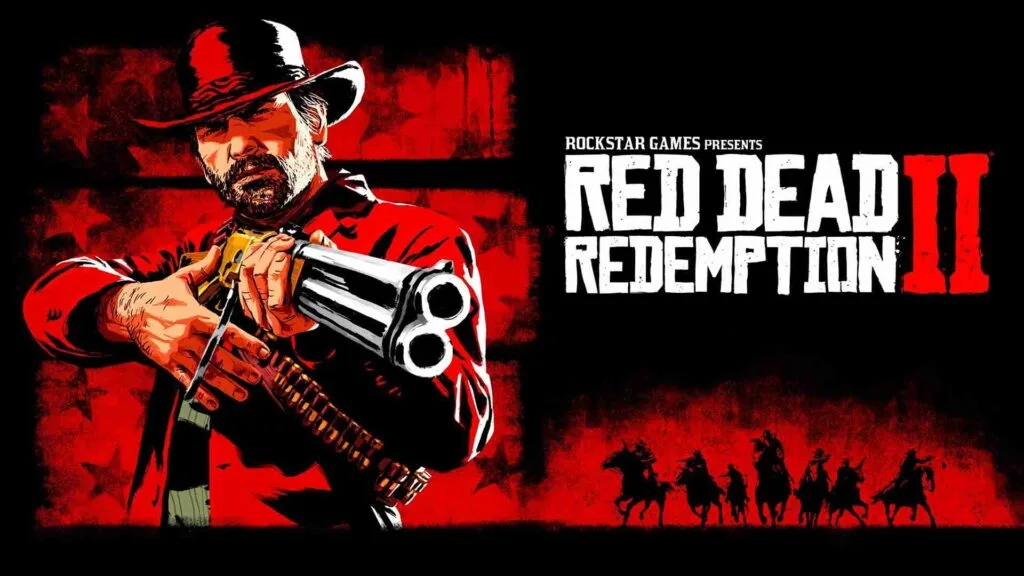
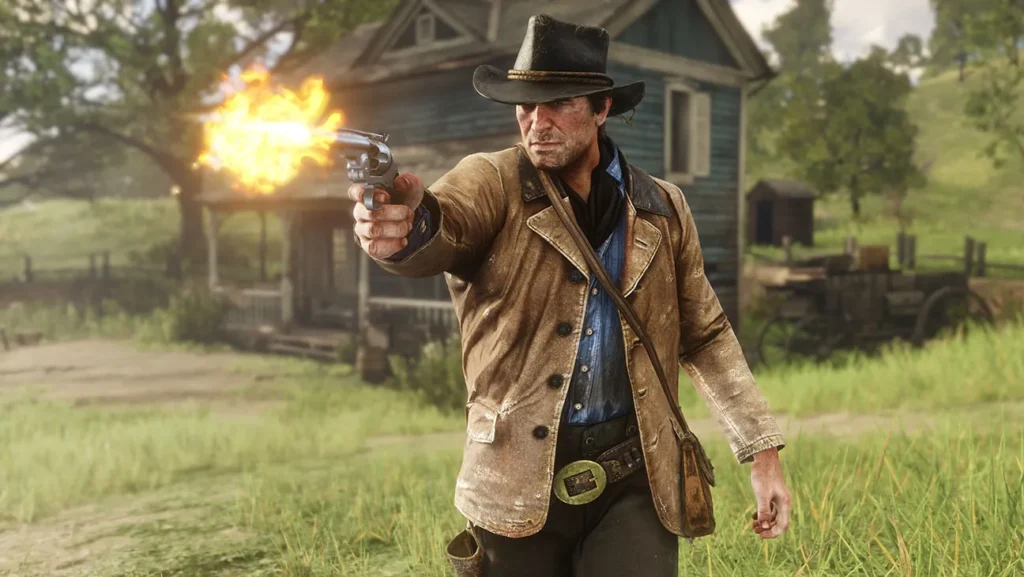
Red Dead Redemption 2 is an expansive game, but many players face a common issue: the game simply won’t open or launch on their PC similar to RDR 1 not opening bug. This error can result from various causes, including outdated drivers, missing game files, or software conflicts.

Table of Contents

  • How to Fix RDR 2 Not Opening on PC
    • 1. Check System Requirements and Update Drivers
    • 2. Verify Game Files (Steam and Epic Games)
    • 3. Run as Administrator and Change Compatibility Settings
    • 4. Disable Overlays (Steam, Discord, NVIDIA)
  • Steps to Fix RDR 2 Not Launching with a Solution File

If Red Dead Redemption 2 isn’t launching or won’t open on your PC, you’re not alone. Many players encounter startup issues with RDR2 similar to GTA 5 not working issue, this often caused by missing files, outdated drivers, or compatibility conflicts.

In this section: we’ll show you how to fix Red Dead Redemption 2 not opening with easy steps—like verifying game files, updating your graphics drivers, disabling overlays, and using a solution file. These methods should help you get past launch issues so you can enjoy your adventure in RDR2 without any interruptions.

How to Fix RDR 2 Not Opening on PC

Here are the methods you can try to resolve this issue and get back to gaming:

1. Check System Requirements and Update Drivers

  • Make sure your PC meets the game’s minimum requirements.
  • Update your graphics drivers to the latest version, as RDR 2 requires updated drivers for optimal performance.

2. Verify Game Files (Steam and Epic Games)

  • For Steam users: Go to Library > Red Dead Redemption 2, right-click, select Properties > Local Files > Verify Integrity of Game Files. This will check for missing or corrupted files.
  • For Epic Games users: Open the Epic Games Launcher, find RDR 2, click the three dots next to it, and select Verify.

3. Run as Administrator and Change Compatibility Settings

  • Right-click on the RDR 2 desktop shortcut or executable file, select Properties > Compatibility, and check Run this program as an administrator.
  • Additionally, try setting compatibility mode for Windows 8 or 7 to see if it helps.

4. Disable Overlays (Steam, Discord, NVIDIA)

  • Overlays can sometimes conflict with games. Try disabling Steam overlay, NVIDIA GeForce Experience overlay, or Discord overlay if you’re using any of these.

You may like: OpenIV Modding Tool for RDR 2
Red Dead Redemption 2 is an expansive game, but many players face a common issue: the game simply won’t open or launch on their PC. This error can result from various causes, including outdated drivers, missing game files, or software conflicts. Fortunately, there are several methods you can try to resolve this issue and get back to gaming.1. Check System Requirements and Update Drivers
Make sure your PC meets the game’s minimum requirements.
Update your graphics drivers to the latest version, as RDR 2 requires updated drivers for optimal performance.
2. Verify Game Files (Steam and Epic Games)
For Steam users: Go to Library > Red Dead Redemption 2, right-click, select Properties > Local Files > Verify Integrity of Game Files. This will check for missing or corrupted files.
For Epic Games users: Open the Epic Games Launcher, find RDR 2, click the three dots next to it, and select Verify.
3. Run as Administrator and Change Compatibility Settings
Right-click on the RDR 2 desktop shortcut or executable file, select Properties > Compatibility, and check Run this program as an administrator.
Additionally, try setting compatibility mode for Windows 8 or 7 to see if it helps.
4. Disable Overlays (Steam, Discord, NVIDIA)
Overlays can sometimes conflict with games. Try disabling Steam overlay, NVIDIA GeForce Experience overlay, or Discord overlay if you’re using any of these.
Steps to Fix RDR 2 Not Launching with a Solution File
In some cases, specific errors prevent RDR 2 from launching altogether. Using a solution file to modify certain game configurations can often resolve these launch issues.Download the Solution File:Locate a trusted source that provides a preconfigured RDR 2 solution file (such as an .ini or .cfg file). Ensure it’s from a reputable source to avoid security risks.
Place the Solution File:Once downloaded, locate your RDR 2 installation directory. This is usually found under C:\Program Files (x86)\Steam\steamapps\common\Red Dead Redemption 2 for Steam or the equivalent path for Epic Games.
Replace or Add the Solution File:Copy the solution file and paste it into the game’s directory, overwriting any existing file if prompted. This configuration file will reset some of the game’s startup settings and can resolve certain launch issues.
Run the Game as Administrator:Now, run the game as an administrator by right-clicking on the game’s executable file and selecting Run as administrator. This ensures that the game has the necessary permissions to launch correctly.
These steps should help resolve most issues preventing Red Dead Redemption 2 from launching on PC. If problems persist, reinstalling the game or contacting Rockstar Support may be the next best options.

Steps to Fix RDR 2 Not Launching with a Solution File

In some cases, specific errors prevent RDR 2 from launching altogether. Using a solution file to modify certain game configurations can often resolve these launch issues.

  1. Download the Solution File:
    • Scroll to download section and download the solution file for RDR 2 game.
  2. Place the Solution File:
    • Once downloaded, locate your RDR 2 installation directory. This is usually found under C:\Program Files (x86)\Steam\steamapps\common\Red Dead Redemption 2 for Steam or the equivalent path for Epic Games.
  3. Replace or Add the Solution File:
    • Copy the solution file and paste it into the game’s directory, overwriting any existing file if prompted. This configuration file will reset some of the game’s startup settings and can resolve certain launch issues.
  4. Run the Game as Administrator:
    • Now, run the game as an administrator by right-clicking on the game’s executable file and selecting Run as administrator. This ensures that the game has the necessary permissions to launch correctly.

These steps should help resolve most issues preventing Red Dead Redemption 2 from launching on PC. If problems persist, reinstalling the game or contacting Rockstar Support may be the next best options.

You may like: Get GTA 5 at a Huge Discount


Download Section

Download

If above button is not working, use mirror download: DropBox or MediaFire.

Above solution file is not working? use the game patch.

GamePatch
RDR2 v2Download
RDR 2 Not Launching Fix

Above v2 patch download link is not working? use mirror download.

the password is 123

Notice: Do not apply this solution on RDR 2 premium/online, it is for the free versions of RDR 2.
Share. Twitter VKontakte Reddit Telegram WhatsApp Email Copy Link
Previous ArticleBest OBS Studio Settings for Gameplay & Mic (AMD Guide)
Next Article How to Fix Red Dead Redemption (RDR 1) Not Opening on PC

Related Posts

Check Battlefield REDSEC PC system requirements with minimum, recommended, and best budget specs for smooth gameplay, graphics, and performance.
November 10, 2025

Battlefield REDSEC System Requirements PC & Laptop

Buy RDR 1/2 in Discount (PC, PlayStation, & Xbox)
November 9, 2025

Buy RDR 2/1 in Discount (PC, PlayStation, Xbox, & Switch)

Download PlayGTAV.exe and all GTA 5 launcher files for Enhanced and Legacy versions to restore missing or corrupted launchers for error-free gameplay on PC.
November 3, 2025

PlayGTAV Launcher File for GTA 5 (Free Version)

Add A Comment
Leave A Reply Cancel Reply

Suggested Posts
Download GTA 5 No Boundary Limits Latest Version, download NoBoundaryLimits for GTA 5 Mods. learn how to install No Boundary Limits for Grand Theft Auto V game.

No Boundary Limits – GTA 5 Mods

April 29, 2022
How to Install Vulkan SDK download offline PC installer latest version of Vulkan application software program on Windows 7/8.1/10/11, macOS and Linux.

VulkanSDK – Libraries & Tools for Gaming Developers

April 22, 2023
Download GTA 5 Redux Latest Version for PC. Install and Download Grand Theft Auto V game remastered graphic Mod.

Redux – GTA 5 Mods

April 25, 2022
X (Twitter) Instagram Facebook YouTube

Topics

  • Game Mods
  • Gaming Guides
  • Tech Tutorials
  • PC Apps

Company

  • About Us
  • Disclaimer
  • Mods Policy
  • Contact Info

Services

  • Creators
  • Game Support
  • Newsletters
  • FAQ's

Subscribe to Updates

Get the best weekly posts straight to your inbox!

© 2025 Game Decide
  • Privacy Policy
  • Terms
  • DMCA
  • Accessibility

Type above and press Enter to search. Press Esc to cancel.