

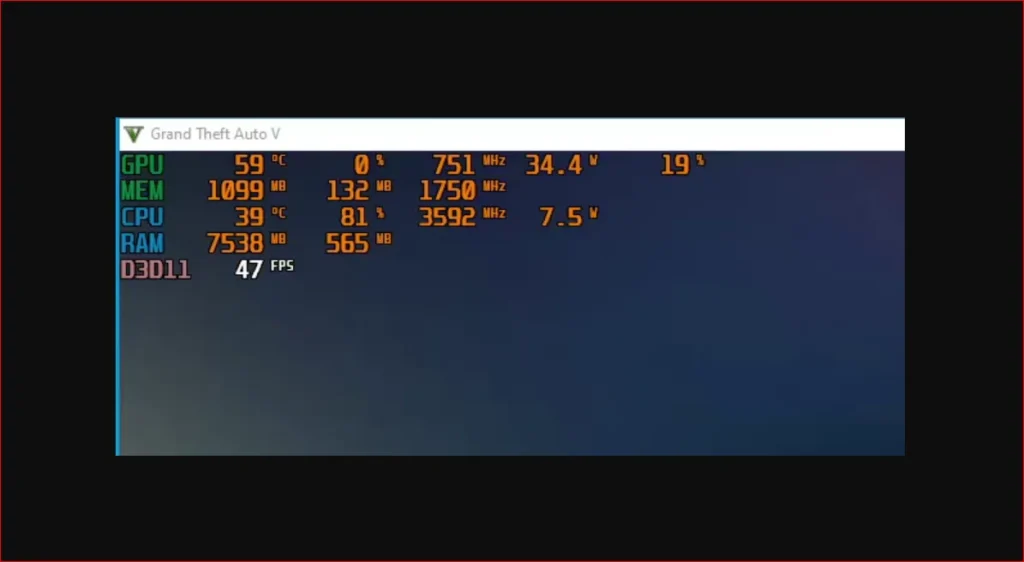
Learn how to monitor in-game FPS using MSI Afterburner with RivaTuner Statistics Server to enable FPS counter, on-screen display, and real-time GPU performance monitoring on Windows PCs.
Table of Contents
The On-Screen Display (OSD) feature that shows your stats in-game is actually handled by a separate utility called RivaTuner Statistics Server (RTSS), which is bundled with Afterburner. You must install both:
- Download and Install:
- Nip over to the MSI Afterburner with RivaTuner releases page and download the latest version.
- Run the installer. Crucially, when prompted, make sure the box for installing RivaTuner Statistics Server is checked. It’s usually the final step of the Afterburner setup.
- Complete the installation for both applications.
- Run the Programs:
- Launch MSI Afterburner.
- Check your system tray (down by the clock) to make sure RivaTuner Statistics Server is also running, it usually looks like a little green monitor icon.
You may like: Razer Cortex to Boost PC FPS
How to Configuring the Monitoring Settings
This section will cover how to configure MSI Afterburner and RivaTuner Statistics Server to display all performance charts while playing a game.
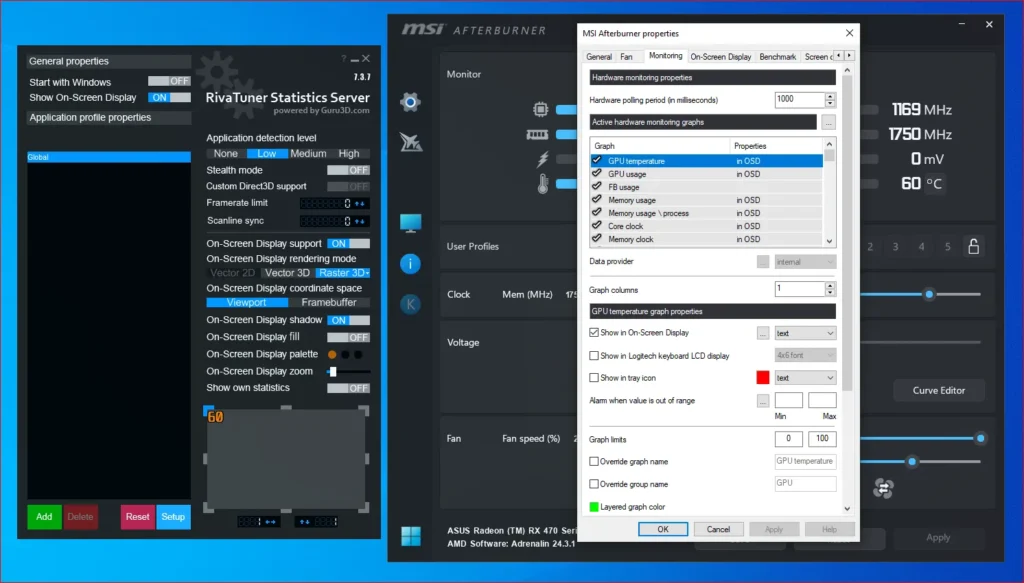
You will learn the key settings and steps to set up MSI Afterburner to monitor your GPU, CPU, PSU, motherboard, and RAM performance in real time.
Now for the main event, telling Afterburner which stats you want to see.
- Open Settings:
- Click the ‘gear’ icon (Settings) in the main MSI Afterburner window.
- Navigate to Monitoring:
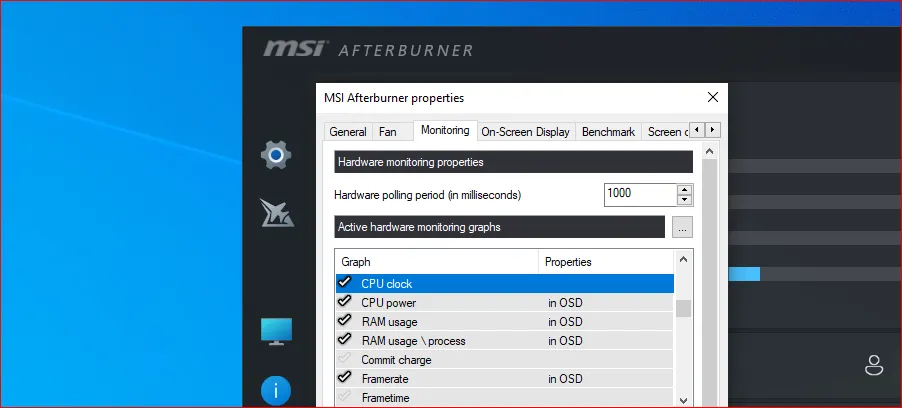
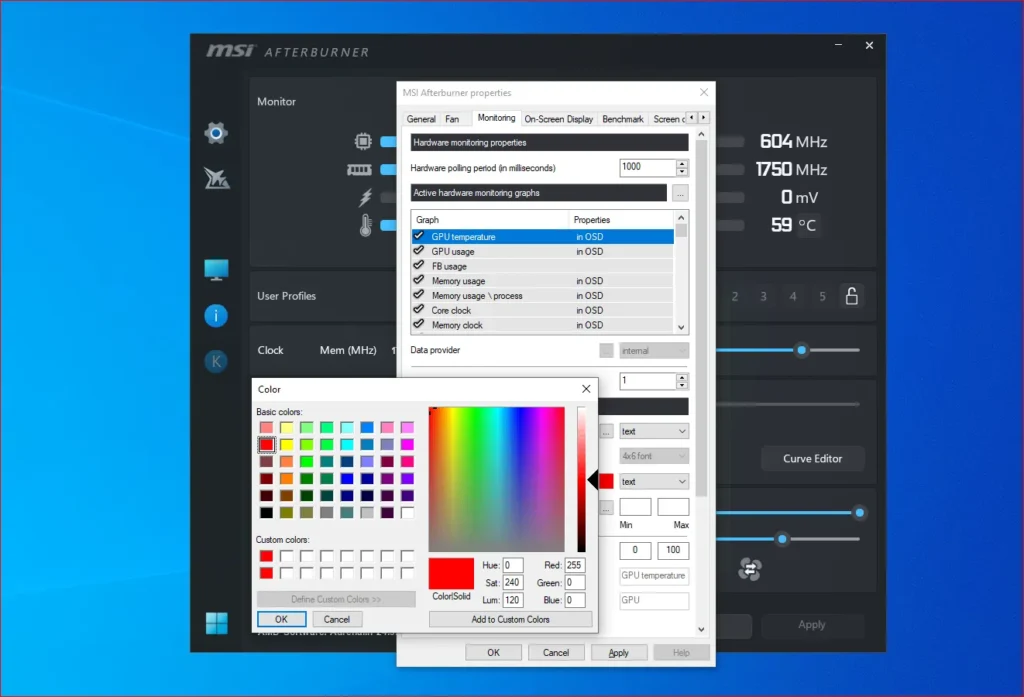
- Go to the Monitoring tab. This is where all your hardware sensors are listed under “Active hardware monitoring graphs.”
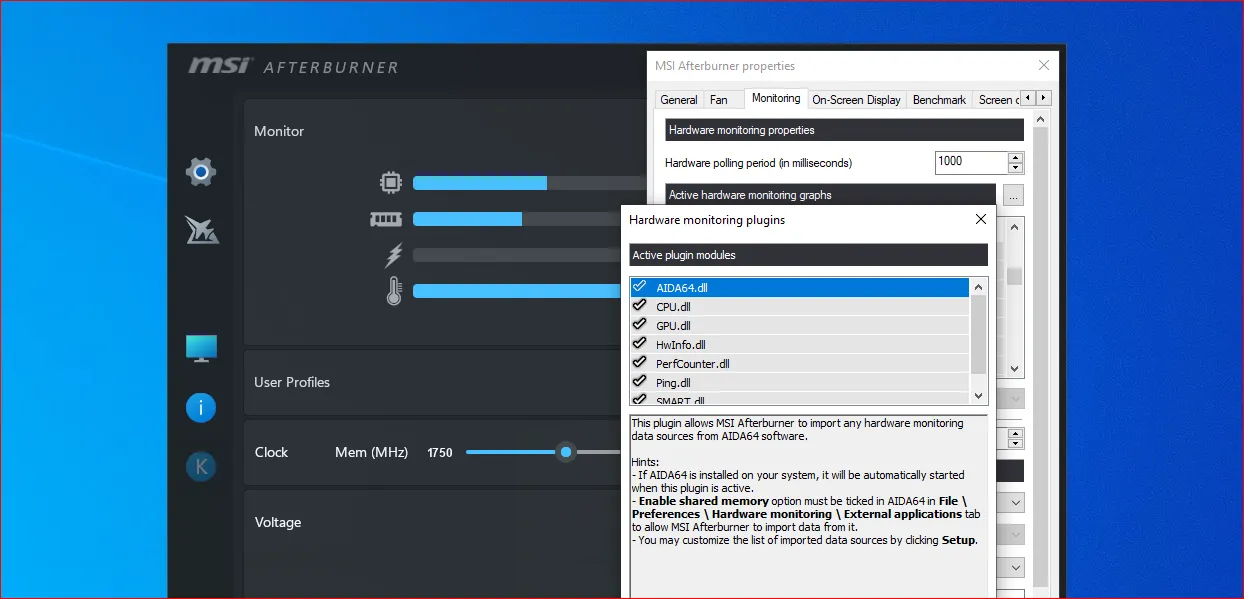
- Enable Hardware montering plugins:
- Click on the 3 dots box next to the title “Active hardware monitoring graphs”.

- A box of “Hardware montering plugins” should pop-up.
- Check mark all your favorite plugin options.
- Then hit OK button to save changes.
- Click on the 3 dots box next to the title “Active hardware monitoring graphs”.
- Select Your Stats for OSD (On-Screen Display):
- Scroll through the list and find the stats you want to see.
For FPS monitoring, the key ones are:- Framerate (This is important!)
- GPU Temperature and GPU Usage
- CPU Temperature and CPU Usage
- RAM Usage (or ‘System memory usage’)
- Frametime (Great for spotting stutters, usually displayed in milliseconds, or ‘ms’).
- To select an item: Click on it in the list (you can hold Ctrl to select multiple items at once).
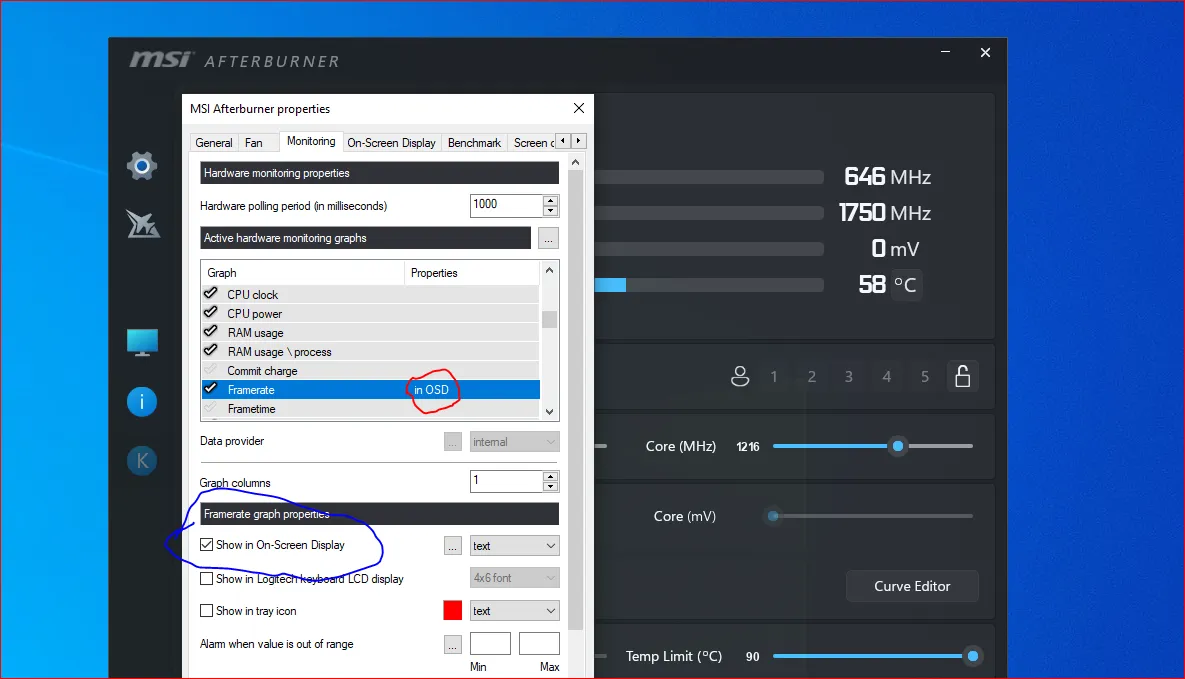
- Enable OSD: Once an item is selected, look down in the ‘Properties’ section and tick the box next to “Show in On-Screen Display”.
The text for that item in the main list should now show “[in OSD]” next to it. - Optional – Show as Graph: If you want a graph for a certain stat (like Frametime or FPS over time), select the item, then click the drop-down menu where it says ‘Text’ next to ‘Show in On-Screen Display’ and choose ‘Graph’ or ‘Text, Graph’.
- Scroll through the list and find the stats you want to see.
- Set a Toggle Hotkey:
- Go to the On-Screen Display tab (next to the Monitoring tab).
- Click in the box next to ‘Toggle On-Screen Display’ and press a key (or combination of keys) that you can easily press in-game to show or hide the stats. Something like ‘Ctrl + F12’ is a good shout.
- Save Settings:
- Click ‘Apply’, then ‘OK’.
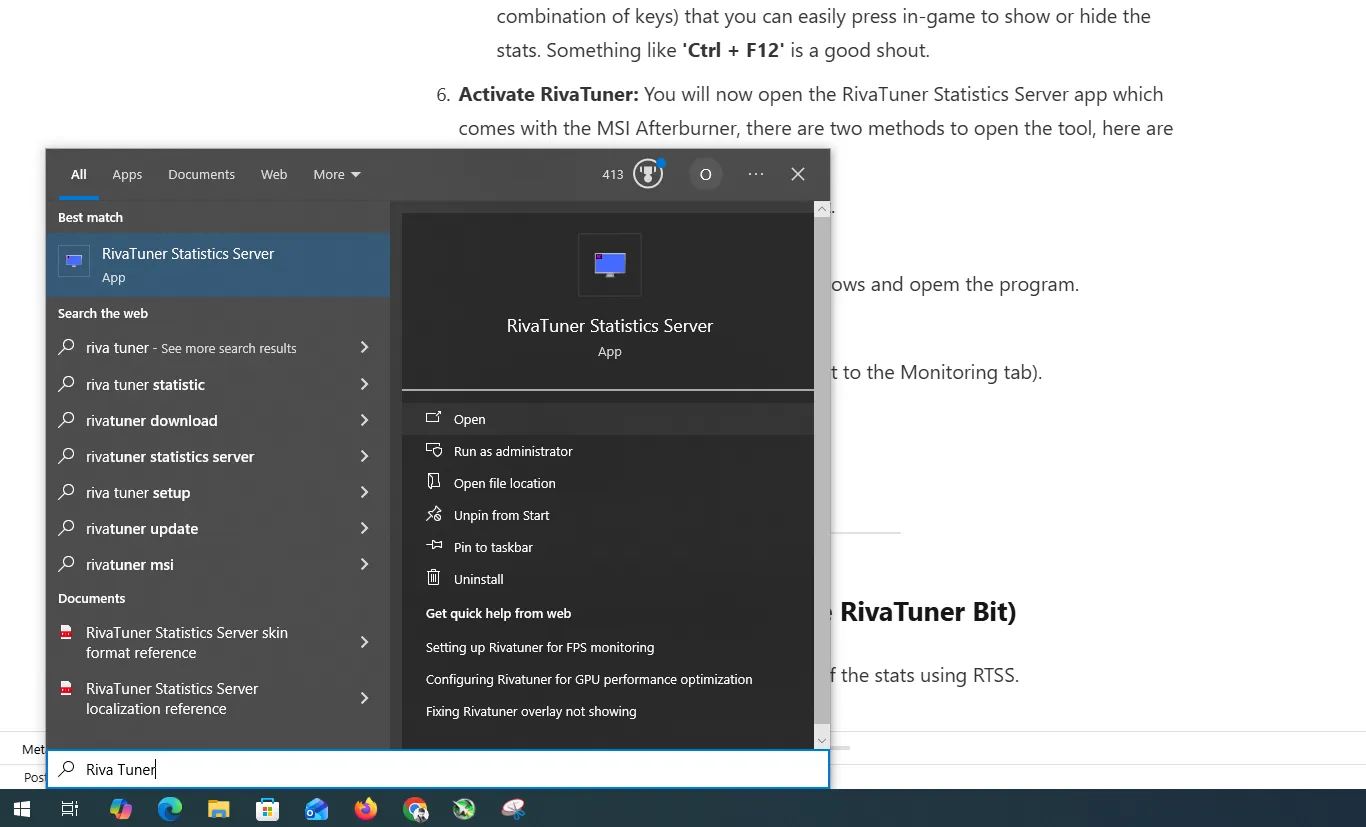
- Open RivaTuner Program: You will now need to open the RivaTuner Statistics Server app which comes with the MSI Afterburner:
- You can open the RivaTuner from start.
- You can search in app in start on Windows.
- Open the RivaTuner Statistics Server program.
- You can open the RivaTuner from start.
- Open Game to Monitor:
- Make sure both MSI Afterburner and RivaTuner is active.
- Then run a game or a tool like 3DMark or FurMark.
- You should start seeing the performance.
- The chart at the left corner on your screen.
You may like: Notepad++ for Best Code & Text Editor
Customising the Display (The RivaTuner Bit)
You can change the colour, size, and position of the stats using RTSS.
- Open RTSS:
- Find the little blue/green monitor icon in your system tray (bottom right of your desktop) and double-click it to open the RivaTuner Statistics Server window.
- Adjust Size and Position:
- Size: Look for the ‘On-Screen Display Zoom’ slider. Slide it to the right to make the text bigger if it’s too tiny in your game.
- Position: You’ll see a small grey preview area at the bottom. You can simply click and drag the preview text (which usually shows ’60’) to move the entire OSD to a corner that suits you best (top-left is the default).
- Change Colours (Optional):
- To make the text pop, look for ‘On-Screen Display Palette’. You can click on the squares here to change the colours used in the OSD. A bright colour like yellow or green is often best.
- Final Checks:
- Ensure ‘Show On-Screen Display’ is set to ‘On’ (it’s a button/toggle in the main RTSS window).
- You can set ‘Framerate limit’ in RTSS if you want to cap your FPS, but leave it at ‘Off’ or ‘0’ for now if you just want to monitor.
You may like: CrystalDiskInfo to Check Drive Information
Final Tips!
- Make sure both MSI Afterburner and RivaTuner Statistics Server are running (minimised, not closed!).
- Launch your game.
- The OSD should appear in the corner you set. If it doesn’t, press the Toggle On-Screen Display hotkey you set in Afterburner (e.g., Ctrl + F12).
That’s the ticket! You’ll now have a crystal-clear view of your FPS and other performance indicators right in the thick of the action.
FAQ’s
Frequently Asked Questions:
What is MSI Afterburner FPS monitoring?
MSI Afterburner FPS monitoring allows you to track your game’s frame rate in real time using an on-screen display. With RivaTuner Statistics Server (RTSS), it shows accurate FPS data while you play, helping you evaluate performance and stability.
Do I need RivaTuner to show FPS in games?
Yes, RivaTuner Statistics Server (RTSS) is required to display the in-game FPS counter. MSI Afterburner handles the monitoring, while RTSS displays the FPS and other performance metrics on-screen during gameplay.
How do I enable the FPS counter in MSI Afterburner?
To enable the FPS counter, open MSI Afterburner settings, go to the Monitoring tab, select Framerate, and enable “Show in On-Screen Display.” Once applied, the FPS counter will appear when you launch a game.
Why is my FPS not showing in MSI Afterburner?
If the FPS counter is not showing, make sure RTSS is running in the background and that Framerate is enabled under the Monitoring tab. Running both MSI Afterburner and RTSS as administrator also helps fix compatibility issues.
Can MSI Afterburner monitor FPS in all games?
MSI Afterburner supports most DirectX, OpenGL, and Vulkan games. However, some games with anti-cheat systems or exclusive fullscreen modes may block on-screen displays unless proper permissions are set.
Does monitoring FPS reduce game performance?
No, MSI Afterburner and RTSS are lightweight tools and have minimal impact on performance. FPS monitoring runs in the background and is optimized to work without affecting gameplay.
Can I customize the FPS counter display?
Yes, you can customize the FPS counter’s size, color, position, and font using RivaTuner Statistics Server. This allows you to place the FPS overlay anywhere on the screen without blocking gameplay.
Can MSI Afterburner show more than just FPS?
Yes, MSI Afterburner can display GPU temperature, GPU usage, CPU usage, RAM usage, frame time, and more alongside FPS. These metrics help diagnose performance bottlenecks while gaming.
Is MSI Afterburner FPS monitoring free?
Yes, MSI Afterburner and RivaTuner Statistics Server are completely free to use. There are no subscriptions or hidden charges, making them popular tools for gamers and PC enthusiasts.
Is MSI Afterburner safe for FPS monitoring?
Yes, MSI Afterburner is safe when downloaded from a trusted source and used with default settings. FPS monitoring does not modify hardware behavior and is safe for long gaming sessions.