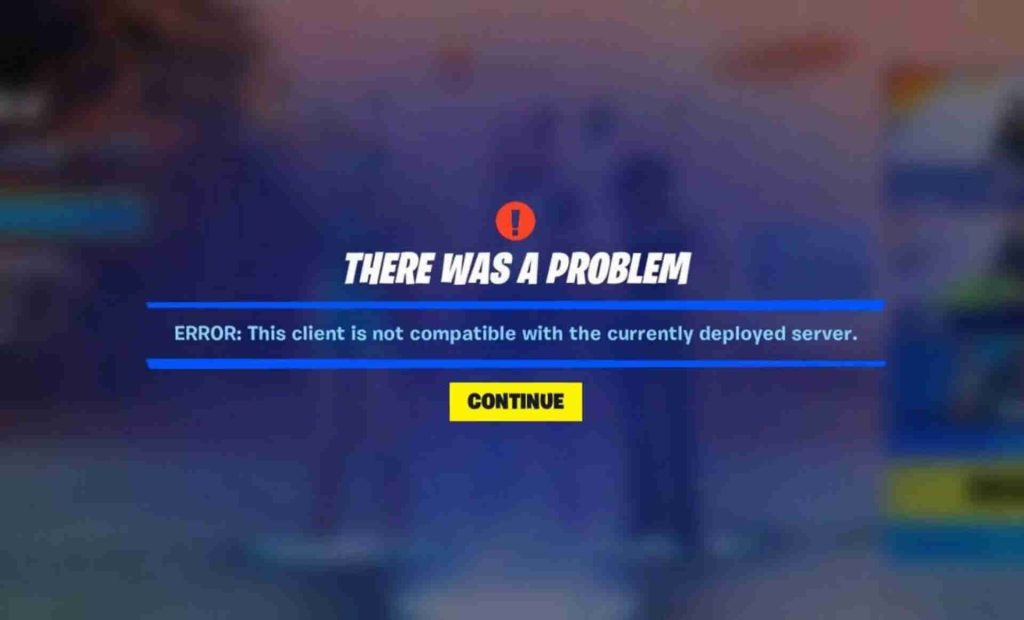
Hey there! Are you having trouble with the “This Client is Not Compatible” error in Fortnite? Well, you’re not alone. Fortnite is a widely popular video game that’s available on several platforms such as PC, Xbox One, PlayStation 4, and Nintendo Switch.
Table of Contents
However, some players have reported facing the annoying error message which can ruin the gaming experience. But don’t worry, because you can fix this issue quickly and easily with just a few simple steps. In this guide, we’ll show you how to fix the “This Client is Not Compatible” error in Fortnite so that you can get back to playing your favorite game without any interruptions.
Why is Client Compatibility Error?
The “Client Not Compatible” error in Fortnite typically occurs when there is a version mismatch between the game client and the game server. This error can occur due to a variety of reasons, such as outdated game files, network issues, or bugs in the game.
Sometimes, the error may also occur if the user is attempting to log in to the game from a device that does not meet the minimum system requirements for Fortnite. In most cases, this error can be resolved by following some simple troubleshooting steps.
How to Fix Client Not Compatible Error in Fortnite?
The error message prevents players from accessing the game and can be frustrating for those who are eager to play. Here are some possible methods to fix the “This Client is Not Compatible” error in Fortnite:
- Update your graphics driver: Outdated or faulty graphics drivers can cause compatibility issues with Fortnite. To update your graphics driver, go to your computer manufacturer’s website or graphics card manufacturer’s website, download the latest driver for your graphics card, and install it.
- Verify Fortnite files: Corrupted or missing game files can cause the “This Client is Not Compatible” error. To verify the Fortnite files, open the Epic Games Launcher, click on the Library tab, click on the three dots next to Fortnite, and select Verify. This will check for any missing or corrupted files and repair them if necessary.
- Update Fortnite: Epic Games releases regular updates for Fortnite, which can include compatibility fixes. To update Fortnite, open the Epic Games Launcher, click on the Library tab, click on the three dots next to Fortnite, and select Update.
- Clear the cache: Clearing the cache can sometimes help to resolve compatibility issues. To clear the cache, open the Epic Games Launcher, click on the Library tab, click on the three dots next to Fortnite, and select Clear Cache.
- Reinstall Fortnite: If none of the above methods work, try uninstalling and reinstalling Fortnite. To uninstall Fortnite, open the Epic Games Launcher, click on the Library tab, click on the three dots next to Fortnite, and select Uninstall. Once uninstalled, download and reinstall the game from the Epic Games Launcher.
By following these methods, you should be able to fix the “This Client is Not Compatible” error in Fortnite.
FAQ’s
Here are some frequently asked questions and answers about the “This Client is Not Compatible” error in Fortnite:
What causes the “This Client is Not Compatible” error in Fortnite?
This error usually occurs when the version of Fortnite installed on your device is not compatible with the version of the Epic Games launcher. It can also occur if there is an issue with the launcher itself.
How can I fix the “This Client is Not Compatible” error?
There are several methods you can try to fix this error. Some of the most common ones include updating the Epic Games launcher, verifying the game files, reinstalling the game, and disabling any antivirus or firewall software.
How do I update the Epic Games launcher?
To update the launcher, simply open it and click on the gear icon in the top-right corner. From there, select “Check for Updates” and wait for the launcher to download and install any available updates.
How do I verify the game files?
To verify the game files, open the Epic Games launcher and navigate to the Fortnite tab. Click on the three dots next to the “Launch” button and select “Verify.” The launcher will then check the game files and replace any missing or corrupted files.
How do I reinstall the game?
To reinstall Fortnite, open the Epic Games launcher and navigate to the Fortnite tab. Click on the gear icon next to the “Launch” button and select “Uninstall.” Once the game is uninstalled, click on the “Install” button to download and reinstall the game.
What should I do if disabling antivirus or firewall software doesn’t work?
If disabling antivirus or firewall software doesn’t fix the error, you may need to contact Epic Games support for further assistance. They may be able to provide additional troubleshooting steps or identify any underlying issues with your account or device.
Can I prevent the “This Client is Not Compatible” error from happening again in the future?
To prevent this error from happening again in the future, make sure to keep your Epic Games launcher and Fortnite game files up-to-date. You can also try disabling any third-party software that may interfere with the launcher or game, such as antivirus or firewall programs. Additionally, try running the game in compatibility mode or as an administrator if you continue to experience issues.
If u have a question ask in the comments.