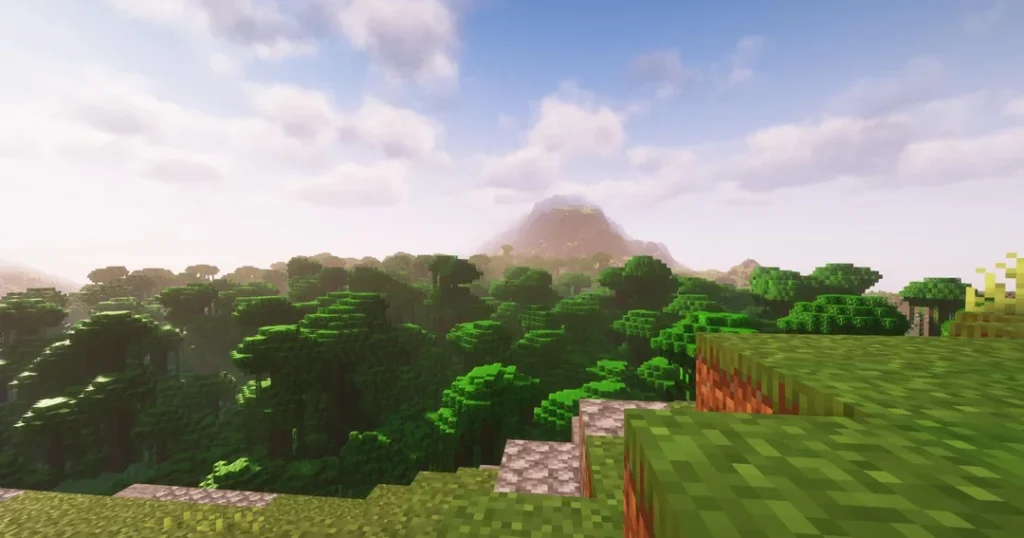
Today, we have shared ready-to-use OptiFine HD best settings tables for Minecraft Java Edition, one tuned for low-end PCs and another balanced set for most PCs (low to high hardware). These focus on real performance gains without guesswork.
Table of Contents
Check out the best Minecraft Java OptiFine settings for low-end PC users to maximise game FPS on your computer or laptop, with or without a dedicated GPU (graphics card). We’ll also share balanced settings, and before that, here are quick settings suitable for almost every PC:
Quick FPS Impact Guide
Here are some major Minecraft Java settings changes that you can make to boost performance with impact rating:
| Change | FPS Impact |
|---|---|
| Lower render distance | Very High |
| Disable smooth lighting | High |
| Turn off animations | High |
| Graphics → Fast | Medium |
| Clouds OFF | Medium |
| Entity shadows OFF | Medium |
You may like: FallingTree – Minecraft Java Mods
Minecraft OptiFine HD Low Settings
Use this if you’ve got integrated graphics, low RAM, or struggle to stay above 40 FPS:
1. Video Settings — Low PC Optimisation Table
| Setting | Recommended Value | Why |
|---|---|---|
| Graphics | Fast | Removes heavy visual effects |
| Smooth Lighting | OFF | Big FPS gain |
| Smooth Lighting Level | 0% | Prevents lighting calculations |
| Render Distance | 6–8 chunks | Major FPS saver |
| Simulation Distance | 4–5 chunks | Reduces CPU load |
| Max Framerate | Unlimited | Avoid frame cap bottleneck |
| VSync | OFF | Reduces input lag |
| View Bobbing | OFF | Small but free gain |
| GUI Scale | 2 or Auto | Lower UI cost |
| Attack Indicator | OFF | Minor render saving |
2. Details Settings — Low PC
| Setting | Value |
|---|---|
| Clouds | OFF |
| Trees | Fast |
| Sky | OFF |
| Sun & Moon | OFF |
| Fog | OFF |
| Rain & Snow | OFF |
| Dropped Items | Fast |
| Entity Shadows | OFF |
3. Animations Settings — Low PC
Turn OFF almost everything
| Setting | Value |
|---|---|
| All Animations | OFF |
| Particles | Minimal |
| Water Animation | OFF |
| Lava Animation | OFF |
| Fire Animation | OFF |
| Portal Animation | OFF |
| Explosion | OFF |
4. Quality Settings — Low PC
| Setting | Value |
|---|---|
| Mipmap Levels | OFF |
| Anisotropic Filtering | OFF |
| Antialiasing | OFF |
| Connected Textures | OFF |
| Custom Fonts | OFF |
| Custom Sky | OFF |
| Random Entities | OFF |
5. Performance Tab — Low PC (Very Important)
| Setting | Value |
|---|---|
| Fast Render | ON |
| Fast Math | ON |
| Smart Animations | ON |
| Render Regions | ON |
| Lazy Chunk Loading | ON |
| Smooth FPS | ON |
You may like: Carry On – Minecraft Mods
Minecraft OptiFine HD Balanced Settings
Use this if you want strong performance but still want the game to look nice. Works well on mid and high-range PCs.
1. Video Settings — Balanced Mode
| Setting | Recommended Value | Why |
|---|---|---|
| Graphics | Fast or Fancy | Fancy if GPU is decent |
| Smooth Lighting | Minimum | Keeps visuals decent |
| Smooth Lighting Level | 25–50% | Balance |
| Render Distance | 10–14 chunks | Good view without heavy load |
| Simulation Distance | 6–8 chunks | Stable tick rate |
| Max Framerate | Match monitor Hz | Smooth pacing |
| VSync | OFF (usually) | Lower latency |
| View Bobbing | ON | Visual preference |
2. Details Settings — Balanced
| Setting | Value |
|---|---|
| Clouds | Fast |
| Trees | Smart |
| Sky | ON |
| Sun & Moon | ON |
| Fog | Fast |
| Rain & Snow | Fast |
| Entity Shadows | OFF |
3. Animations Settings — Balanced
| Setting | Value |
|---|---|
| All Animations | ON |
| Particles | Decreased |
| Terrain | ON |
| Water | ON |
| Portal | OFF (optional FPS boost) |
| Explosion | Decreased |
4. Quality Settings — Balanced
| Setting | Value |
|---|---|
| Mipmap Levels | 2–4 |
| Antialiasing | OFF or 2x |
| Anisotropic Filtering | 2x–4x |
| Connected Textures | Fast |
| Custom Sky | OFF |
| Better Grass | Fast |
5. Performance Tab — Balanced
| Setting | Value |
|---|---|
| Fast Render | ON |
| Fast Math | ON |
| Smart Animations | ON |
| Render Regions | ON |
| Lazy Chunk Loading | ON |
| Smooth FPS | ON |
World Famous Shaders: Complementary Shaders – Minecraft Java Mods
FAQ’s
Frequently Asked Answers:
What are the best Minecraft Video Settings for maximum FPS?
To maximize your frame rate, you should start by setting Graphics to Fast, which disables transparent textures like leaves. Lower your Render Distance to between 6 and 10 chunks; this is the single most impactful setting for performance. Set Simulation Distance to 8 chunks or lower to reduce the CPU load from mob AI and block updates. Finally, ensure Max Framerate is set to Unlimited so your PC isn’t artificially capped, and turn VSync Off to prevent input lag, unless you are experiencing severe screen tearing.
Which specific “Performance” tab settings should I enable to stop lag spikes in Minecraft?
Inside the specific “Performance” submenu, you must enable Smart Animations; this is a critical setting that stops the game from animating textures (like fire or water) when you aren’t looking at them, saving massive resources. Turn Render Regions and Fast Render to On, as these optimize how the GPU draws the world. Additionally, enabling Fast Math can provide a small CPU boost. However, keep Chunk Updates to 1 and leave Smooth FPS Off initially, as Smooth FPS can sometimes cause stuttering rather than fixing it on modern hardware.
How do I configure Minecraft’s the “Details” tab for a balance of speed and clarity?
In the Details menu, the goal is to remove unnecessary visual noise. Set Trees to Smart or Fast (Smart gives you high-quality leaves without the performance hit of “Fancy”). Turn Clouds to Off or Fast and disable Fog completely to improve visibility and speed. Ensure Vignette is set to Fast. Crucially, set Biome Blend to Off or Fast (5×5 maximum); higher biome blend settings are notoriously unoptimized and can tank performance even on high-end PCs.
What Minecraft “Quality” settings safely boost visuals without ruining performance?
If you want the game to look decent without lag, keep Mipmap Levels at 4 but set Mipmap Type to Nearest. Turn Better Grass to Fast if you like the full-block grass look, or Off for pure performance. Disable Custom Sky and Custom Entity Models only if you are playing heavily modded PvP and need every last frame; otherwise, keeping them On is usually fine for vanilla survival. Always turn Anisotropic Filtering and Antialiasing Off here, as they are huge resource hogs.
How to Fix Minecraft stutters?
Stuttering during turning or world loading is often caused by the game trying to autosave or load too many chunks at once. Go to “Video Settings” -> “Other” and set Autosave to 30 minutes (default is 45s, which causes frequent lag spikes). Also, ensure Lazy Chunk Loading is On (in the Performance tab), which spreads the chunk loading process out over time rather than freezing your game to load everything instantly.
What are the best Minecraft settings if I plan to use Shaders in 2026?
If you are using shaders (like Complementary or BSL), your base settings matter less, but you must optimize the “Shaders” menu itself. Set Render Quality to 1x (going lower causes blur, higher causes lag). Ensure Shadow Quality is set to 1x or lower. Most importantly, inside the shader options list, look for “Profile” or “Preset” and select Medium or High Performance rather than Ultra. Shaders rely heavily on your GPU, so reducing Render Distance to 8 chunks is often necessary to maintain 60+ FPS with shaders on.
Is OptiFine still the best option for performance in 2026?
While OptiFine is excellent for features like Zoom and Connected Textures, strictly speaking, it is no longer the king of raw FPS. For pure performance on modern hardware (especially for 1.21+), the Sodium (performance) + Iris (shaders) combination often yields 2x-3x higher framerates than OptiFine. However, if you stick with OptiFine for its specific resource pack features or familiarity, the settings detailed above are the absolute limit of how optimized you can get.