
Learn how to disable BattlEye in the Rockstar Games Launcher to use GTA mods in single-playe and this step-by-step BattleEye guide is to properly enable or disable Battle Eye and fix common BattlEye application issues.
Table of Contents
Battleye is an anti-cheat system used by Rockstar Games to protect its multiplayer modes. However, if you’re looking to use mods games like GTA 5 single-player, you may need to disable Battleye on Rockstar Launcher, Steam, Microsoft, and Epic Games.
How to Disable Battleye for Rockstar Games Launcher
If you want to use mods in single-player, you may need to disable BattlEye anti-cheat. This can be done by different methods for all games including Grand Theft Auto series or Red Dead Redemption series and even game editoins on PC.
Remember, this process is intended for offline mode only and should not be used for GTA Online to avoid potential account bans.
Here’s how you can Disable Battleye for Rockstar Games Launcher safely:
Method 1: Disable Battleye from Rockstar Launcher Directly
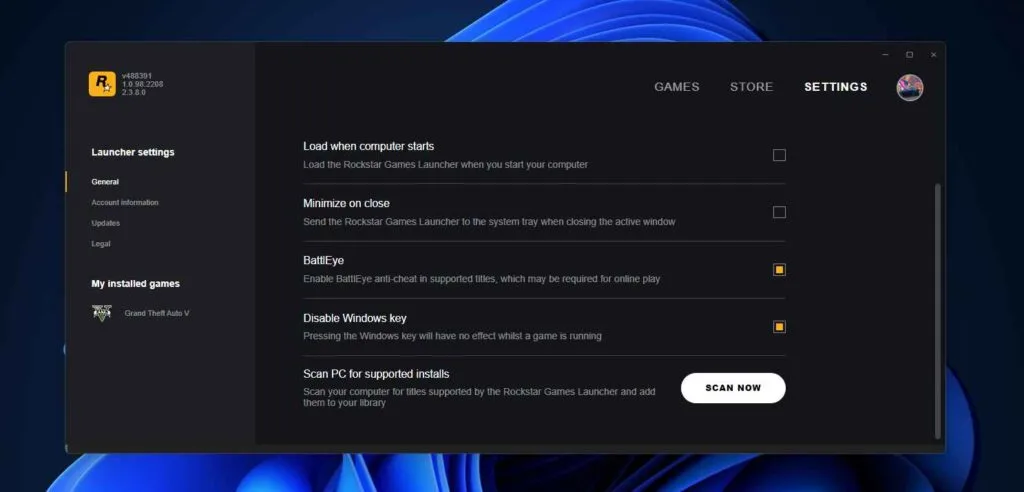
To disable BattlEye in Rockstar Games Launcher from settings, follow these steps:
- Open the Rockstar Games Launcher: Launch the Rockstar Games Launcher application.
- Navigate to Settings: Click on the Settings icon, usually located in the top-right corner of the launcher window.
- Uncheck BattlEye: In the Settings menu, find the “Enable BattlEye” option and uncheck it.
- Save Changes: Apply the changes and close the Settings menu.
This will disable BattlEye for the specific game you’re playing. Keep in mind that disabling BattlEye may prevent you from playing online or accessing online features, depending on the game.
You may like: Add GTA 5 DLC Packs in DLCList.xml
Method 2: Disable BattlEye Using Shortcut
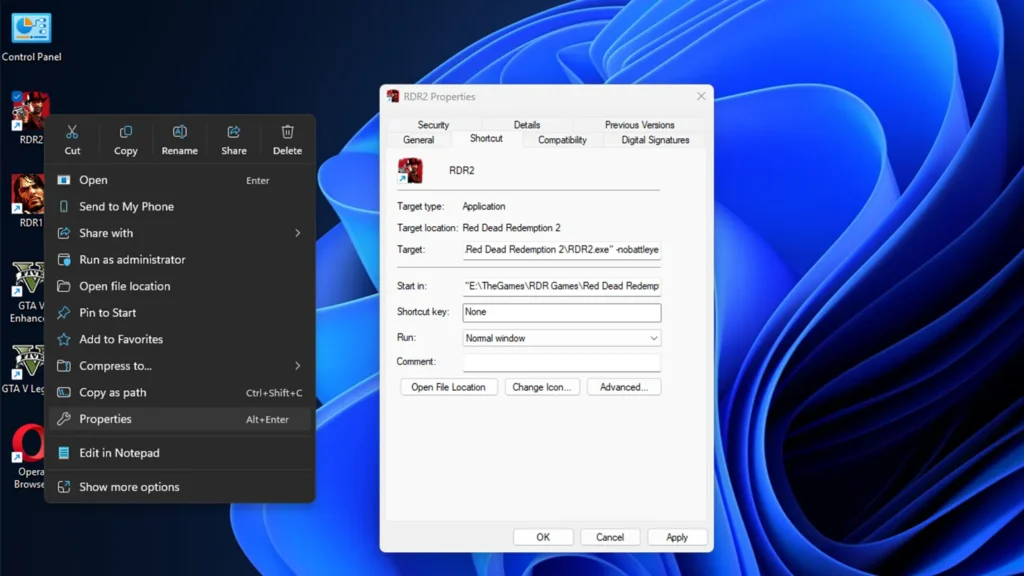
To disable BattlEye in Rockstar Games Launcher from settings, follow these steps:
- Locate your GTA 5 desktop shortcut.
- Right-click the shortcut and select Properties.
- In the Shortcut tab, find the Target field.
- Click inside the Target box and move the cursor to the very end of the line.
- Add a space and then type:
-nobattleye - Click Apply, then OK.
- Launch the game using this shortcut.
This will start GTA or RDR without loading BattlEye, allowing single-player mods to work properly.
You may like: GTA 5 NaturalVision Lite Custom Settings
Method 3: Disable BattlEye using Arguments
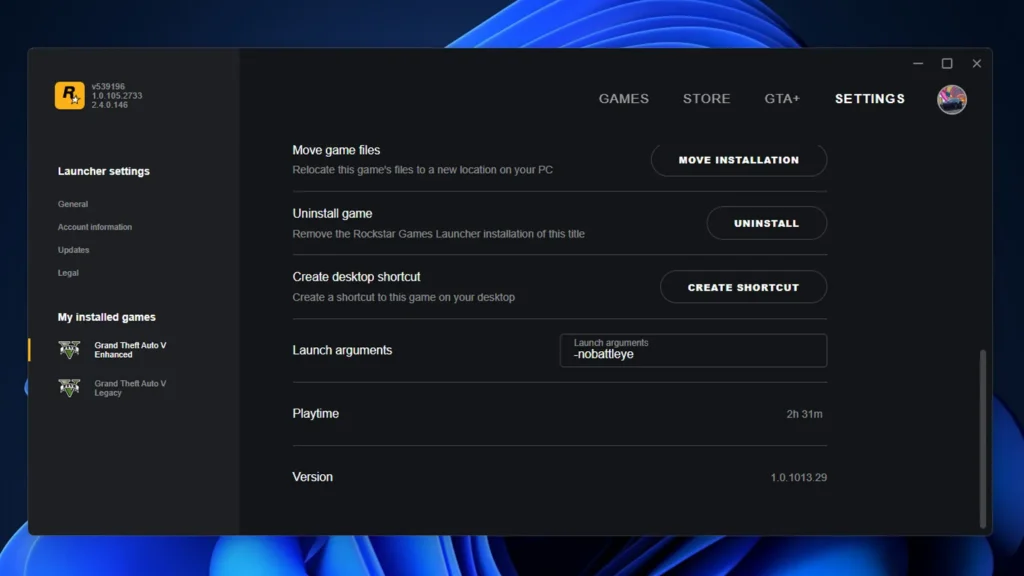
- Open the Rockstar Games Launcher.
- Click Settings in the top-right corner.
- Select Grand Theft Auto V from the left sidebar.
- Scroll to the Launch Arguments section.
- Enter the following code in the box:
-nobattleye - Close the settings and launch the game normally.
This will start your game without loading BattlEye, allowing single-player mods to work properly.
You may like: How to Play/Exit GTA 5 in Safe Mode on PC
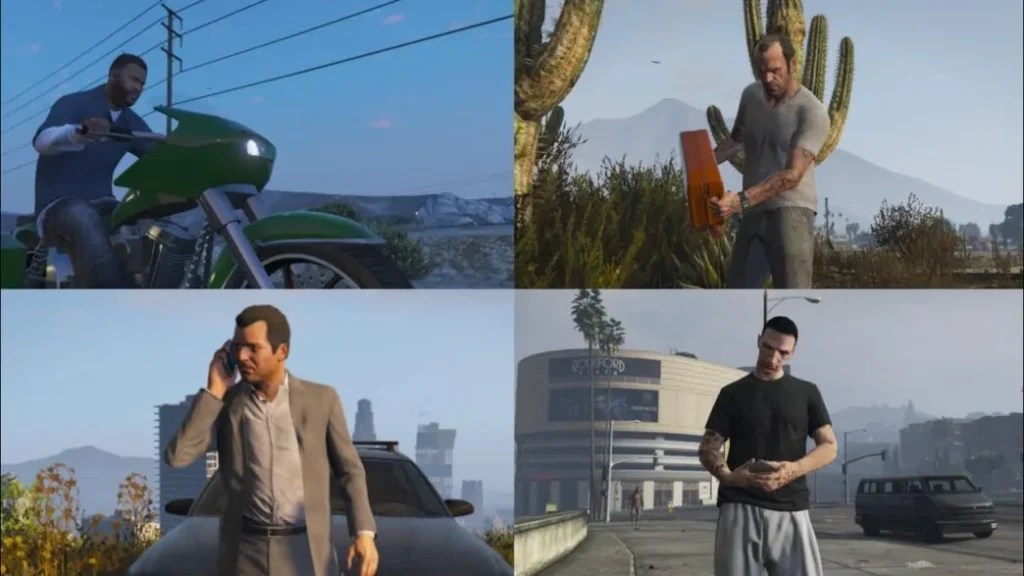
Do not attempt to access GTA Online with mods or without Battleye enabled, as it may lead to bans or account suspension.
Important Notes
- Always back up your game files before making any changes.
- Use mods only in single-player mode to avoid violating Rockstar’s terms of service.
Looking for Rockstar Games Launcher
If you have a question, feel free to ask in the comments.