
Learn how to verify the integrity of Grand Theft Auto (GTA) games on PC, PlayStation, Xbox, and Nintendo Switch. Verifying the integrity of your game ensures that all files are intact and working properly.
Table of Contents
Verifying game files ensures that all the necessary data for the game is intact and functioning properly by solving missing, corrupted, or modified, the launcher replaces or re-downloads the problematic files.
This process helps resolve issues like crashes, performance problems, or in-game bugs caused by damaged files, without needing to reinstall the entire game.
How to Verify Integrity of GTA
Follow the steps to check and repair all GTA game files for GTA Trilogy (Vice City, San Andreas, Liberty City Stories 3), GTA 4, GTA 5, and even GTA 6 to ensure smooth gameplay across all platforms:
1. PC (Steam, Epic Games or Rockstar Launcher)
Here’s how to verify the integrity of Grand Theft Auto games:
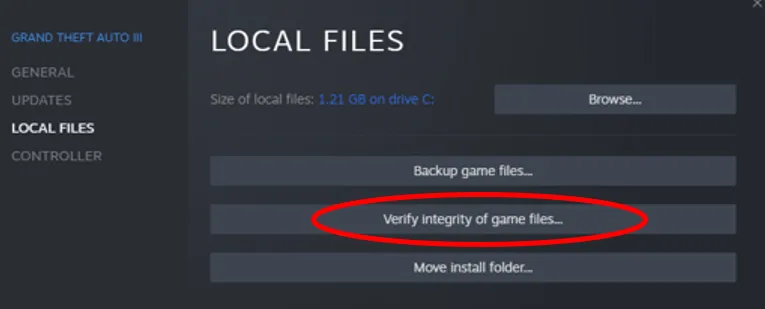
For Steam:
- Open the Steam client.
- Navigate to Library and find your GTA game.
- Right-click the game title, select Properties, then go to Installed Files.
- Click Verify Integrity of Game Files. Steam will check for missing or corrupted files and replace them.
You may like: Fix GTA 5 NaturalVision Enhanced ReShade & NVE Error
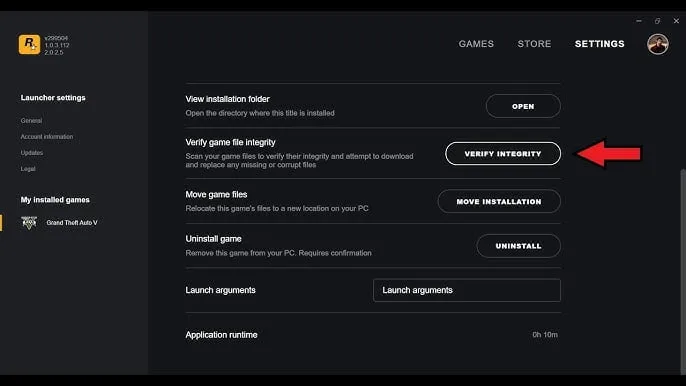
For Rockstar Launcher:
- Open the Rockstar Games Launcher.
- Find GTA in your Games tab.
- Click the Settings (gear) icon next to the game.
- Choose Verify Integrity, and the launcher will scan and repair any issues.
You may like: GTA 5 Mod Loader (OpenRPF.asi, OpenIV.asi) Enhanced/Legacy

Epic Games Launcher:
- Open Epic Games Launcher and log in to your account.
- Go to the Library tab and locate Grand Theft Auto in your game list.
- Click the three dots (•••) next to the game title.
- Select Verify from the drop-down menu.
- The launcher will scan your game files. If any are missing or corrupted, it will automatically download and fix them.
You may like: Run GTA V Enhanced on DirectX 11
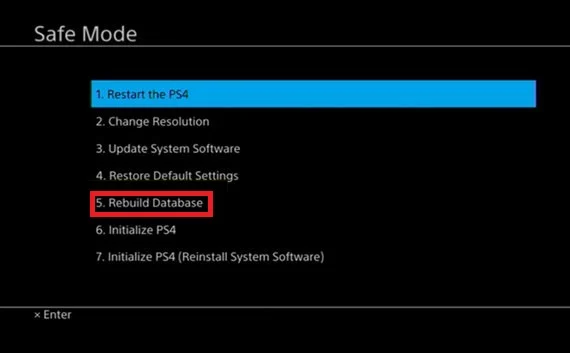
2. PlayStation (PS4/PS5)
- Press and hold power button for 3 seconds.
- Let the PlayStation reboot in Safe Mode.
- Select Rebuild Database.
- Wait for auto restart.
If the rebuilding database feature does work, your final solution for PlayStation is to reinstall the game:
- Go to Settings > Storage.
- Select Games and find GTA.
- Delete the game and reinstall it from your library or disc to ensure clean installation (PlayStation doesn’t have a direct verification feature).
You may like: Check GTA 5 Version? (GTA V Edition Finder)
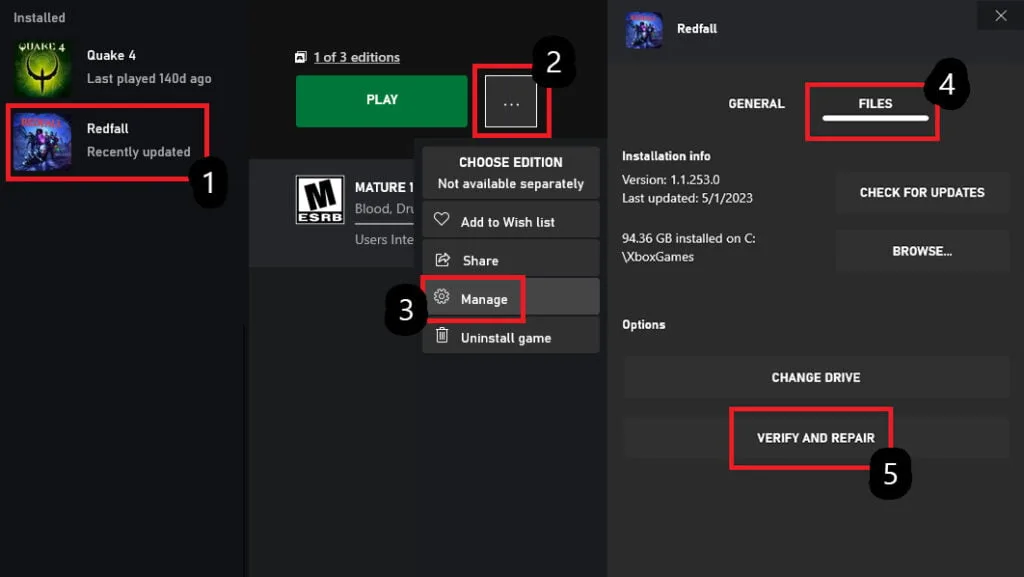
3. Xbox (Xbox One/Series X|S)
- On your Xbox dashboard.
- Go to My Games & Apps.
- Highlight GTA, press the Menu button (three lines), and select Manage Game.
- Choose Files from game manage properties.
- Click on the “Verify and Repair” button.
You may like: How to Install LS Life Mod Pack in GTA 5
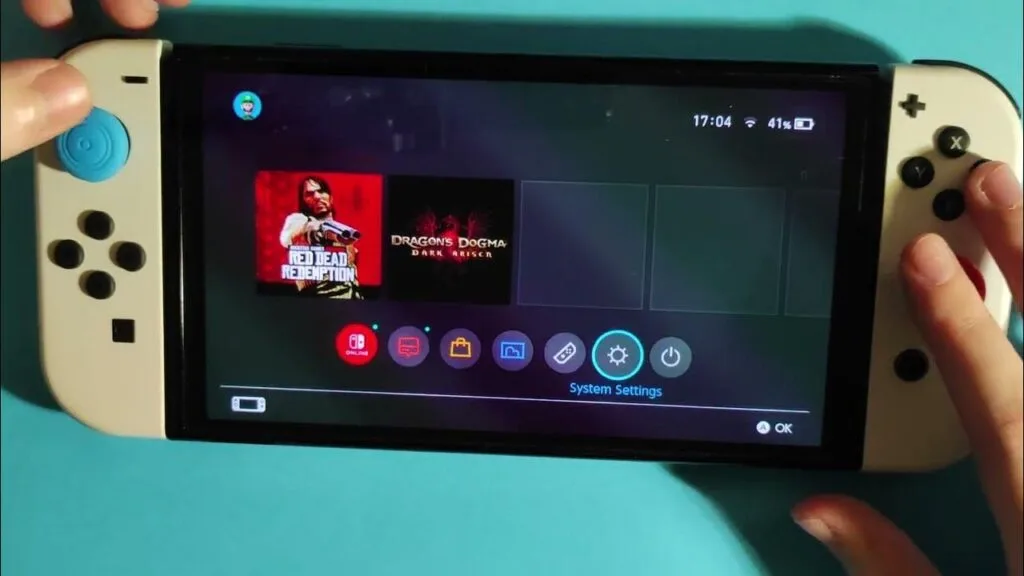
4. Nintendo Switch (GTA Trilogy)
- Go to the Home Menu and select System Settings.
- Choose Data Management, then select Manage Software.
- Select GTA Trilogy from library.
- Click Check for Corrupt Data.
If issues are found, you may need to re-download the game.
By following these steps, you can ensure your GTA game files are in good shape across all platforms.
You may like: How to Run GTA 5 in Compatibility Mode
FAQ’s
Frequently Asked Questions:
How do I verify the integrity of GTA games on Steam?
To verify the integrity of GTA games on Steam, open the Steam client, navigate to your Library, right-click on the GTA game, select Properties, go to the Local Files tab, and click Verify Integrity of Game Files. Steam will scan the game’s files and automatically download any missing or corrupted files.
How do I verify the integrity of GTA games on Rockstar Games Launcher?
To verify GTA games on the Rockstar Games Launcher, launch the app, go to the Library section, click on the game you want to verify, then press the Settings button (gear icon) beside the Play button. From the drop-down menu, select Verify Integrity. The launcher will check the game files and replace any that are corrupted.
How can I verify the integrity of GTA games on Epic Games Store?
For Epic Games Store, open the launcher, go to your Library, find the GTA game, and click on the three dots next to it. From the options, select Verify. The Epic Games launcher will then scan your game files and automatically fix any that are incomplete or damaged.
Can I verify the integrity of GTA games on consoles (PlayStation/Xbox)?
On PlayStation and Xbox, there isn’t a direct option to verify game integrity like on PC platforms. Instead, you can try reinstalling the game or clearing the console’s cache. On PlayStation, go to Settings > Storage, find the GTA game, and delete it, then reinstall from the library. On Xbox, you can follow similar steps through Settings > System > Storage and reinstall the game.
Why should I verify the integrity of my GTA game?
Verifying game integrity helps fix issues caused by corrupted or missing files. Problems like game crashes, glitches, or unplayable sections may be resolved through this process, as it ensures all files are correctly installed and up-to-date, allowing the game to run smoothly.
What happens when you verify the game files on Steam?
Verifying game files on Steam compares your local files with the latest versions on Steam servers. If any files are missing or corrupted, Steam will automatically download and replace them. This is helpful for fixing crashes or issues caused by incomplete or damaged files.
Does verifying the game on Steam remove mods?
Yes, verifying game files on Steam may remove or overwrite mods, as it restores the game to its original state by replacing any altered files. It’s recommended to back up your modded files before running verification.
Is there a way to verify files on PlayStation or Xbox?
Unlike PC, there’s no direct file verification option on consoles. If you encounter issues, reinstalling the game or clearing the system’s cache can help resolve problems. This is the closest method available to verifying game integrity on PlayStation or Xbox.