
Learn how to add GTA 5 dlcpacks to dlclist.xml for vehicles, maps and RPF-based add-ons in Grand Theft Auto V with step by step OpenIV program guide with correct <Item> dlcpacks code format and installation tips for safe modding.
Table of Contents
Modding Grand Theft Auto V on PC allows you to install custom vehicles, maps and other RPF-based add-ons. However, for the game to recognise these mods, you must correctly register each folder inside the dlclist.xml file.
What You’ll Need
- OpenIV (with Edit Mode enabled)
- Your add-on mod folder (containing
dlc.rpf) - Access to your GTA V
modsdirectory (recommended for safety)
You may like: NaturalVision Lite GTA V
How to Add GTA 5 Add-ons in DLC List:
A dlcpacks folder contains a dlc.rpf archive with the files required for an add-on (vehicles, liveries, maps, props, etc.). GTA V Enhanced and Legacy reads these folders at launch, but only if they are listed in dlclist.xml.
Step 1: Install the dlcpacks Folder
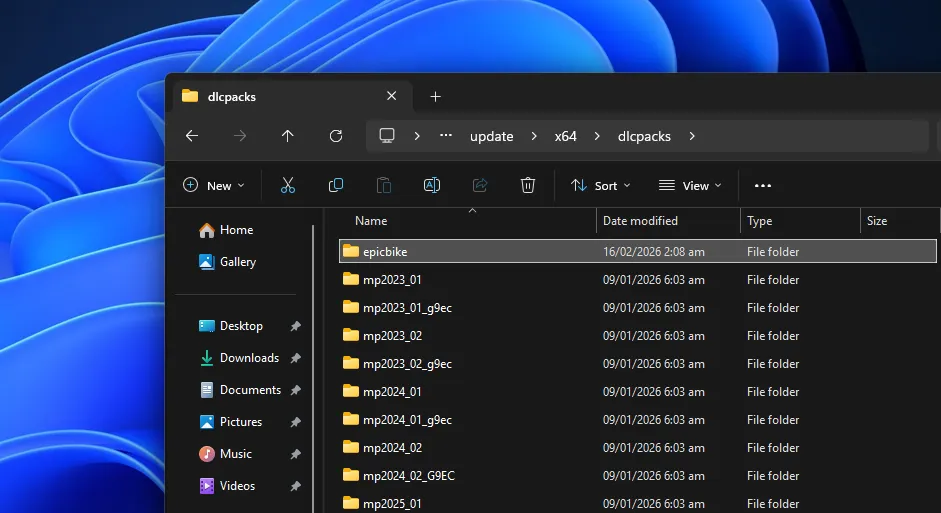
Navigate to your GTA V directory:
mods\update\x64\dlcpacksIf you do not have a mods folder, create one via OpenIV’s ASI Manager. It is strongly recommended not to edit original game files.
Place your add-on folder inside dlcpacks.
Example:
mods\update\x64\dlcpacks\m4competition\Inside that folder should be:
dlc.rpfYou may like: Packfile Limit Adjuster Enhanced
Step 2: Turn on Edit Mode
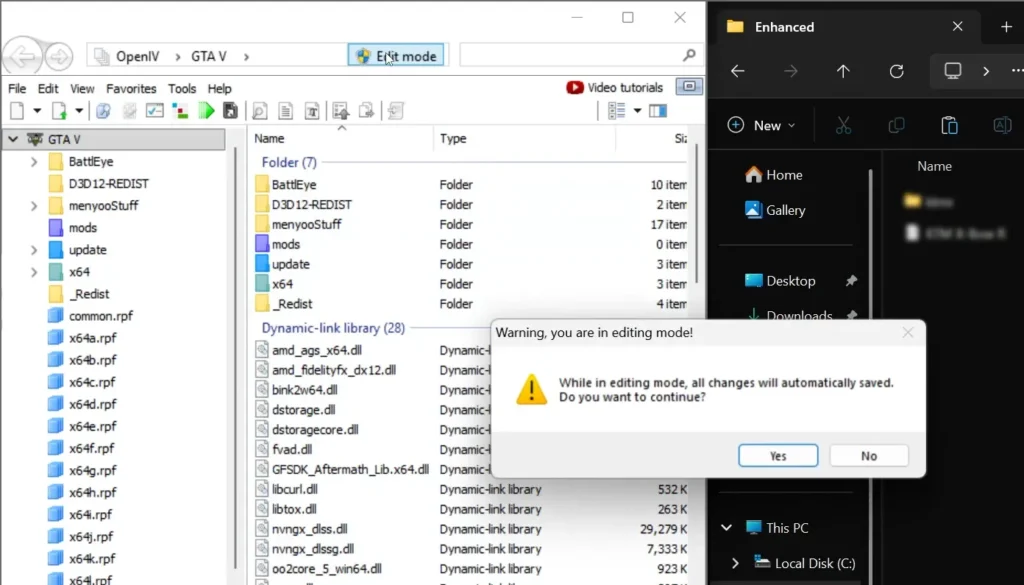
- Open the OpenIV Program
- Install ASI Tools for Legacy or Enhanced
- Click on Edit Mode button in OpenIV
- Hit “yes” in pop to go to edit mode
You may like: Native Mod Menu [ASI] (Enhanced)
Step 3: Open dlclist.xml
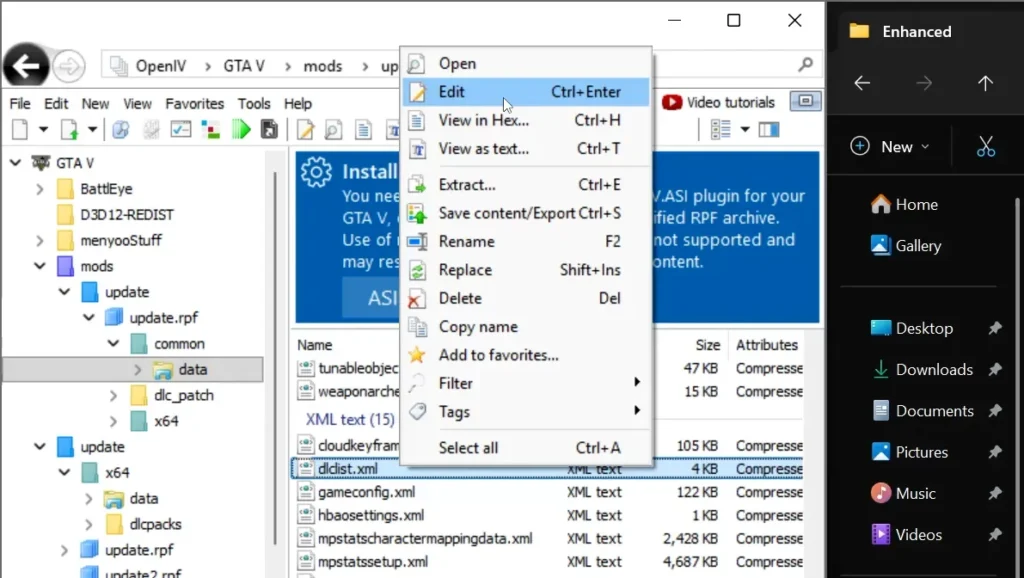
Using OpenIV:
- Enable Edit Mode
- Navigate to:
mods\update\update.rpf\common\data - Right-click dlclist.xml
- Select Edit
You may like: Script Hook V .NET Enhanced
Step 4: Add the Required Item Code
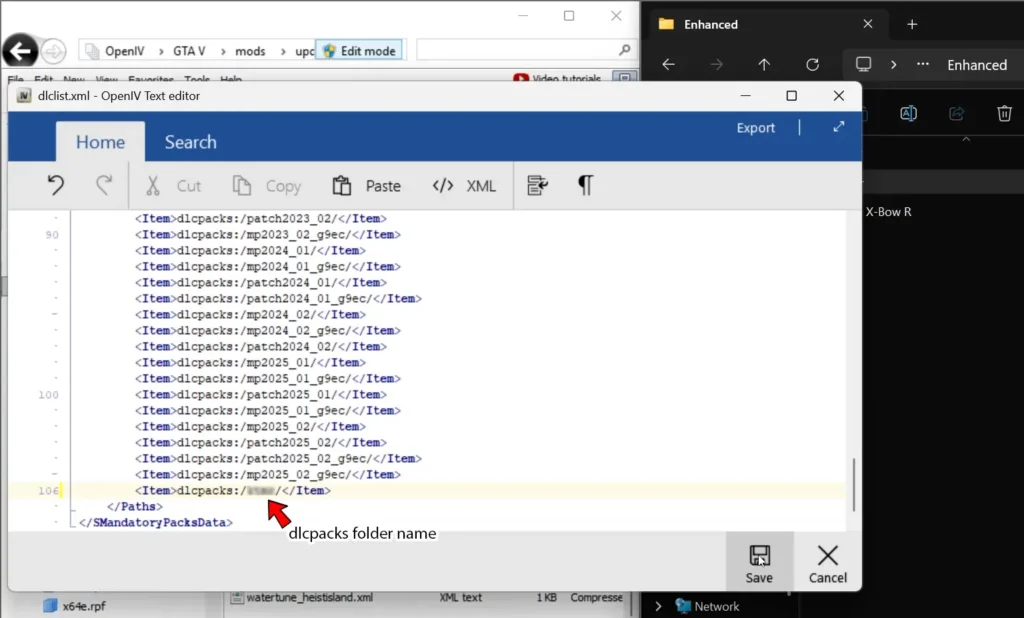
Inside dlclist.xml, scroll to the bottom of the list, just above:
</Paths>DLC List File Code:
Add a new line using this format in dlclist.xml file:
<Item>dlcpacks:/#/</Item>Replace # with your exact dlcpacks folder name.
Example:
<Item>dlcpacks:/m4competition/</Item>
<Item>dlcpacks:/newcitymap/</Item>
<Item>dlcpacks:/customhelicopter/</Item>
Important:
- The name must match the folder exactly (case sensitive).
- Do not remove existing entries.
- Each add-on requires its own line.
Example of a Correct dlclist.xml Section
<Paths>
    <Item>dlcpacks:/patchday1ng/</Item>
    <Item>dlcpacks:/patchday2ng/</Item>
    <Item>dlcpacks:/m4competition/</Item>
    <Item>dlcpacks:/newcitymap/</Item>
</Paths>
Save the file once finished.
You may like: GTA V Custom 100 Motorbikes Pack
Step 4: Launch the Game
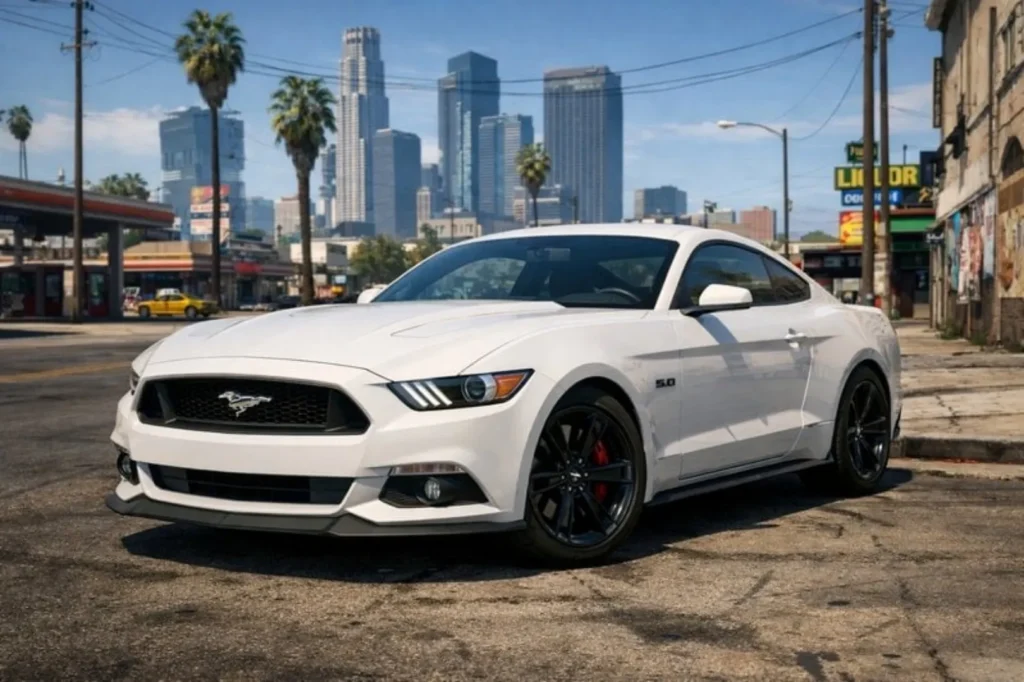
Start Grand Theft Auto V. If installed correctly:
- Add-on vehicles will spawn via trainer or in traffic (if configured).
- Map mods will load automatically.
- RPF-based content will function without replacing base game files.
You may like: Rampage Trainer (Enhanced & Legacy)
Common Problems & Fixes
Game crashes on launch
- Check for a missing slash
/ - Ensure
<Item>tags are properly closed - Confirm the folder name matches exactly
Vehicle not spawning
- Check that the
dlc.rpfcontains correctvehicles.meta,carcols.meta, etc. - Confirm you added the correct folder name in
dlclist.xml
You may like: Uptown Bank Heist – GTA 5 Mods
FAQ’s
Frequently Asked Questions:
Do I need to edit the original dlclist.xml file?
No. It is strongly recommended that you edit the copy located inside the mods folder rather than the original GTA 5 directory. This protects your base installation and prevents issues when GTA V updates.
Where exactly should I add the dlcpacks line?
You must add each <Item>dlcpacks:/NAME/</Item> line above the closing </Paths> tag in dlclist.xml. Placing it outside the <Paths> section will cause the GTA 5 to crash.
Can I add multiple dlcpacks at once?
Yes. Each add-on simply requires its own line in the list. You can add as many as needed, provided your GTA 5 build and hardware can handle them.
Why is my GTA 5 crashing after adding a dlcpack?
Crashes are usually caused by incorrect XML formatting, a missing slash, mismatched folder names, or a corrupted dlc.rpf. Double-check spelling, spacing and structure carefully.
Are folder names case-sensitive in GTA V?
Yes. The name inside <Item>dlcpacks:/Name/</Item> must match the folder name exactly, including capital letters. Even a small difference will stop the add-on from loading.
Do map mods use the same method as vehicles?
Yes. GTA 5 Map mods, vehicles, props and other RPF-based add-ons all use the same dlcpacks method. As long as the mod contains a properly structured dlc.rpf, the installation process is identical.