



Download the latest version of MSI Afterburner along with all releases, including old and new updates. Get MSI Afterburner with RivaTuner for Windows 11, Windows 10, Windows 8.1, and Windows 7, featuring full x86 (32-bit) and x64 (64-bit) versions.
Table of Contents
MSI Afterburner is free and safe to download for PC performance tuning, and GPU overclocking tools. You can take you on a journey through the intricacies of MSI Afterburner, exploring how to use it effectively to enhance your gaming experience.
We’ll also walk you through the process of setting up MSI Afterburner to monitor your in-game FPS, helping you keep an eye on your system’s performance while gaming with RivaTuner Statistics Server (RTSS), as well as during video rendering and 3D modeling.
About MSI Afterburner
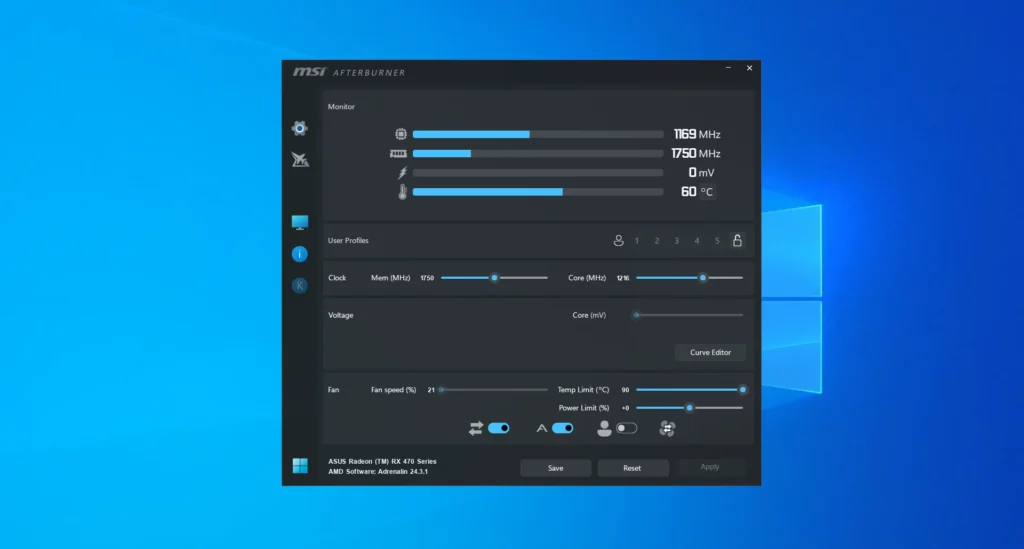
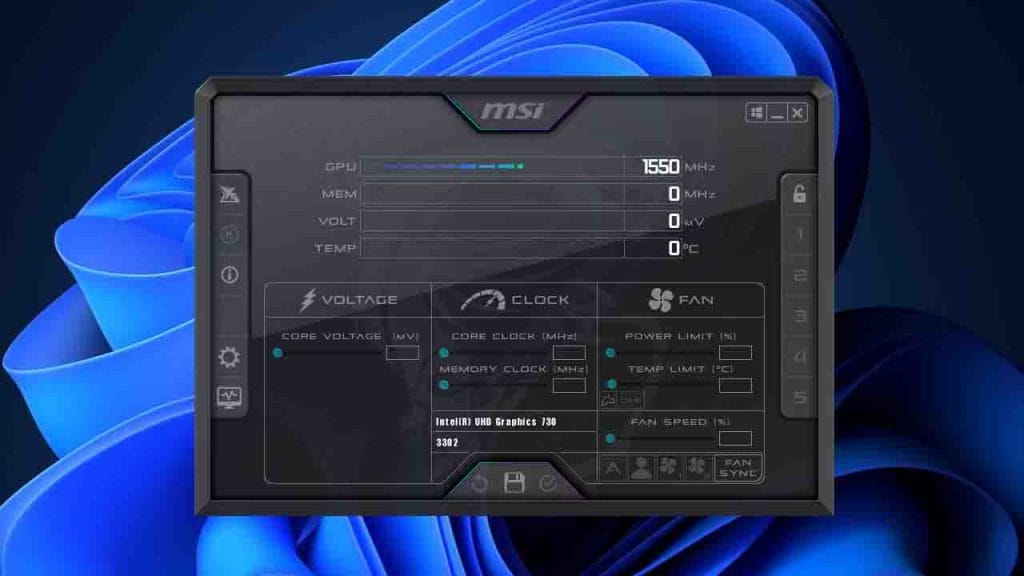
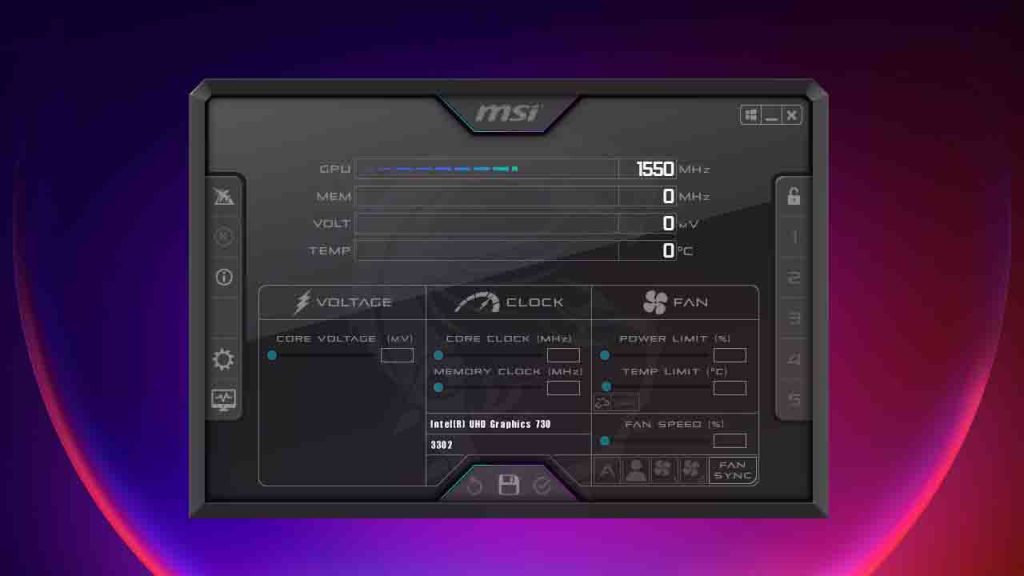
MSI Afterburner is a powerful and widely used GPU overclocking and hardware monitoring utility designed for Windows systems. It allows users to control graphics card settings such as core clock, memory clock, voltage, and fan speed to improve performance and stability.
Here are the key features of MSI Afterburner:
- GPU overclocking for core clock, memory clock, and voltage control
- Custom fan speed profiles for better cooling and noise management
- Real-time hardware monitoring for GPU, CPU, RAM, temperature, and usage
- On-screen display (OSD) support with RivaTuner Statistics Server (RTSS)
- One-click performance profiles and overclocking presets
- Built-in benchmarking and stress testing tools
- Screenshot and video capture support during gameplay
- Supports NVIDIA and AMD graphics cards
- Free, lightweight, and regularly updated performance tuning software
MSI Afterburner is compatible with most NVIDIA and AMD graphics cards, MSI Afterburner works on Windows 11, Windows 10, Windows 8.1, and Windows 7.
You may like: Razer Cortex Download to Boost PC FPS
About RivaTuner

RivaTuner is part of MSI Afterburner software, The RivaTuner application program includes RivaTuner Statistics Server (RTSS), which provides real-time, on-screen display of GPU usage, temperatures, frame rates, and other system metrics while gaming or running demanding applications.
Here are the key features of RivaTuner Statistics Server (RTSS):
- Real-time on-screen display (OSD) for FPS, GPU, CPU, RAM, and system performance
- Accurate in-game FPS monitoring and frame time analysis
- Frame rate limiting to reduce stuttering and screen tearing
- Customizable OSD layout, colors, fonts, and positioning
- Supports DirectX, OpenGL, and Vulkan applications
- Low system resource usage for smooth background operation
- Works seamlessly with MSI Afterburner hardware monitoring
- Ideal for gaming, benchmarking, video rendering, and 3D modeling
- Compatible with Windows 11, 10, 8.1, and 7
MSI Afterburner with RivaTuner also features built-in benchmarking, custom fan profiles, and detailed hardware monitoring graphs, making it a trusted tool for gamers, content creators, and PC enthusiasts.
Free to use and regularly updated, MSI Afterburner is known for its reliability, ease of use, and advanced performance tuning capabilities, helping users get the most out of their graphics hardware safely and efficiently.
You may like: GPU-Z – Check Your Graphics Card Information
How to Install and Use MSI Afterburner
MSI Afterburner is a free and powerful GPU overclocking and hardware monitoring tool used by gamers, PC enthusiasts, and content creators.

This section will cover how to install MSI Afterburner, app requirement, and tips on how to use it safely for best performance monitoring, FPS tracking, and GPU tuning:
MSI Afterburner System Requirements
- OS: Windows 11, 10, 8.1, 7
- GPU: NVIDIA, Intel, or AMD graphics card
- RAM: 8GB DDR3 or better
- Storage: 1GB SSD
- Rights: Administrator access for installation
MSI Afterburner & RivaTuner Installation

Here are steps on how to install MSI Afterburner and RivaTuner Statistics Server (RTSS), keep in mind for new versions it may required internet to compete installation:
- Get MSI Afterburner from the download section.
- Run the setup file as an administrator.
- Uncheck Norton 360 for Gamer Antivirus (Optional)
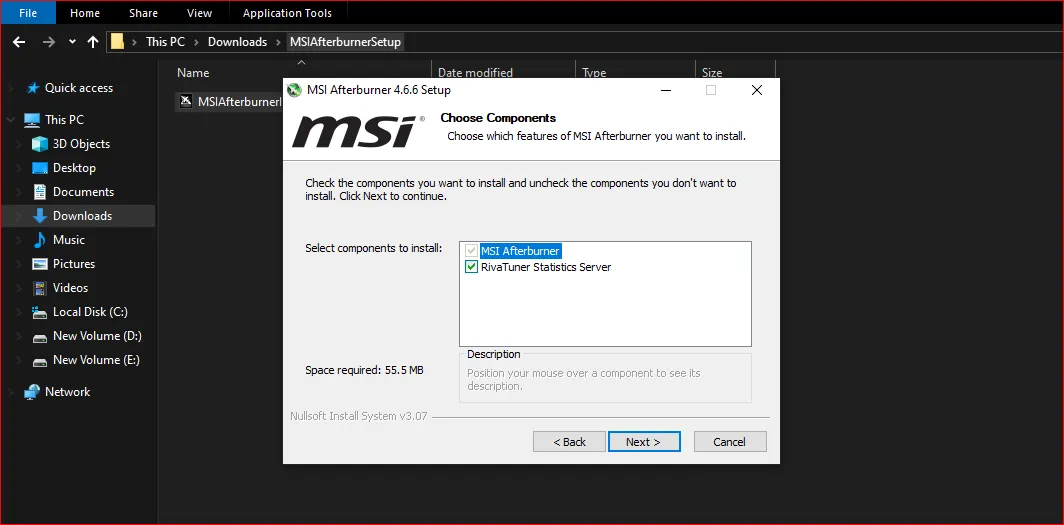
- During installation, make sure RivaTuner Statistics Server (RTSS) is selected.

RTSS is required for in-game FPS and on-screen display features. - Follow the on-screen instructions and complete the installation.
- Restart your PC if prompted.
First-Time Setup
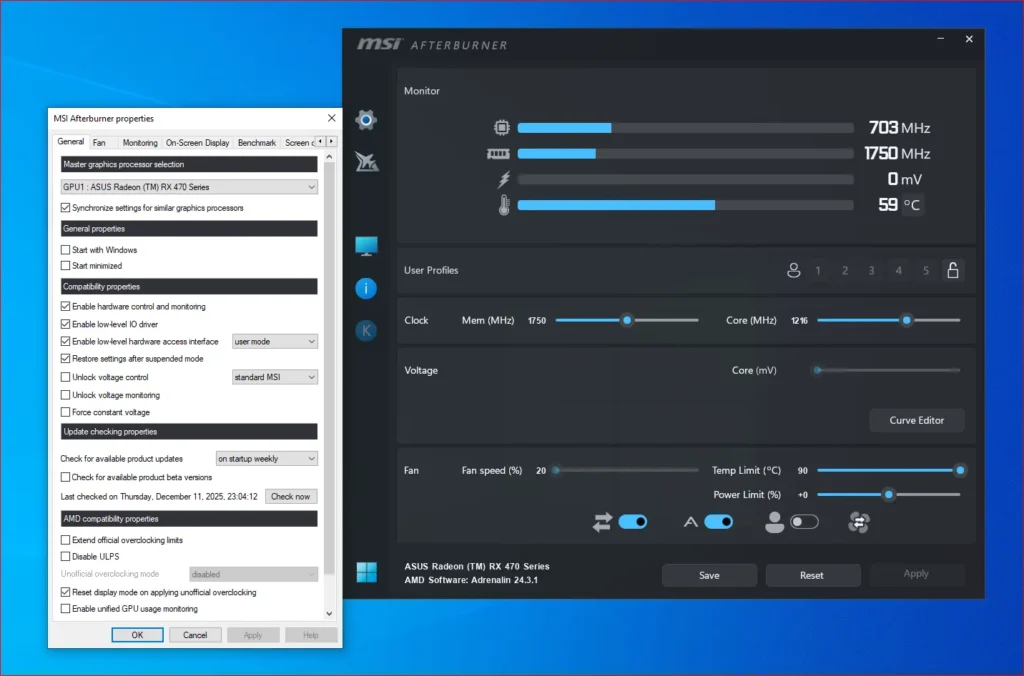
- Launch MSI Afterburner after installation.
- Click the Settings (gear icon) to open configuration options.
- Under the General tab, enable:
- Unlock voltage control (optional)
- Unlock voltage monitoring
- Start with Windows (optional)
- Click Apply and OK.
How to Monitor GPU Performance
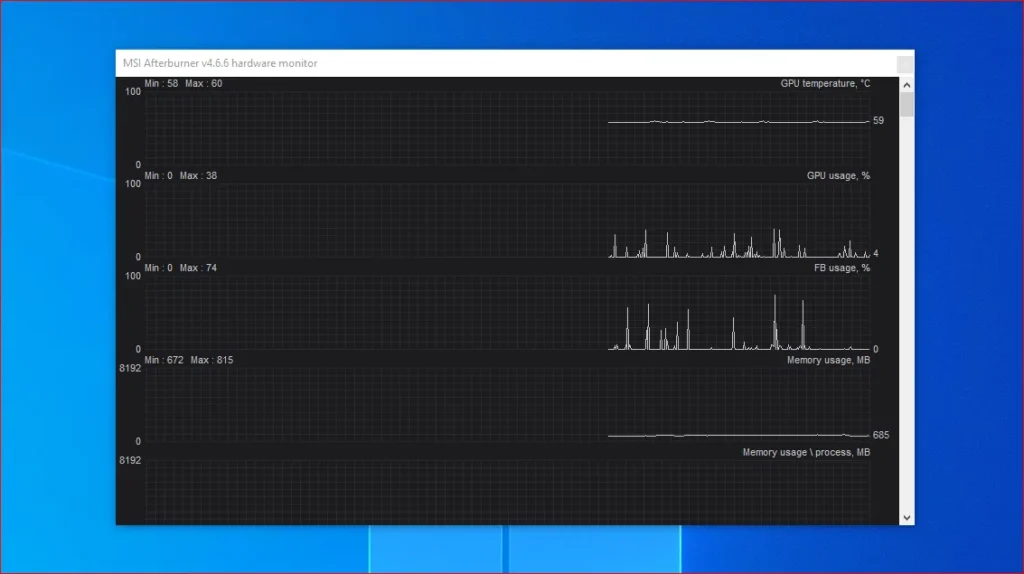
MSI Afterburner allows real-time monitoring of system performance:
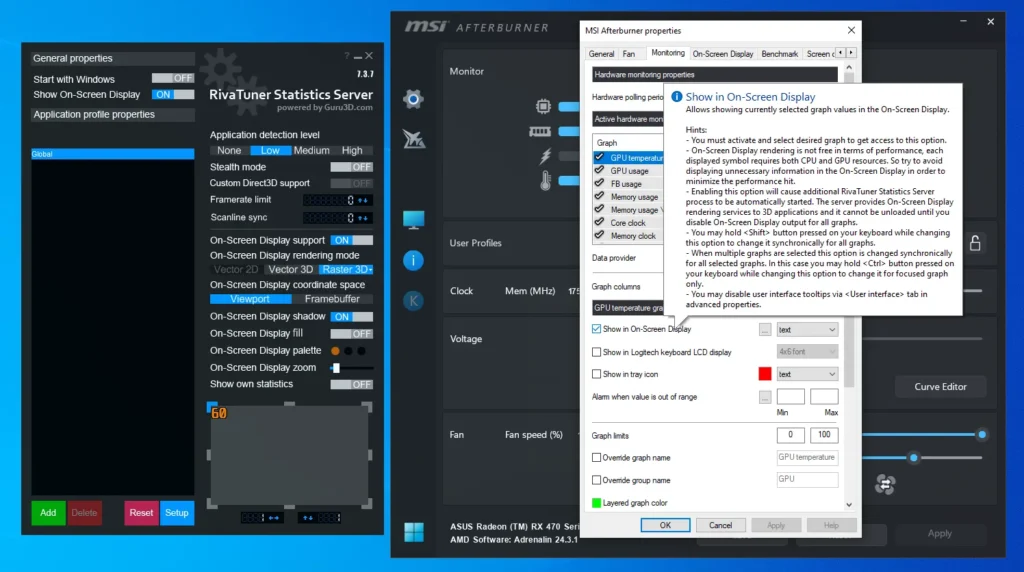
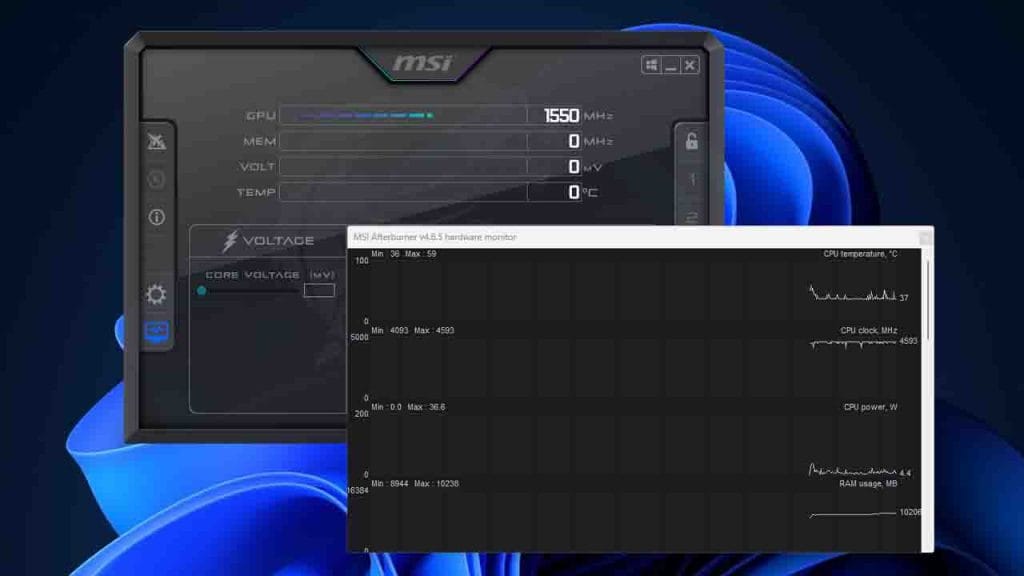
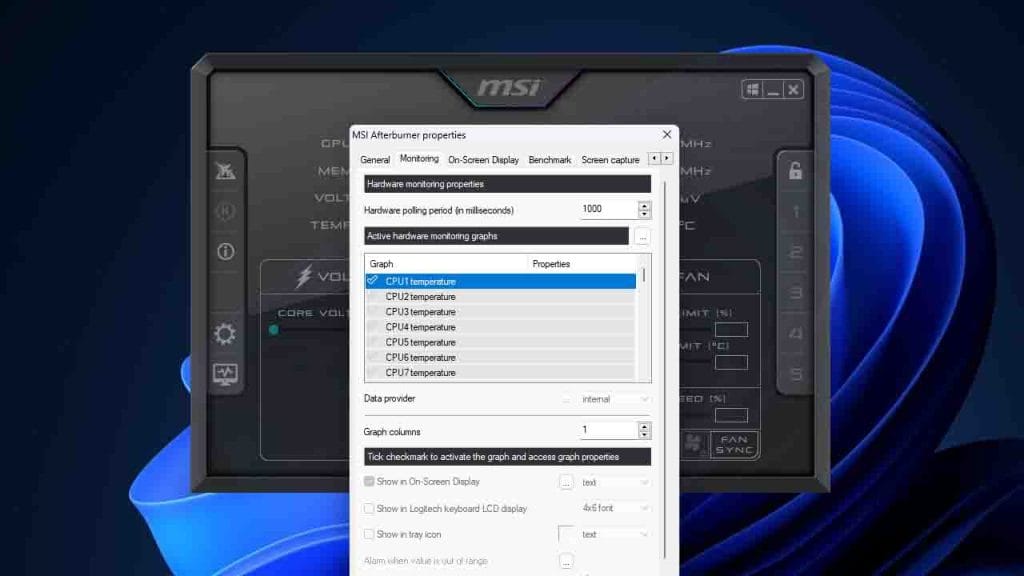
- Open Settings > Monitoring.
- Select metrics such as GPU temperature, GPU usage, CPU usage, RAM usage, and FPS.
- Check Show in On-Screen Display for each metric you want to see in games.
- Launch a game to view the on-screen display powered by RTSS.
How to Enable FPS Counter Using RivaTuner
- Ensure RivaTuner Statistics Server (RTSS) is running in the system tray.
- Open MSI Afterburner and go to Settings > Monitoring.
- Enable Framerate and set it to show in the On-Screen Display.
- Customize the OSD appearance using RTSS settings.
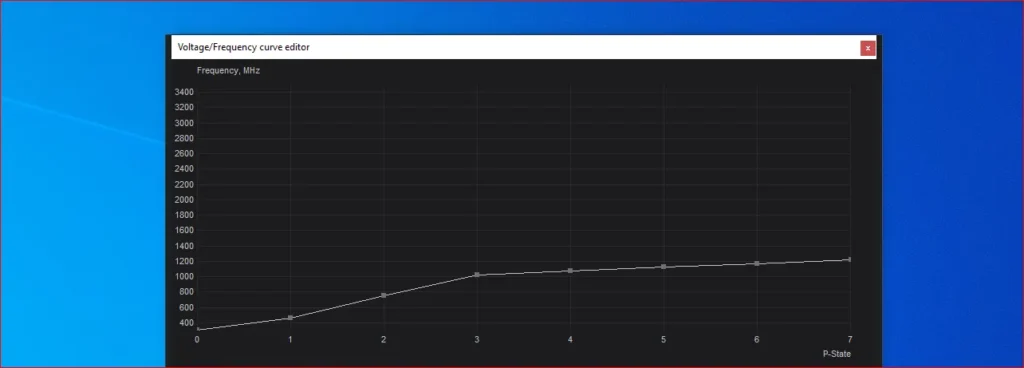
How to Overclock Your GPU Safely
⚠️ Overclocking should be done carefully to avoid instability or overheating.
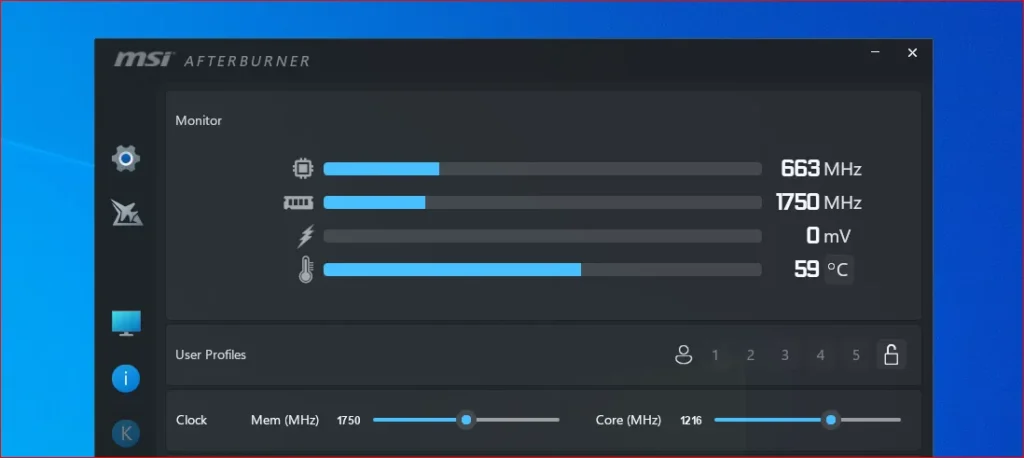
- Increase the Core Clock slightly (10–20 MHz).
- Click Apply and test stability using a game or benchmark.
- Increase Memory Clock gradually if stable.
- Monitor temperatures and performance closely.
- Save stable settings to a profile.
How to Create a Custom Fan Curve
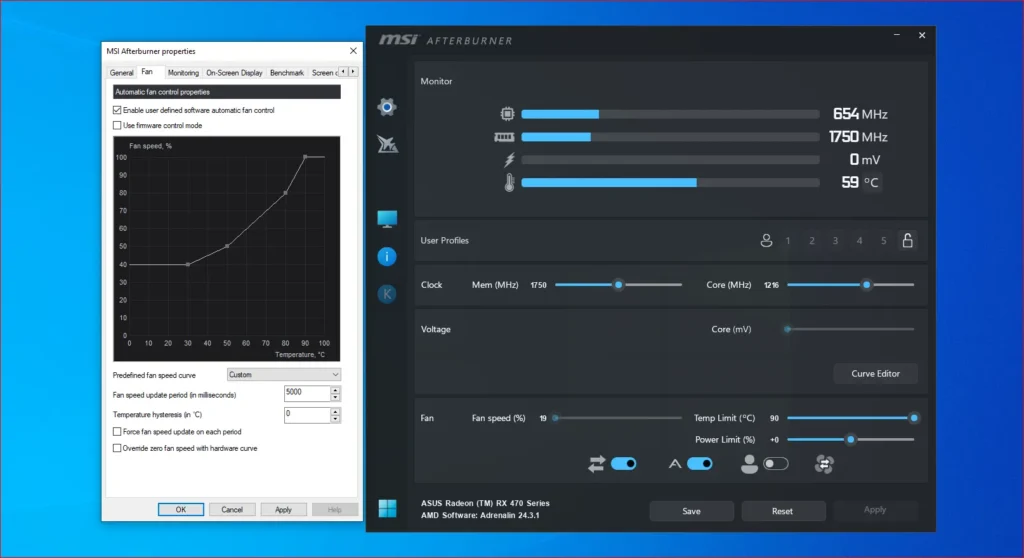
- Open Settings > Fan.
- Enable User-defined software automatic fan control.
- Adjust fan speed based on temperature points.
- Apply changes to maintain better cooling during heavy workloads.
Using MSI Afterburner for Gaming and Rendering
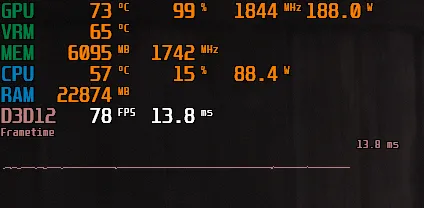
- Monitor FPS and frame time during gaming
- Track GPU load during video rendering and 3D modeling
- Reduce overheating with custom fan profiles
- Improve performance with controlled overclocking
Full Guide: How to Monitor In-Game FPS using MSI Afterburner
Tips for Safe Use
- Avoid extreme voltage increases
- Always monitor temperatures
- Test changes incrementally
- Reset to default settings if instability occurs
Conclusion
MSI Afterburner is a reliable and feature-rich tool for GPU monitoring, FPS tracking, and performance tuning. When used correctly with RivaTuner Statistics Server, it helps optimize gaming performance, rendering workflows, and overall system stability safely and effectively.
You may like: OpenGL Extensions Viewer – Test Graphic Performance
Installation Guide:
Download Section
If the above button is not working, you can download from the following section:
MSI Afterburner All Releases
| Version | Files | Mirror |
|---|---|---|
| v4.6.6 Final | Download | MediaFire |
| v4.6.5 | Download | MediaFire |
| v4.6.5.4 | Download | MediaFire |
| v4.6.4 | Download | MediaFire |
You may also like: How to Update Your Graphics?
Credits: MSI Software Team
FAQ’s
Frequently Asked Questions:
What is MSI Afterburner?
MSI Afterburner is a free GPU overclocking and hardware monitoring tool that allows users to control graphics card performance, fan speed, voltage, and system monitoring on Windows PCs. It supports both NVIDIA and AMD GPUs.
What is RivaTuner Statistics Server?
RivaTuner Statistics Server (RTSS) is an on-screen display and frame-rate monitoring tool bundled with MSI Afterburner. It shows real-time FPS, frame time, and system performance metrics while gaming or running 3D applications.
Is MSI Afterburner free to download?
Yes, MSI Afterburner is completely free to download and use. There are no paid versions, subscriptions, or hidden fees, and RivaTuner Statistics Server is included at no extra cost.
Does MSI Afterburner work with NVIDIA and AMD GPUs?
Yes, MSI Afterburner is compatible with most NVIDIA and AMD graphics cards, regardless of the manufacturer. It works with GPUs from brands like MSI, ASUS, Gigabyte, EVGA, and others.
Which Windows versions are supported?
MSI Afterburner supports Windows 11, Windows 10, Windows 8.1, and Windows 7. Both 32-bit (x86) and 64-bit (x64) versions are available for older systems.
Does MSI Afterburner include RivaTuner?
Yes, RivaTuner Statistics Server is included in the MSI Afterburner installer. You can choose to install it during setup, and it is required for FPS counters and on-screen display features.
Is MSI Afterburner safe to use?
es, MSI Afterburner is safe when downloaded from a trusted source like MSI or GameDecide. It does not harm hardware when default settings are used, and monitoring features are completely risk-free.
Can I download old versions of MSI Afterburner?
Yes, older versions of MSI Afterburner are available for users who need compatibility with legacy hardware or older Windows versions. These include previous stable releases with full functionality.
Do I need to overclock to use MSI Afterburner?
No, overclocking is optional. You can use MSI Afterburner purely for GPU monitoring, FPS tracking, fan control, and system performance analysis without changing clock speeds.
Does MSI Afterburner affect gaming performance?
No, MSI Afterburner runs efficiently in the background and has minimal impact on system performance. It is optimized to work smoothly during gaming, streaming, and rendering.
Can MSI Afterburner be used for video rendering and 3D modeling?
Yes, MSI Afterburner is widely used by content creators to monitor GPU usage, temperature, and performance during video rendering, 3D modeling, and other GPU-intensive tasks.
How do I uninstall MSI Afterburner and RivaTuner?
You can uninstall MSI Afterburner and RivaTuner Statistics Server from the Windows Control Panel or Settings app like any other program. Both tools can be removed independently if needed.
Can MSI Afterburner work with non-MSI graphics cards?
Yes, MSI Afterburner is compatible with a wide range of graphics cards from various manufacturers including NVidia, Intel and even AMD.
How do I reset MSI Afterburner settings?
In MSI Afterburner, you can reset settings by clicking the “Reset” button or closing and reopening the program.
Is MSI Afterburner only for gamers?
While gamers often use it for overclocking, MSI Afterburner can also be useful for content creators and professionals seeking optimal GPU performance.
Can I damage my graphics card with MSI Afterburner?
If used improperly, overclocking can potentially cause damage. However, if you follow best practices and monitor your hardware, the risks are minimal.


1 Comment
bhai msi afterburner best he our graphic card ko kafi mast control krta he. 🙂