Learn how to fix the ReShade error “Unable to save configuration and/or current preset” for GTA and other games. Ensure Reshade.ini and NVE.ini have correct file permissions, run the game as administrator, and apply simple fixes to save presets and settings without errors.
Table of Contents
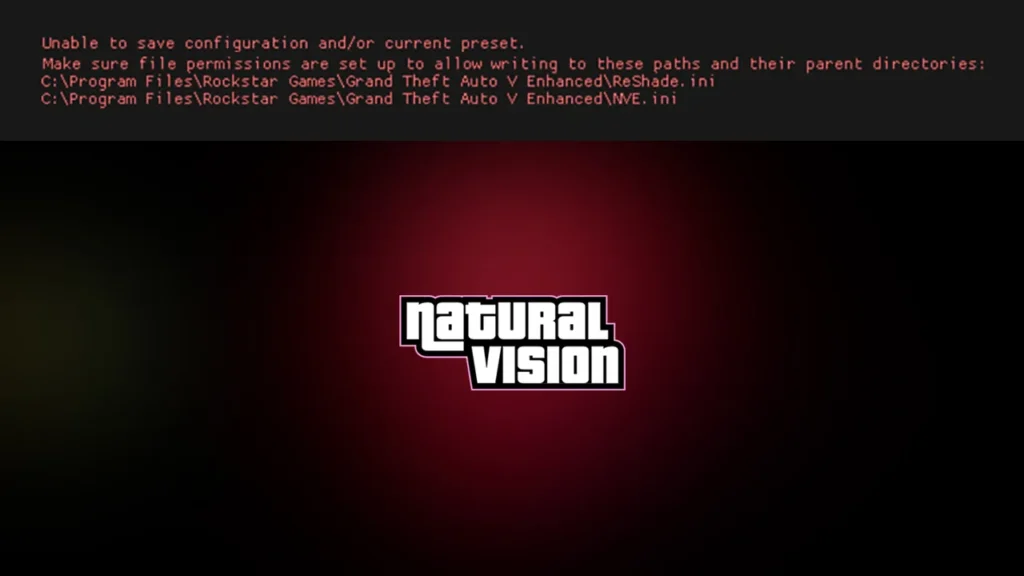
Error Code: “Unable to save configuration and/or current preset. Make sure file permissions are set up to allow writing to these paths and their parent directories:
C:\Program Files\Rockstar Games\Grand Theft Auto V Enhanced\Reshade.ini
C:\Program Files\Rockstar Games\Grand Theft Auto V Enhanced\NVE.ini”
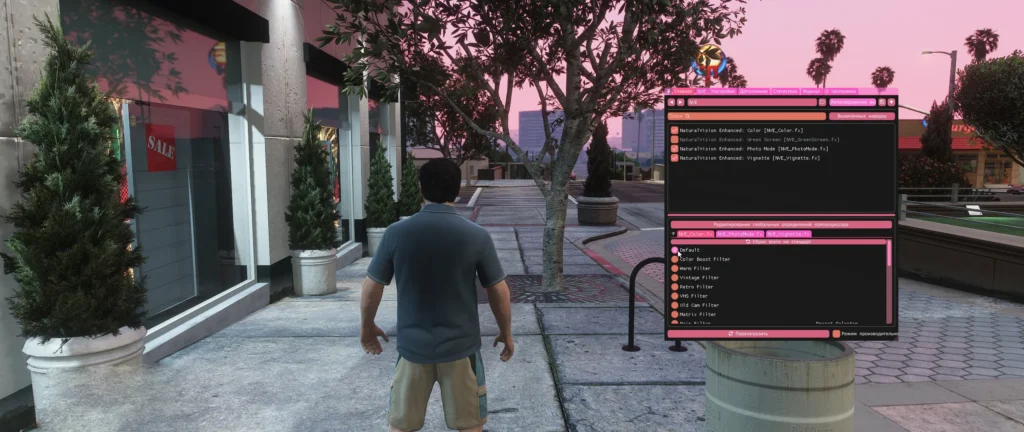
If you see the error message “Unable to save configuration and/or current preset” when running ReShade or a shader mod such as NaturalVision Enhanced (NVE) with GTA-based games, the issue is almost always due to file permission problems on your system.
ReShade must be able to write to the configuration files (such as Reshade.ini and NVE.ini) located in your game’s root folder. When Windows or your system settings prevent write access, ReShade cannot store changes to presets or settings, and the warning appears.
Why This Error Happens

ReShade displays the red error:
“Unable to save configuration and/or current preset. Make sure file permissions are set up to allow writing to these paths…
Reshade.ini/NVE.ini.”
This error typically occurs because:
- The game is installed under system-protected folders (e.g.
C:\Program Files), which restrict write access by default. - Your Windows user account lacks write permission for the ReShade and NVE .ini files or their parent directory.
- You’re running the game without Admin rights, so ReShade cannot modify files.
You may like: GTA 5 Mod Loader Enhanced/Legacy
How to Fix GTA 5 ReShade/NVE.ini Error
Here are the steps on how to fix this error reliably, improve game mod performance, and ensure Reshade.ini/NVE.ini updates work correctly:
1) Adjust File Permissions
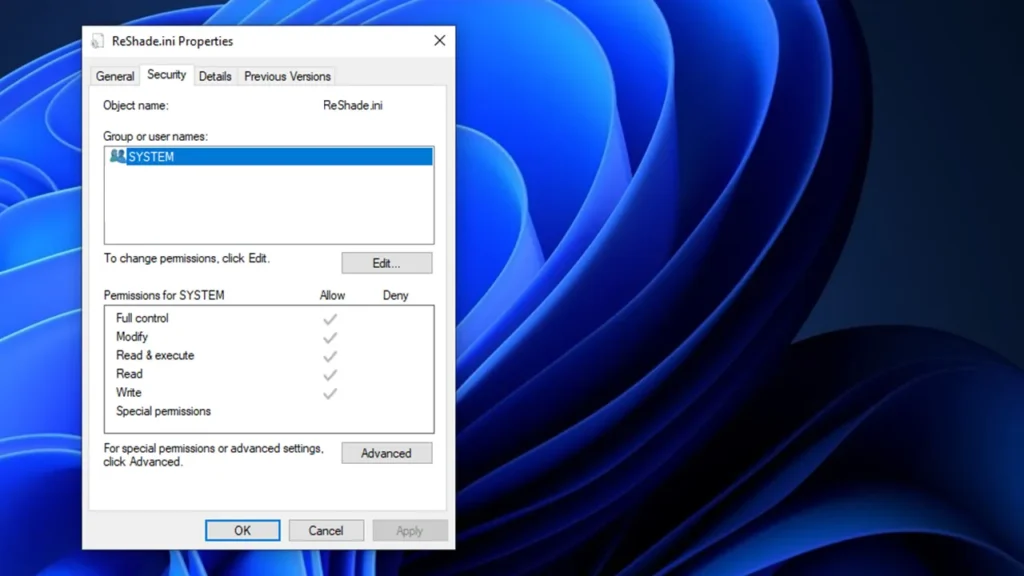
- Go to your game installation folder (GTA5 Enhanced, Legacy, or any modded game).
- Find the files:
Reshade.iniNVE.ini
- Right-click each file and select Properties.
- Go to the Security tab.
- Click Edit → Add.
- Type Everyone and click OK.
- Select Everyone, then check Full control under Allow.
- Click Apply → OK.
This gives full write permission to these files, letting ReShade save changes.
Tip: If the files are marked Read-only, uncheck this option under Properties → General before adjusting security settings.
2) Alternative Fixes
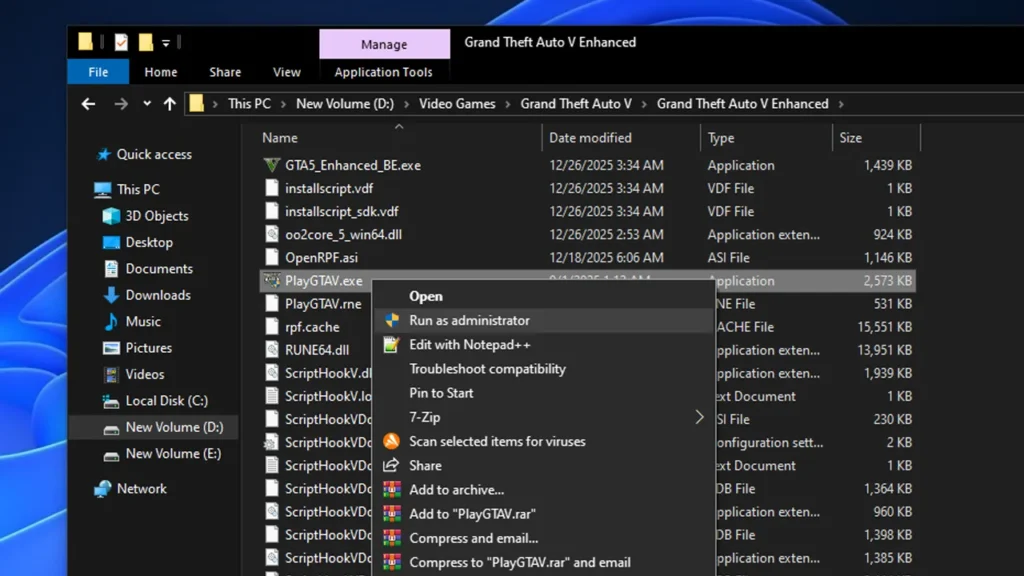
- Right-click the game executable (
GTA5.exeor equivalent). - Choose Run as administrator.
- Play the game and see if that helps.
This temporarily elevates privileges so ReShade can write to its configuration files.
3) Install the Game in a Non-Protected Folder
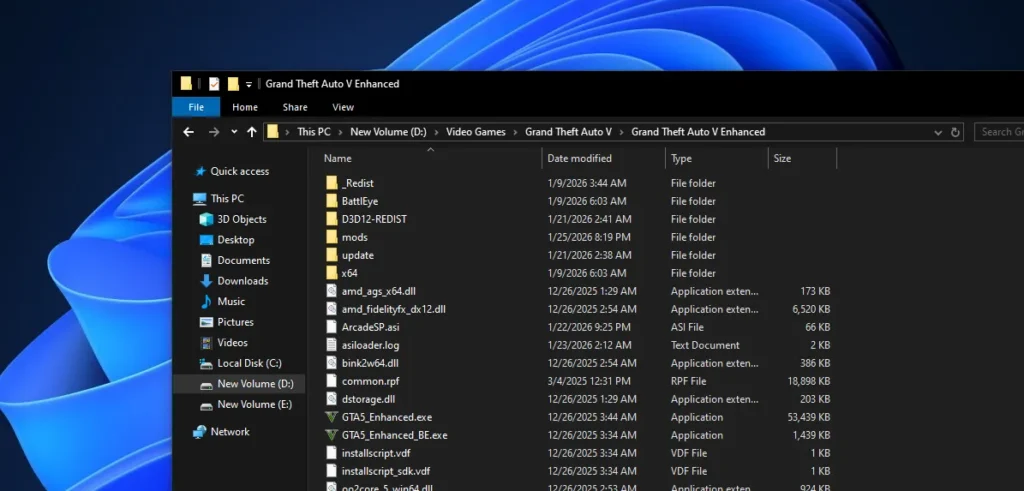
If your game is in C:\Program Files, Windows may block writing even with adjusted permissions. A proven workaround is:
- Create a folder such as
D:\Games\GTA5 Enhanced, and install or move the game there. - Re-install ReShade/NVE after relocating.
Many users report this removes persistent write-permission errors.
4) Delete and Recreate the Configuration Files
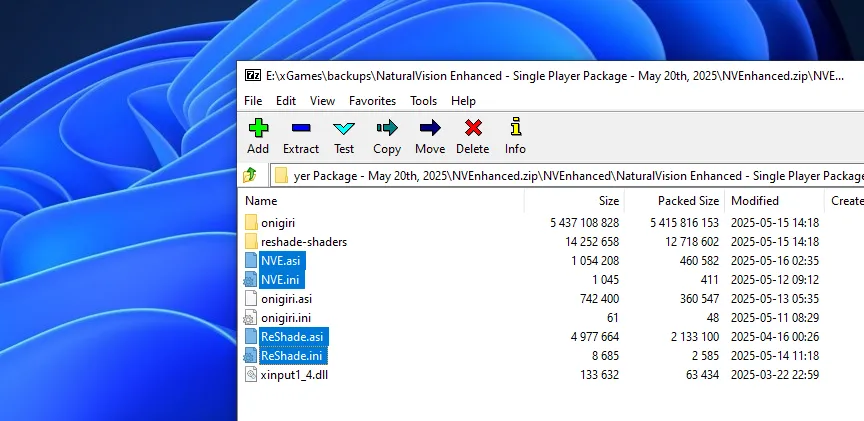
If permissions seem correct but the error persists:
- Delete
Reshade.iniandNVE.ini. - Get new files from the download section.
- Adjust permission again if needed.
- Run the game normally.
Important Notes
- ReShade must run with write access to save presets and settings. Incorrect permissions are the most common cause of this error.
- If you use mods like NVE, ensure their .ini files are writable as well.
- Running the game without Admin rights can stop file writes entirely.
Special Thanks to: Arceus X, SM4CK_
You may like: GTA 5 NaturalVision Lite Custom Settings for Low-End PCs
Download Section
From here, you can download the NaturalVision Enhanced (NVE) fresh Reshade and NVE config files along with other resources:
| For: NVEnhanced | Files |
|---|---|
| 31st December, 2025 | Download |
| 20th August, 2025 | Download |
| 10th July, 2025 | Download |
| May 20th, 2025 | Download |
Files for the Legacy edition of GTA V are currently unavailable, but the issue can be resolved using the above “How to Fix” guide.
FAQ’s
Frequently Asked Questions:
Why does ReShade say it cannot save my configuration?
This error usually occurs because ReShade cannot write to the configuration files, such as Reshade.ini or NVE.ini, in your game’s root folder. It is commonly caused by Windows file permission restrictions, read-only file attributes, or running the game without administrator privileges. Ensuring that the files and parent folders have full write access usually resolves the issue.
How do I give ReShade permission to save presets?
To fix the error, navigate to your game folder, right-click Reshade.ini and NVE.ini, select Properties → Security, and grant full control to your user account or Everyone. Make sure the files are not marked as read-only. Running the game as an administrator can also help ReShade apply and save changes.
Can ReShade error happen with NVE presets too?
Yes, mods like NaturalVision Enhanced/Evolved (NVE) store their own .ini files in the game folder. If ReShade cannot write to NVE.ini due to permission restrictions, it will fail to save your presets. Apply the same file permission fixes to these files as you would for Reshade.ini to ensure proper functionality.
Will moving the game folder fix ReShade error?
Sometimes, installing or moving the game to a non-system folder, such as outside C:\Program Files, can prevent Windows from blocking write access. Once the game is in a less restricted location, ReShade and NVE can save presets without encountering the configuration error.
What if the ReShade error persists after adjusting permissions?
If the issue continues, try deleting the existing .ini files (Reshade.ini and NVE.ini). Launch the game to generate fresh configuration files and reapply your settings. This ensures that corrupted or locked files do not prevent ReShade from saving your presets.
Is running the game as administrator necessary to fix ReShade errors?
Running the game as administrator is recommended, especially if it is installed in a system-protected folder. Administrator privileges allow ReShade to write to the configuration files and avoid permission errors, ensuring your presets and settings are saved correctly.
You may like: How to Run Cyberpunk 2077 on Low-End PC