


Learn how to configure default input locales for Windows language packs to personalise your keyboard layout and language preferences, as this guide covers tables of language codes, keyboard layouts, and shortcuts for seamless multilingual typing.
Table of Contents
Setting up the appropriate input locale, or keyboard layout, is essential for optimising typing, especially in a multilingual environment.
Microsoft Windows provides predefined input locales for various language packs, which can be easily configured to suit your regional or personal preferences.
How to Modify Input Locales for Windows Language Packs
Below is a step-by-step guide along with tables listing language codes and other relevant settings for all Windows based users with PC or Laptop:
Step 1: Access Language Settings in Windows
- Open Settings: Press the Windows key + I to open the Settings app.
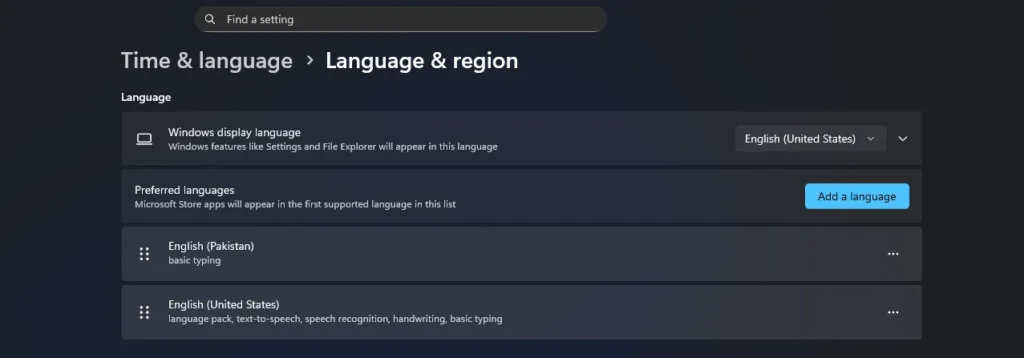
- Navigate to Language Options: Select Time & Language in the sidebar, then click on Language & Region.
Step 2: Add or Change a Language Pack
- In the Language & Region section, click on Add a language if the language you need isn’t installed.
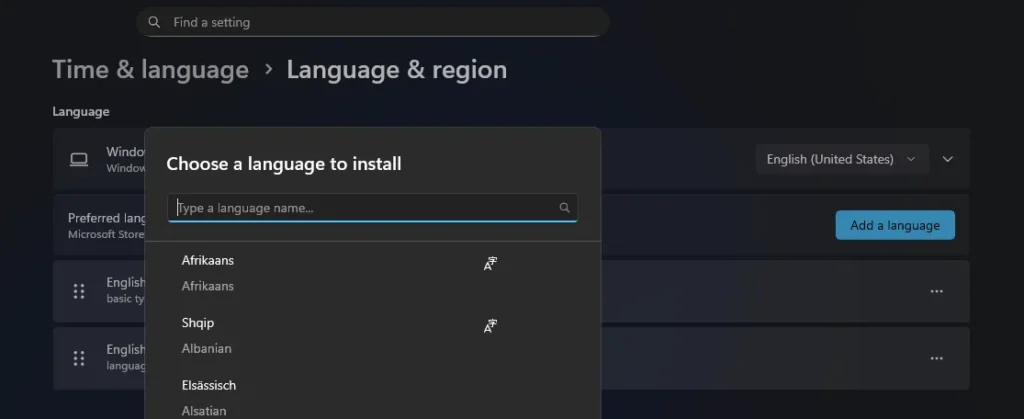
- Choose your preferred language by typing its name in the search bar.
- After selecting the language, click Next and check the box for Set as my display language if you wish to change the Windows interface language.
- Click Install to download the language pack, including the keyboard layout and other regional settings.
Common Language Codes and Keyboard Layouts
The table below lists frequently used input locales and their respective language codes. These codes are useful for confirming the locale settings and understanding the supported layouts in Windows.
| Language | Language Code | Keyboard Layout |
|---|---|---|
| English (US) | en-US | US QWERTY |
| English (UK) | en-GB | UK QWERTY |
| French (France) | fr-FR | AZERTY |
| German (Germany) | de-DE | QWERTZ |
| Spanish (Spain) | es-ES | QWERTY (Spanish) |
| Chinese (Simplified) | zh-CN | Pinyin |
| Japanese | ja-JP | Hiragana |
| Russian | ru-RU | Russian Keyboard (ЙЦУКЕН) |
For a full list of supported language codes, refer to Microsoft’s official documentation.
Step 3: Set the Input Locale (Keyboard Layout)
- Access Language Options: In the Language & Region settings, locate the language pack you installed. Click on the … (three dots) next to it, then select Language options.
- Add a Keyboard Layout: Under the Keyboards section, click Add a keyboard. Select the appropriate layout from the list.
- Set Default Layout: If you have multiple layouts, ensure the preferred one is set as default by moving it to the top of the list.

Example Keyboard Layouts by Region
Below are example keyboard layouts that are commonly selected per language. You can use these as a reference when setting up your preferred layout.
| Region | Example Layout |
|---|---|
| US | US QWERTY |
| UK | UK QWERTY |
| France | AZERTY |
| Germany | QWERTZ |
| Spain | Spanish QWERTY |
| China | Pinyin or Wubi |
| Japan | Hiragana |
| Russia | ЙЦУКЕН |
Step 4: Switch Between Keyboard Layouts (Optional)
If you have multiple input locales, you can switch between them as follows:
- Use Keyboard Shortcut: Press Windows key + Space to cycle through available layouts.
- Customise Shortcuts (Optional): Go to Settings > Time & Language > Typing > Advanced keyboard settings. Click Input language hot keys to assign specific shortcuts for switching layouts.
Step 5: Verify the Input Locale
- Open a Text Editor: Open Notepad or another text editor to test your layout.
- Test Key Positions: Verify that special keys (such as
@,£, and#) match your preferred layout.
Additional Tips for Multilingual Users
If you frequently switch between languages, setting up additional language packs with distinct keyboard layouts can help streamline typing.
| Language | Default Shortcut to Switch |
|---|---|
| English and French | Windows + Space |
| English and Chinese | Windows + Space |
| Japanese and English | ALT + Shift |
Summary
By following these steps, you can easily set up or customise your input locale in Windows to match your preferred language and keyboard layout.
For a full list of Microsoft-supported locales, visit their official documentation here.
You may like: List of Keyboard Virtual-Key Codes with Decimal/Hex Values