


Downloading files from Game Decide is a straightforward process, but if you are new to the site, it can be helpful to understand exactly how everything works.
This detailed guide walks you through each stage, from opening a post to securing your download safely, so you can enjoy a smooth, trouble-free experience.
How to Obtain Resources from a User Post?

Learn how to access files, use mirror links, handle passwords, fix download issues, and stay secure online. Here are the steps on how to download safely and easily from Game Decide with this complete step-by-step guide:
Step 1: Open a Post with Downloadable Content
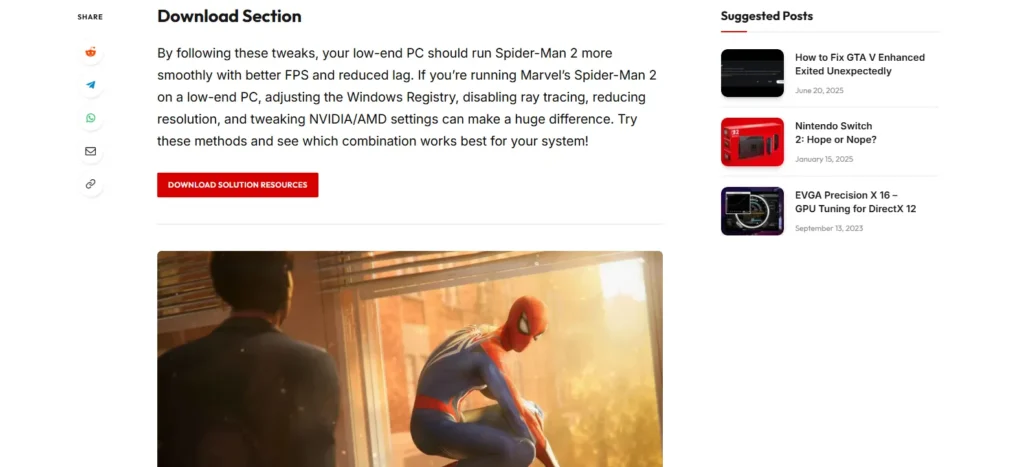
Begin by visiting the site and browsing for a post that includes the resources you’re interested in. Once you open the post, read through the content and look out for the section where download options are provided.
Disclaimer: All content featured on Game Decide is kindly submitted by users, and all files remain the rightful property of their respective creators. Game Decide does not host or store any files directly and simply provides access as a courtesy to the community.
Step 2: Select the File You Want
Simply scroll through the article until you reach the Download Section, which is usually placed towards the bottom of the page. This resources section will list all available files for that specific post, provided by the author.
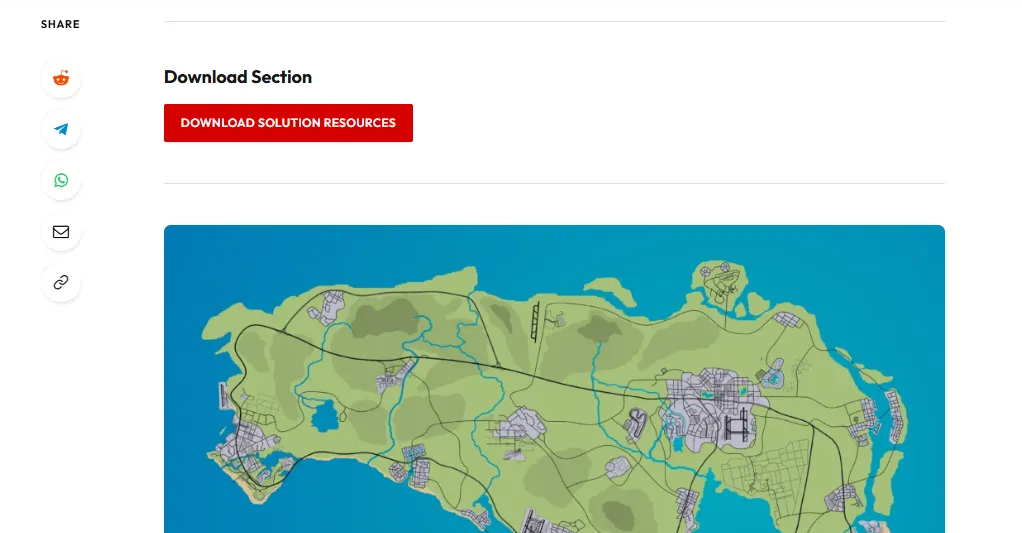
Within the Download Section, choose the file you wish to download. You’ll typically see two options:
- Download button – your primary download link
- Mirror link – an alternative link hosted on a separate server
Both links lead to the same file, so you’re free to use whichever works best for you.
Step 3: Proceed to the Download Page
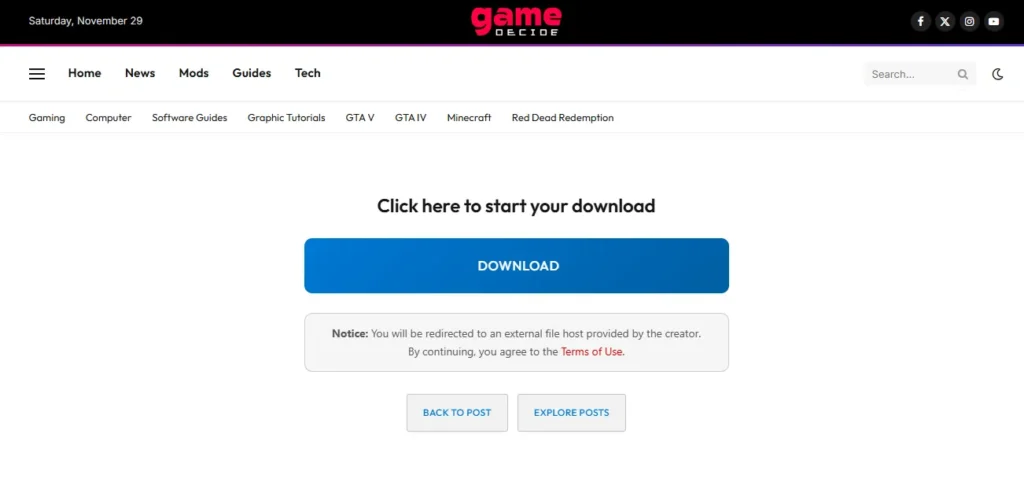
Clicking the resources download buttons or mirror link (if available) will take you to the main Download Page as shown in the above image.
- Locate the large Download button.
- Click it to begin the file preparation process.
- After a brief wait, the file will either:
- open on a hosting service such as Google Drive or MediaFire, or
- begin downloading directly if it is self-hosted.
Depending on your browser settings, the file may download automatically or request permission to save it to your device.
Step 4: Allow Your Browser to Open Properly
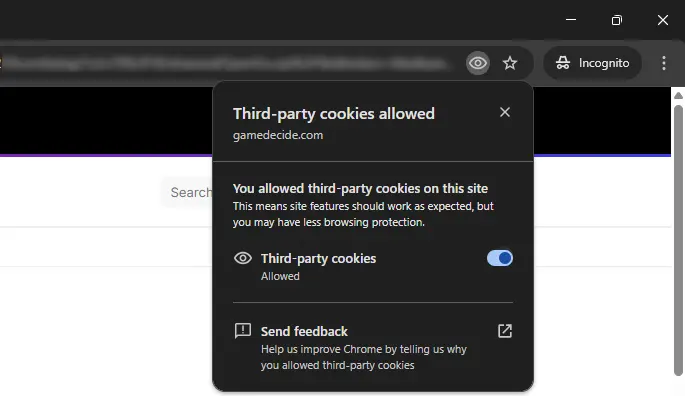
Some browsers block automatic downloads by default. If nothing appears to happen:
- Allow the site to open new tabs or pop-ups temporarily
- Look for a manual download link on the page and click it yourself
This will ensure the download begins correctly.
Step 5: Handling Password-Protected Files
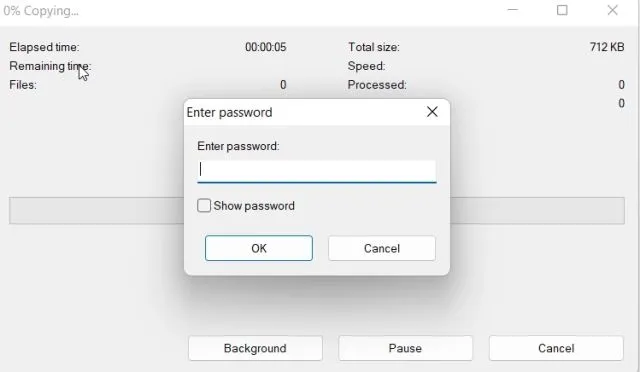
Occasionally, downloads may come with a password. To locate the password:
- Check the same post page where you found the download link.
- If it isn’t listed, visit the FAQs Page for commonly used passwords or additional assistance.
Step 6: Stay Safe While Downloading

Since Game Decide hosts files provided by various community contributors, it is important to stay secure:
- Always scan downloaded files with reputable antivirus software
- Avoid opening unknown files before verifying them
Taking these simple precautions helps keep your system protected.
Step 7: Multiple Files Download System

When downloading from our site, please note that some posts may contain multiple download links. If you begin downloading several files at once, you may need to refresh the post page containing the links.
This is due to the site’s download system, as links can expire if a post remains open for more than five minutes. Refreshing the page will generate new, active links, allowing your downloads to continue without interruption.
Step 8: Review the Terms of Use

Before downloading or using any content from Game Decide, make sure to read the Terms of Use. These explain:
- what you are allowed to do with downloaded files
- your responsibilities as a user
- the rights retained by content creators
Understanding these terms ensures you use the site appropriately.
FAQ’s
Frequently Asked Questions:
Are all downloads on the site free?
Yes, the files provided on the site are free to download unless otherwise stated within the post. All content on Game Decide is user-submitted, and all files remain the property of their respective authors. No files are hosted or stored on Game Decide.
Why won’t my download start automatically?
This is often caused by your browser blocking pop-ups or new tabs. Enable these temporarily and try again.
What should I do if the download link doesn’t work?
Try using the Mirror link (if available) instead. If it fails, try refreshing the page or revisiting later in case the hosting server is temporarily unavailable.
How do I find the password for a locked file?
Few authors use passwords on their files to protect them from hosting sites, and these passwords are usually written within the same post. If not, check the FAQs Page listed on the site.
Is it safe to download files from Game Decide?
Files come from a variety of contributors, so you should always scan your downloads with antivirus software and, ideally, use a VPN to stay protected.
Can I request re-uploads or additional mirrors?
Many posts allow comments or support messages. You can request alternative links if the current ones are unavailable.
Why are there multiple hosting sites?
Files come from a variety of contributors, so if one of the links gets broken, users can use the mirror link. However, it is always recommended to scan your downloads with antivirus software.
Can I post my own content on GameDecide.com?
Yes, you can post your own content on GameDecide.com as long as it’s original and follows their guidelines. For more details on how to become a creator, visit: https://gamedecide.com/creators/