This guide will walk you through the entire process of installing Native Trainer in GTA 5 mods, Native Trainer is a popular mod for Grand Theft Auto V that allows players to access a wide range of cheats and modifications within the game.
Table of Contents
With features like spawning vehicles, changing weather conditions, and giving yourself infinite ammo, Native Trainer is a must-have for players looking to fully customize their gameplay experience.
How to Install GTA 5 Native Trainer
Installing Native Trainer in GTA 5 is a straightforward process:
Step 1: Download the Necessary Files
Before installing Native Trainer, make sure you have all the required tools to run mods in GTA 5. These files are essential for the proper functioning of any mods, including Native Trainer.
Required Tools:
- Script Hook V: This tool allows custom scripts to run in GTA 5, and it’s crucial for Native Trainer to function properly.
- ASI Loader: This comes bundled with Script Hook V and allows you to load .asi files (such as Native Trainer).
To begin, download Script Hook V from the official source or from GTAModify.com, if available, to ensure compatibility with your game version.
Download Native Trainer:
- Navigate to the Native Trainer page.
- Click on the download link, and save the mod files to your computer.
Once you have downloaded Native Trainer, you are ready to start the installation process.
Step 2: Locate Your GTA 5 Installation Folder
To install the Native Trainer, you need to know where your GTA 5 game files are stored. Here’s how to find the installation folder:
- Steam Users:
- Open Steam and go to your game library.
- Right-click on GTA 5 and select “Properties.”
- Under the “Local Files” tab, click on “Browse Local Files.” This will open the folder where GTA 5 is installed.
- Rockstar Games Launcher Users:
- Open the Rockstar Games Launcher.
- Go to “Settings,” and under “My Installed Games,” select GTA 5.
- Click “View Installation Folder” to find the game’s directory.
Once you have the GTA 5 installation folder open, keep it open for the next steps.
Step 3: Extract Script Hook V and Native Trainer
Now that you have the necessary files downloaded, you need to extract the contents.
- Extract Script Hook V:
- Open the Script Hook V ZIP file you downloaded.
- Inside, you will find several files, including
ScriptHookV.dll,dinput8.dll(ASI Loader), and aNativeTrainer.asifile. - Extract all of these files to your GTA 5 main installation folder (the one you located in Step 2).
- Extract Native Trainer:
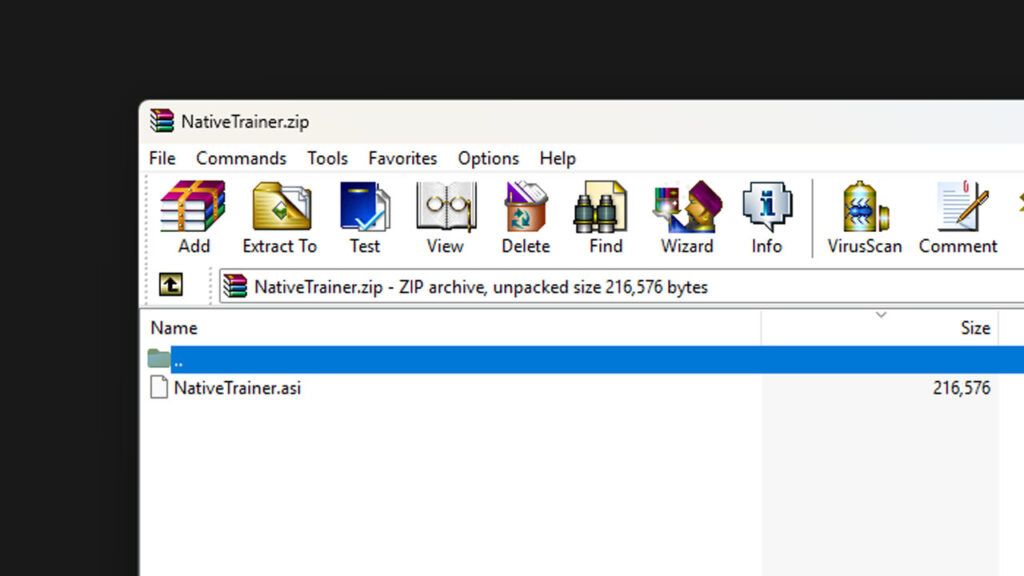
- Open the Native Trainer ZIP file downloaded from GTAModify.com.
- If the download includes
NativeTrainer.asi, it may overwrite the one that comes with Script Hook V. In most cases, this is the same file. - If there are additional configuration files, such as a
.inifile for customizing settings, copy those into the main GTA 5 directory as well.
At this point, both Script Hook V and Native Trainer should be installed in your GTA 5 directory.
Step 4: Launch GTA 5 and Open Native Trainer
With Native Trainer successfully installed, it’s time to launch GTA 5 and access the trainer in-game.
- Start GTA 5 as you normally would, either through Steam, the Rockstar Games Launcher, or Epic Games.
- Once in the game, press F4 on your keyboard. This will open the Native Trainer menu.
- Use the Numpad keys to navigate the menu:
- Numpad 8: Scroll up.
- Numpad 2: Scroll down.
- Numpad 5: Select an option.
- Numpad 0: Go back.
The Native Trainer menu allows you to enable cheats, spawn vehicles, change the weather, and much more. Explore the various options to customize your GTA 5 experience to your liking.
Step 5: Customizing Native Trainer (Optional)
If you’d like to change some of the default settings in Native Trainer, such as the keybindings or spawn options, you can modify the .ini file that came with the mod (if provided).
- Open the NativeTrainer.ini file with a text editor like Notepad.
- Look for lines where you can adjust settings, such as key mappings or default features.
- Save your changes and relaunch GTA 5 for the new settings to take effect.
You can download the Native Trainer for GTA 5 mods form the below download page button:
Troubleshooting Tips
If you encounter any issues while trying to install or run Native Trainer, here are a few common solutions:
- Game crashes on startup: Ensure that you are using the latest version of Script Hook V, and that it’s compatible with your GTA 5 version.
- Trainer menu not opening: Double-check that
NativeTrainer.asiis placed in the main GTA 5 directory, and press F4 to open the menu. - Keybindings not working: Make sure your Numpad is enabled (sometimes the “Num Lock” key must be activated).
Conclusion
Installing Native Trainer in GTA 5 is a straightforward process, especially after downloading it from GTAModify.com. By following the steps outlined above, you’ll be able to access a wide range of cheats and modifications that allow you to fully customize your gameplay.